“Make a tiny box that fits around your F1 key.”
⌘T is a very important shortcut in Slack. It allows you to quickly talk to someone just by typing in their name. I use it probably dozens, if not hundreds of times a day.
⌘T is right next to ⌘R, which reloads Slack. Occasionally, on the way to ⌘T, my fingers graze ⌘R. Fingers being fingers, I immediately realize something went wrong and wince, and within a second or two I witness Slack completely reloading. It’s not a big deal – no data is lost, and the reload is only 5 to 10 seconds, but when you move fast, it feels like eternity.
⌘O is a very important shortcut in Finder. It opens the selected file in the correct app. I use it probably dozens, if not hundreds of times a day.
⌘O is right next to ⌘P, which prints the file I’m pointing to. Curiously, and in contrast with most apps, the print function is not gated in any way by a confirmation dialog box, or an intermediate print settings window.
So, occasionally, on the way to ⌘O, my fingers graze ⌘P. Fingers being fingers, I immediately realize something went wrong and wince, and within a few seconds, the lights in my old apartment dim for a second. Then, far away, I hear the recognizable sound of my laser printer spitting out a page.
Gamers used to deride Windows key for automatically ejecting them from the game to the desktop, before an option to disable it started appearing in gaming keyboards. (Some of the professional gaming leagues were very strict about how a player could use their keyboard.)
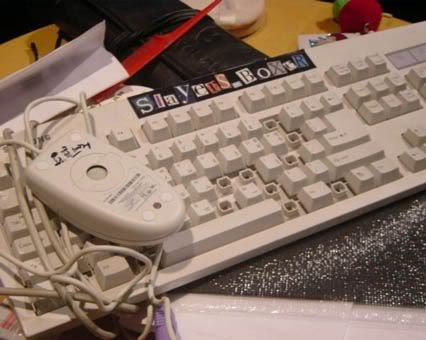
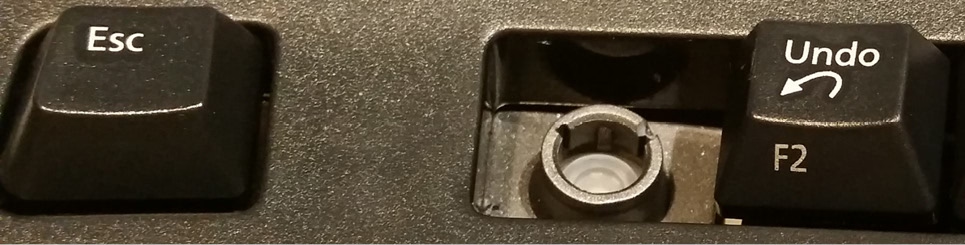
Similarly, professional Excel champions and players started physically removing keys: In Excel, F1 (right next to an often-used F2) opens the help dialog and slows you down.
I served as a judge for the ModelOff Financial Modeling Championships in NYC twice. On my first visit, I was watching contestant Martijn Reekers work in Excel. He was constantly pressing F2 and Esc with his left hand. His right hand was on the arrow keys, swiftly moving from cell to cell. F2 puts the cell in Edit mode so you can see the formula in the cell. Esc exits Edit mode and shows you the number. Martijn would press F2 and Esc at least three times every second.
But here is the funny part: What dangerous key is between F2 and Esc? F1.
If you accidentally press F1, you will have a 10-second delay while Excel loads online Help. If you are analyzing three cells a second, a 10-second delay would be a disaster. You might as well go to lunch. So, Martijn had pried the F1 key from his keyboard so he would never accidentally press it.
I enjoyed this essay that presents prying off the key as a rite of passage:
Removing the F1 key from the equation is just the beginning. By embracing the keyboard-centric approach, you have the opportunity to become an Excel Wizard!! Okay, maybe that’s not a technical term, but it perfectly captures the essence of those who navigate Excel solely using the keyboard.
And I particularly liked this tongue-in-cheek answer telling people they could construct their own homemade molly guard to protect against “fat-fingering”:
Here’s an alternative snippet that can be used:
- Use bits of plastic or cardboard to make a tiny box that fits around your F1 key.
- Affix this box with duct tape, so that the F1 key is guarded.
- Fool-proof, works on any key, and can easily be reversed if needed!
Obviously, none of this can help me with my ⌘R and ⌘P woes, so, two final thoughts:
- If your app has a well-trafficked shortcut, it’s worth thinking of the shortcuts immediately adjacent to that one. Could they cause any inadvertent damage or even confusion?
- Apps and operating systems should very easily allow you to unset a keyboard shortcut, in addition to setting or changing it. (Unfortunately, this is not as common as it should be.)