Testing tip: Enable the zoom peek gesture
Go to Settings > Accessibility > Zoom, and then turn on “Use scroll gesture with modifier keys to zoom.”
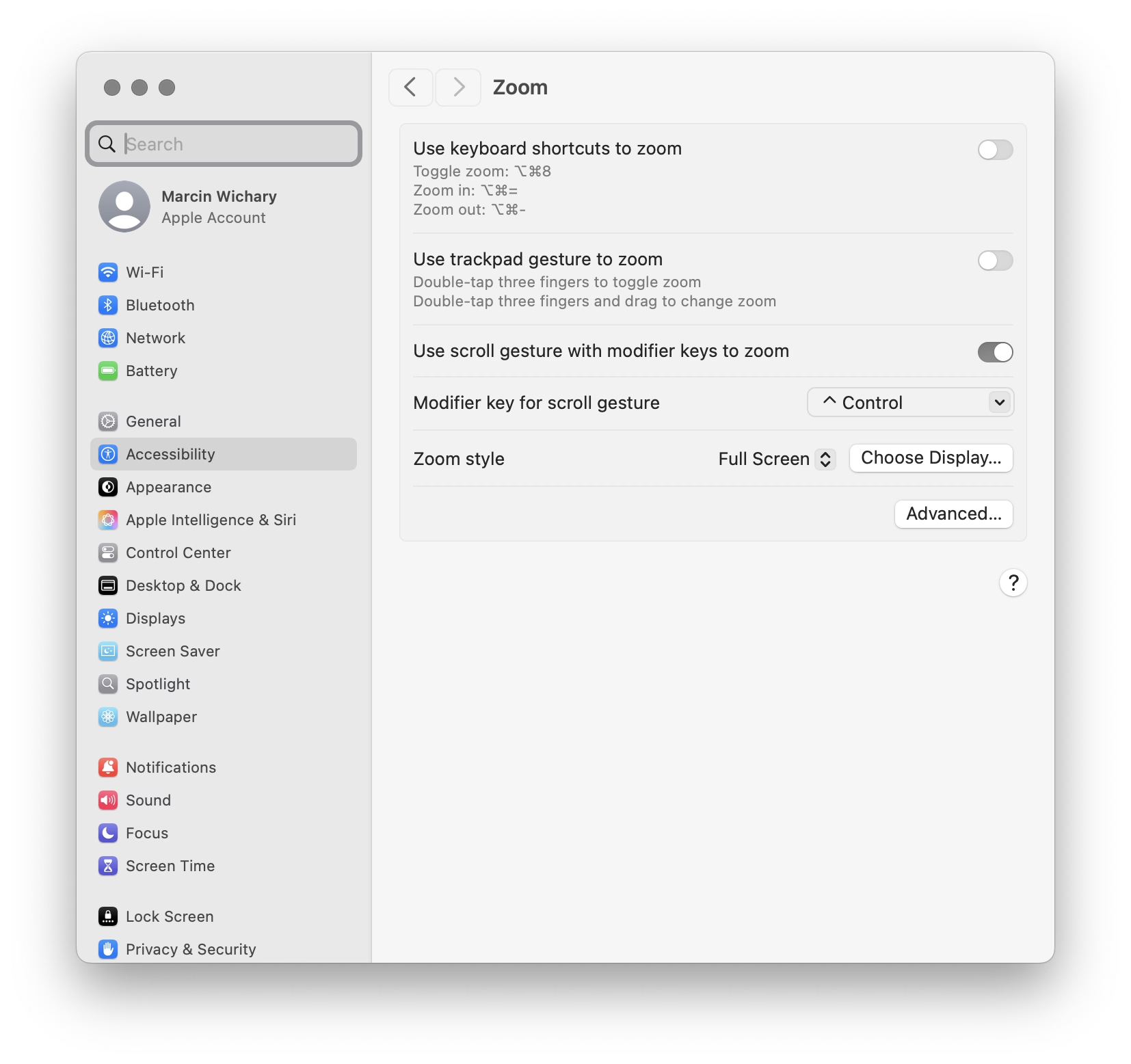
Then, at any moment, you can hold Control and swipe with two fingers (or use a scroll wheel) up or down to zoom the entire screen.
I’d also recommend turning off “Smooth images” under “Advanced…” so you see individual pixels better:
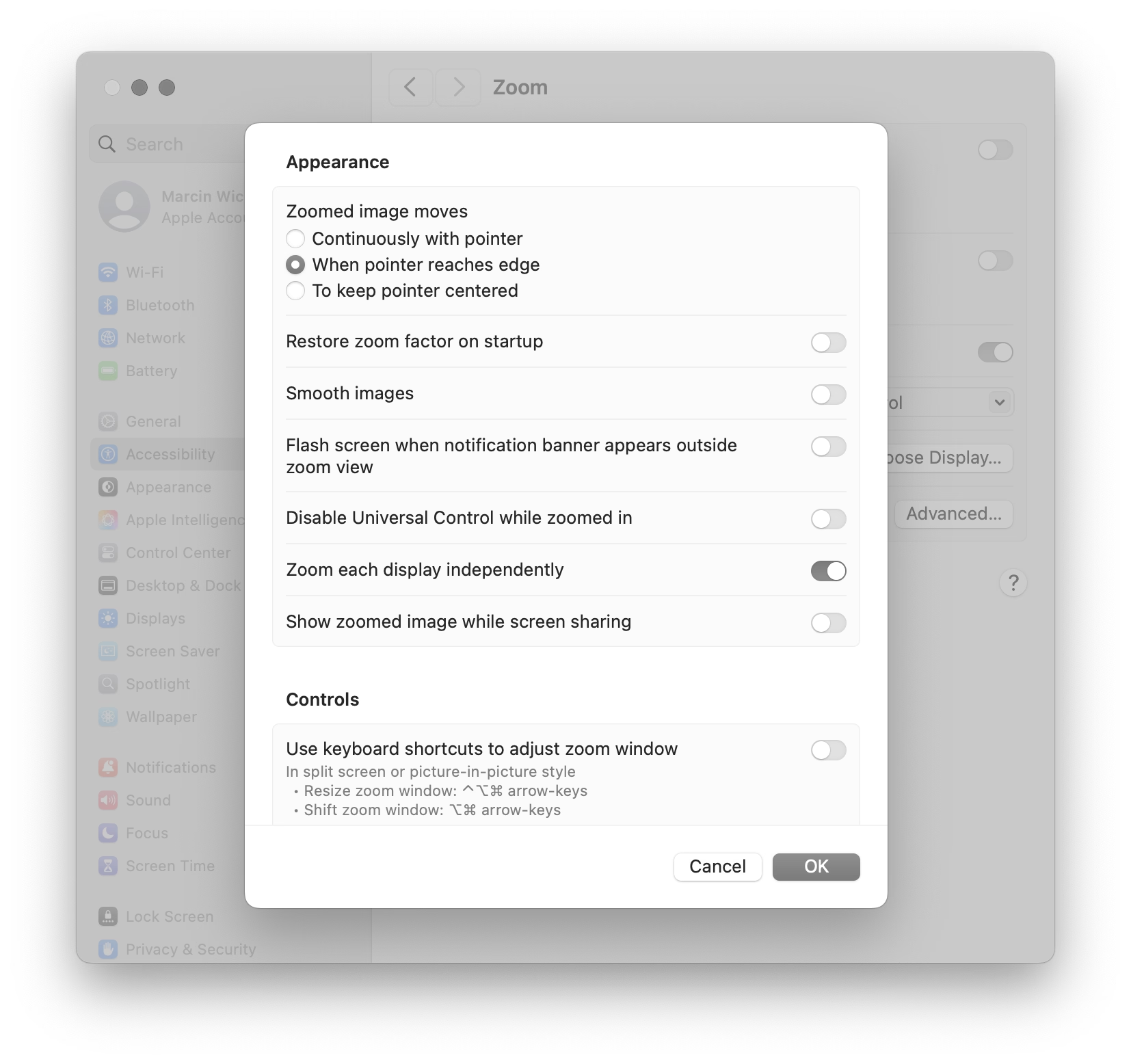
Over the years, I found this feature very useful to inspect various misalignments, to check visual details, and occasionally simply to read text that’s too small.
Compared to other ways of zooming, this one has three benefits:
- it’s extremely motor-memory friendly and so my fingers do it without me even thinking
- it’s a system-wide thing, so it will work everywhere
- it’s safe, because it’s something that I call a peek gesture
Peek gestures are fast, but the main benefit is that they’re safe. In some apps, pressing ⌘+ a few times and then ⌘– the matching amount of times doesn’t guarantee you will end up back in the same situation. The window size might change, the scroll position might move, the cursor might end up in a different place. In contrast, the Ctrl gesture is 100% deterministic and reversible; it will always work the same and never mess anything up.
I treasure peek gestures in general. Here are a few other useful (and/or inspiring?) ones:
- previewing things in Finder by pressing (or, for power users, holding) the spacebar
- using ⌘⇧4 with the intention not to take a screenshot, but just to (roughly) measure a distance between two objects, and then pressing Esc to abort
- in tools like Figma and Sketch, using Ctrl+C just to quickly verify the color, and likewise, pressing Esc to cancel (rather than clicking to put the color into the clipboard or apply it elsewhere)