Why do Macs ask you to press random keys when connecting a new keyboard?
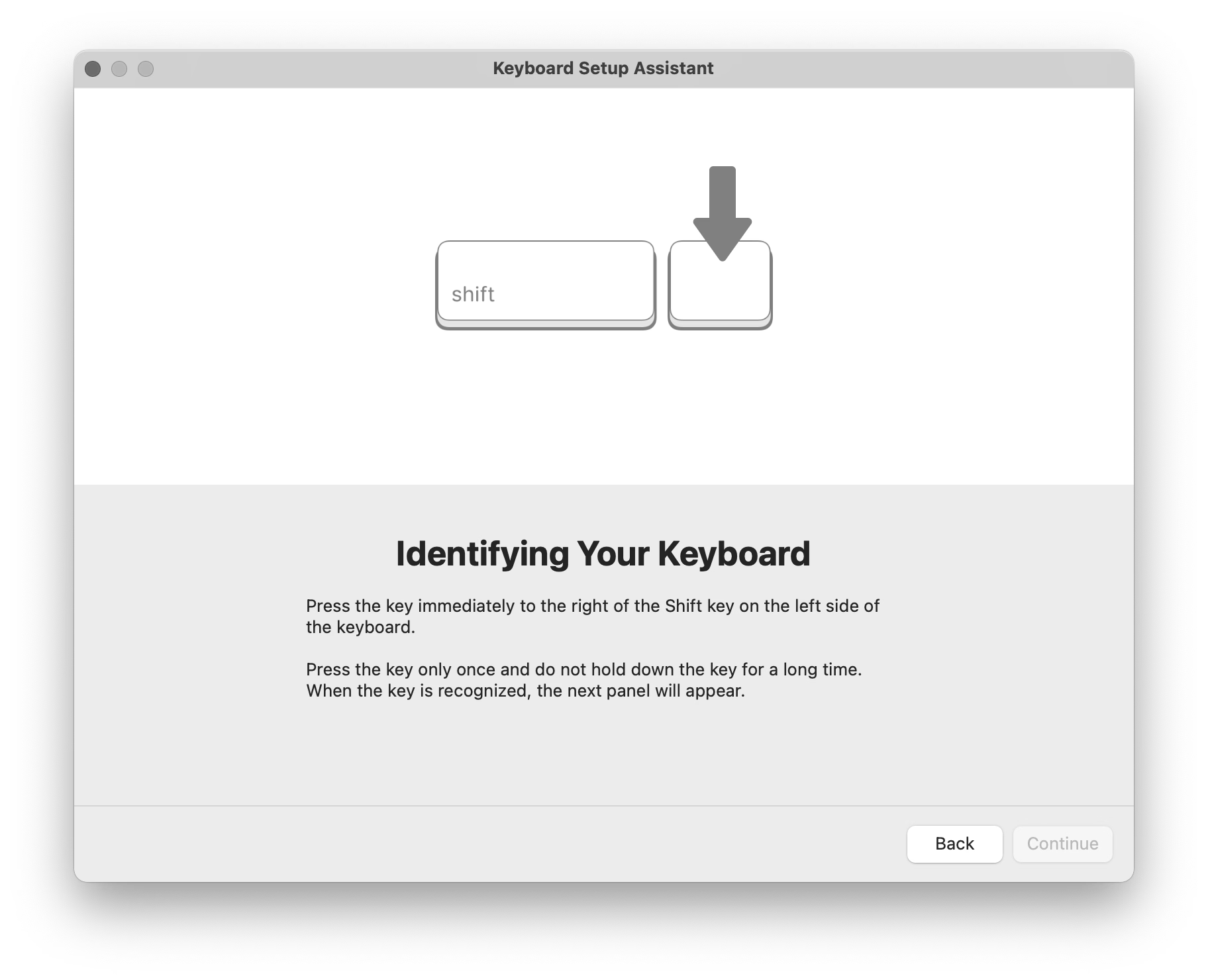
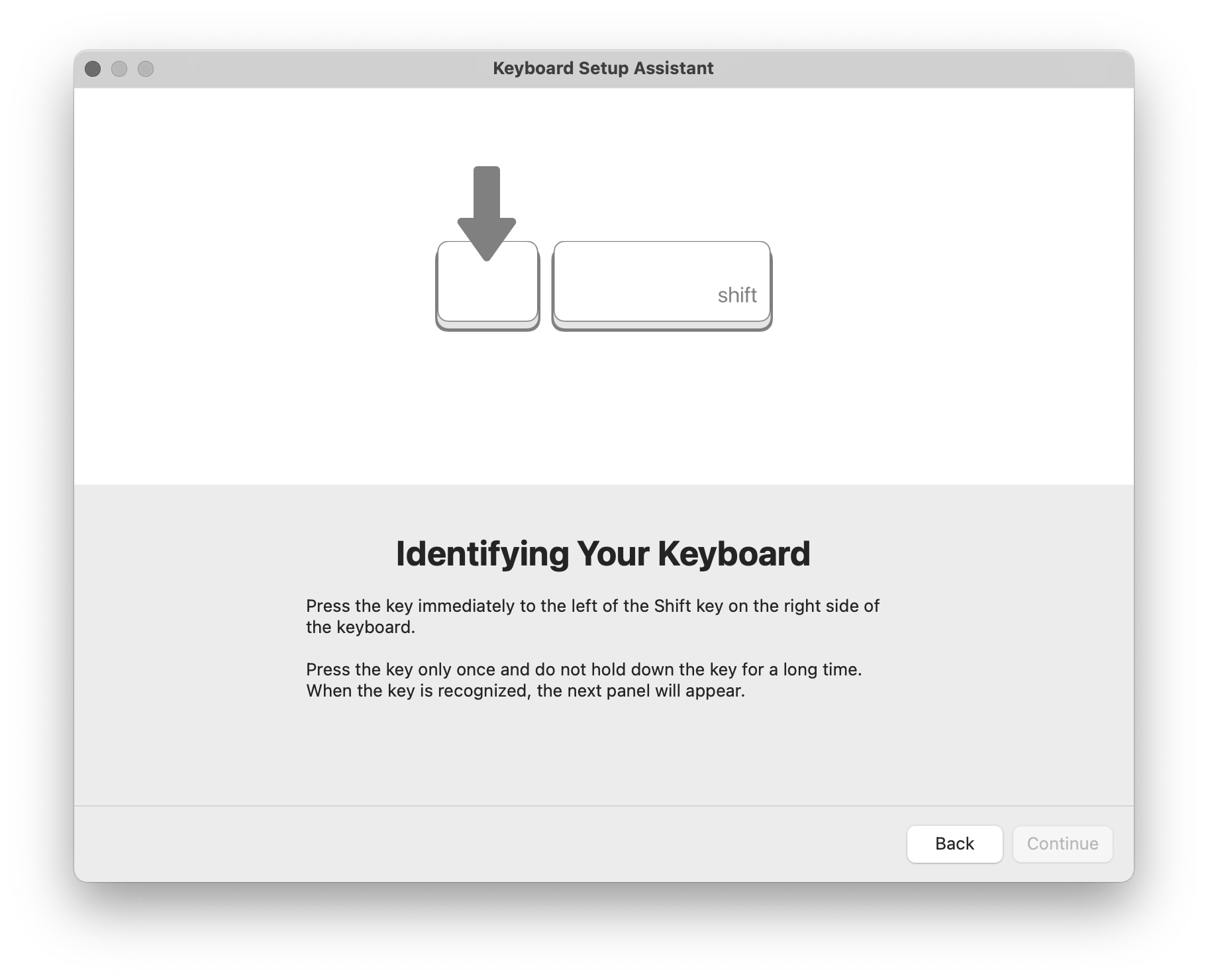
You might have seen this, one of the strangest and most primitive experiences in macOS, where you’re asked to press keys next to left Shift and right Shift, whatever they might be.
Perhaps I can explain.
There are three main international keyboard layout variants in common use: American (ANSI, with a horizontal Enter), European (ISO, with a vertical Enter), and Japanese (JIS, with a square-ish Enter).
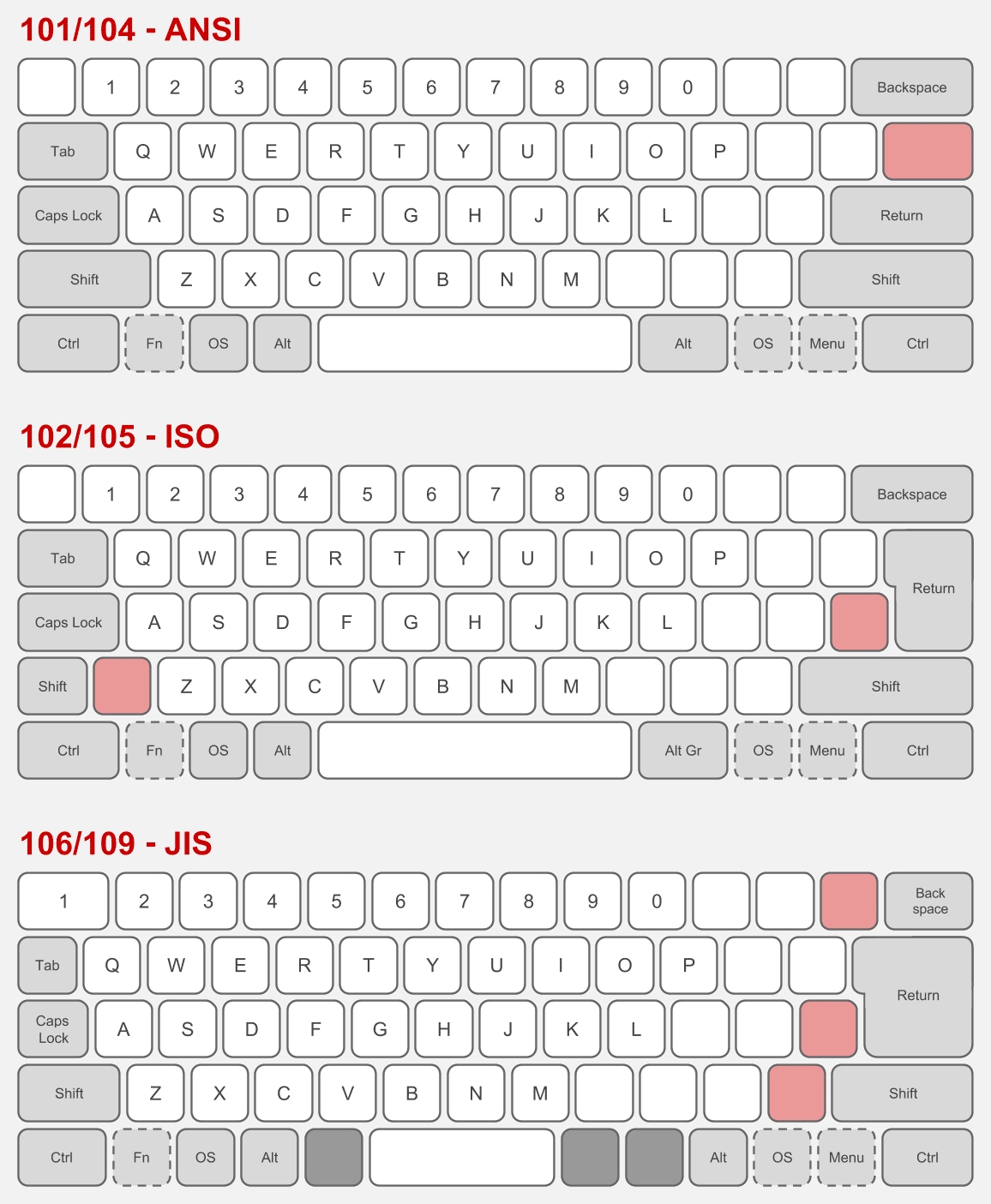
The shape of Enter and the shuffling of the surrounding keys is not the only difference. It’s also that the European layout has historically always had one more key – shoved in between Shift and Z – and the Japanese layout a few more.
But the main challenge is that a keyboard doesn’t have a way to tell the host computer what are its exact keys and where they’re located.
So, pressing the thing next to the left Shift can help Apple understand whether the keyboard is American or Japanese (always Z) or European (something else, but never Z). And pressing the thing next to the right Shift differentiates JIS (where it’s the _ key) from another keyboard (always /).
What I called “primitive” just above is actually clever in its approach. The legend of the key next to left Shift varies per locale (you can compare here), so the system can’t just tell you to press the < > key – and besides, asking the user to find a key that might not exist is a lot more stressful. And, identifying the keyboard by choosing a layout visually wouldn’t work either, since there are a million of layout variations – imagine having a split or a compact keyboard!
But it still is primitive, because it will still open up even if the keyboard you connect isn’t really a typing keyboard…
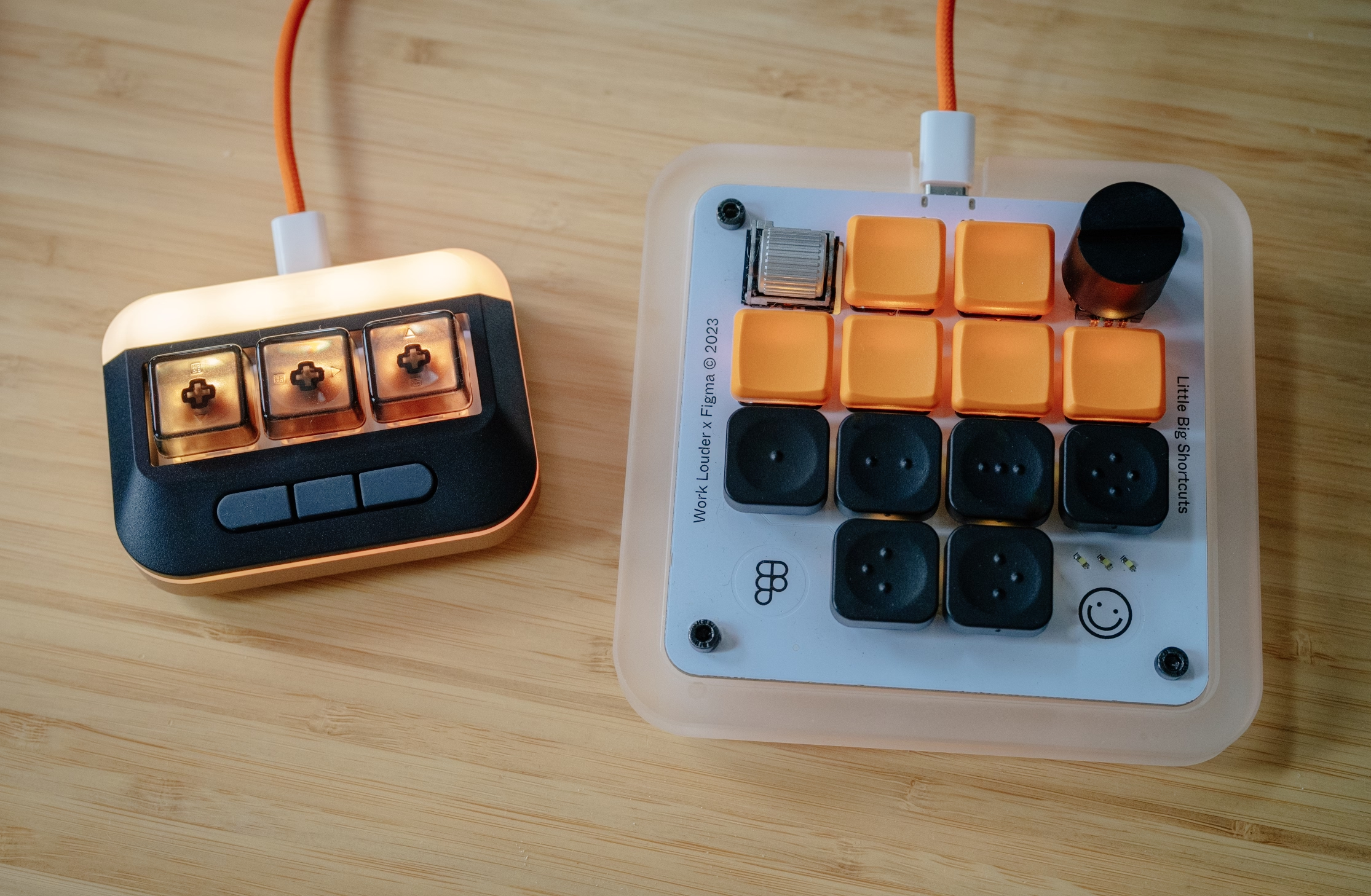
…or even if it doesn’t have any keys at all. (Some peripherals like credit card readers and two-factor dongles identify as keyboards as they transfer information by sending keystrokes.)
But: Why does it matter? What happens if you select the wrong layout or ignore the dialog?
If you mix up America and Europe, the difference should be largely cosmetic. After all, you still have to choose the keyboard language. People in, say, Germany will likely choose the appropriate locale, and the keys will do the right thing. However, also selecting the correct physical layout will properly display it in a few places, which can be helpful:
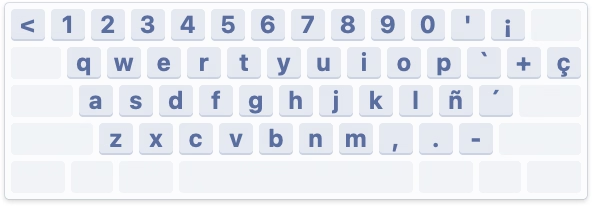
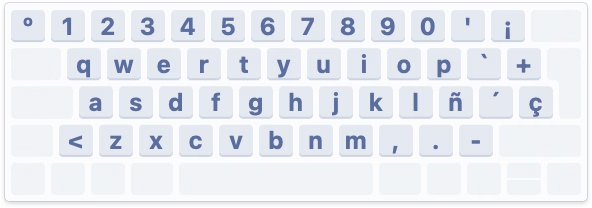
Japanese keyboards are more interesting, because they still have an English “mode” and the legends on a lot of the keys in that mode are different than on those on American and European keyboards – yet, the keys when pressed appear exactly the same (have the same “scan codes”) to the connected computer:
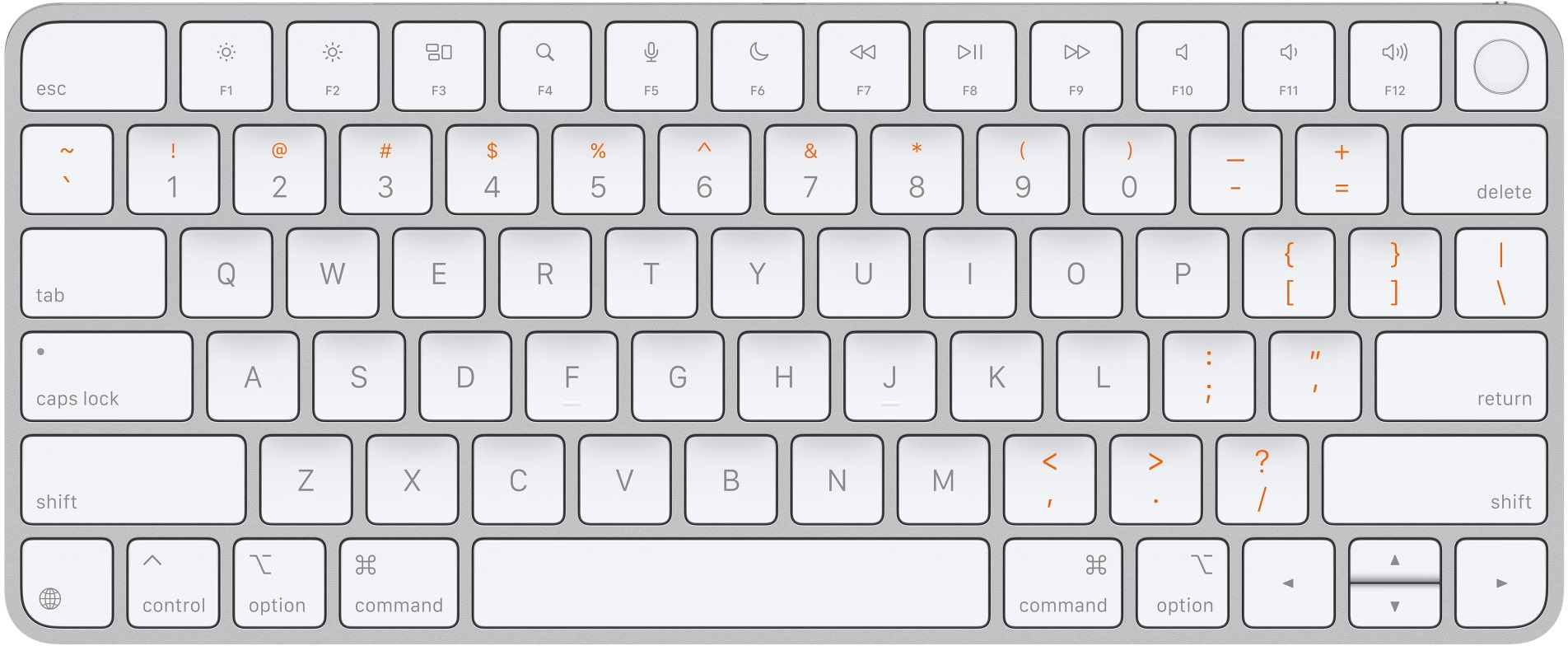
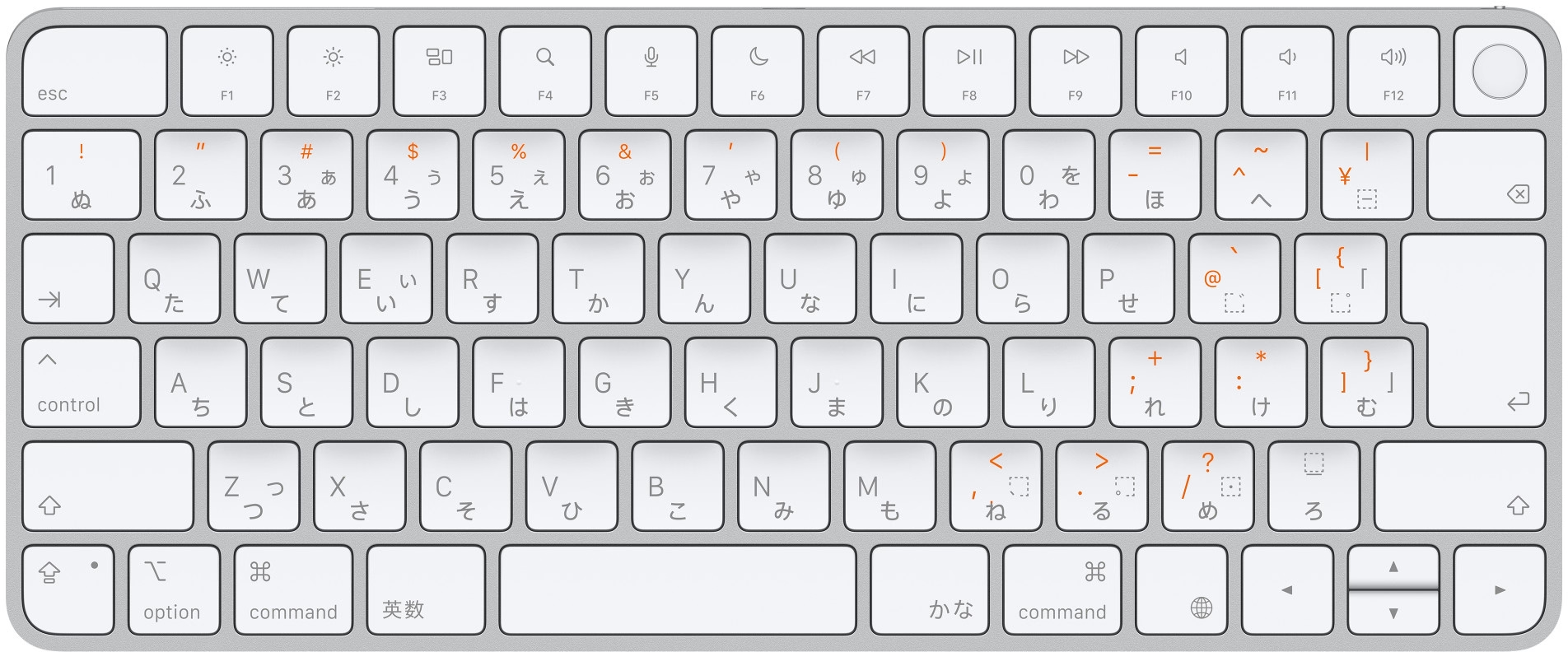
So knowing whether the keyboard is “US in the US” or “US in Japan” is important not just to place keys in the right position visually in a few places in macOS, but also for those keys to output what they actually show:
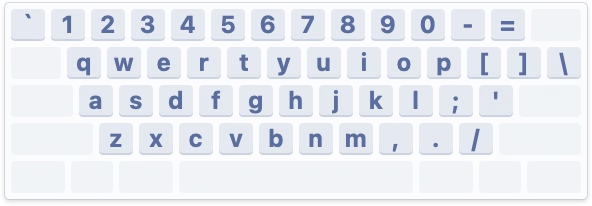
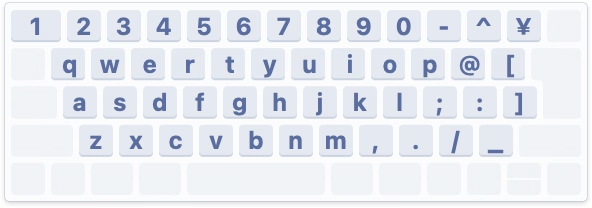
By the way, Apple’s own keyboards do not pop up this dialog. This is because while a keyboard can not do much when connected, it can at least send a vendor and model identification numbers, and Apple knows which of its keyboards sport what physical layout.
Why doesn’t macOS do that for third-party keyboards? They might, for some well-behaving ones; I don’t actually know. Unfortunately, the vendor/model identification is a wild west and a lot of the keyboards I have identify simply as “unknown,” so building up an all-encompassing keyboard layout database is not really possible.
Either way, I mostly wanted to share why the dialog exists. Mind you, I don’t love it in that its language could be better and at one point it breaks a cardinal rule of reorienting options, which makes it hard to remember “oh yeah, it was the first scary setting that worked before.”
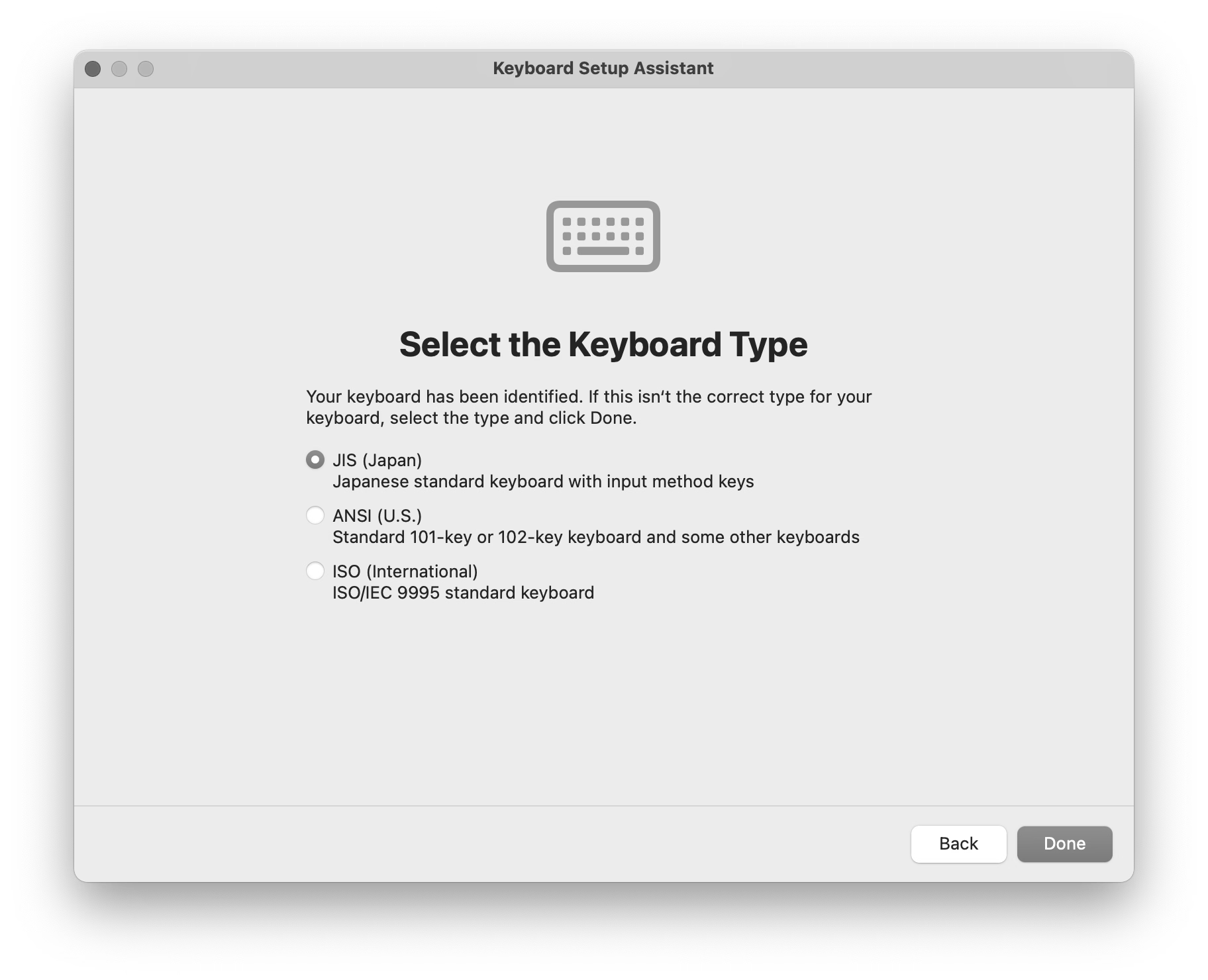
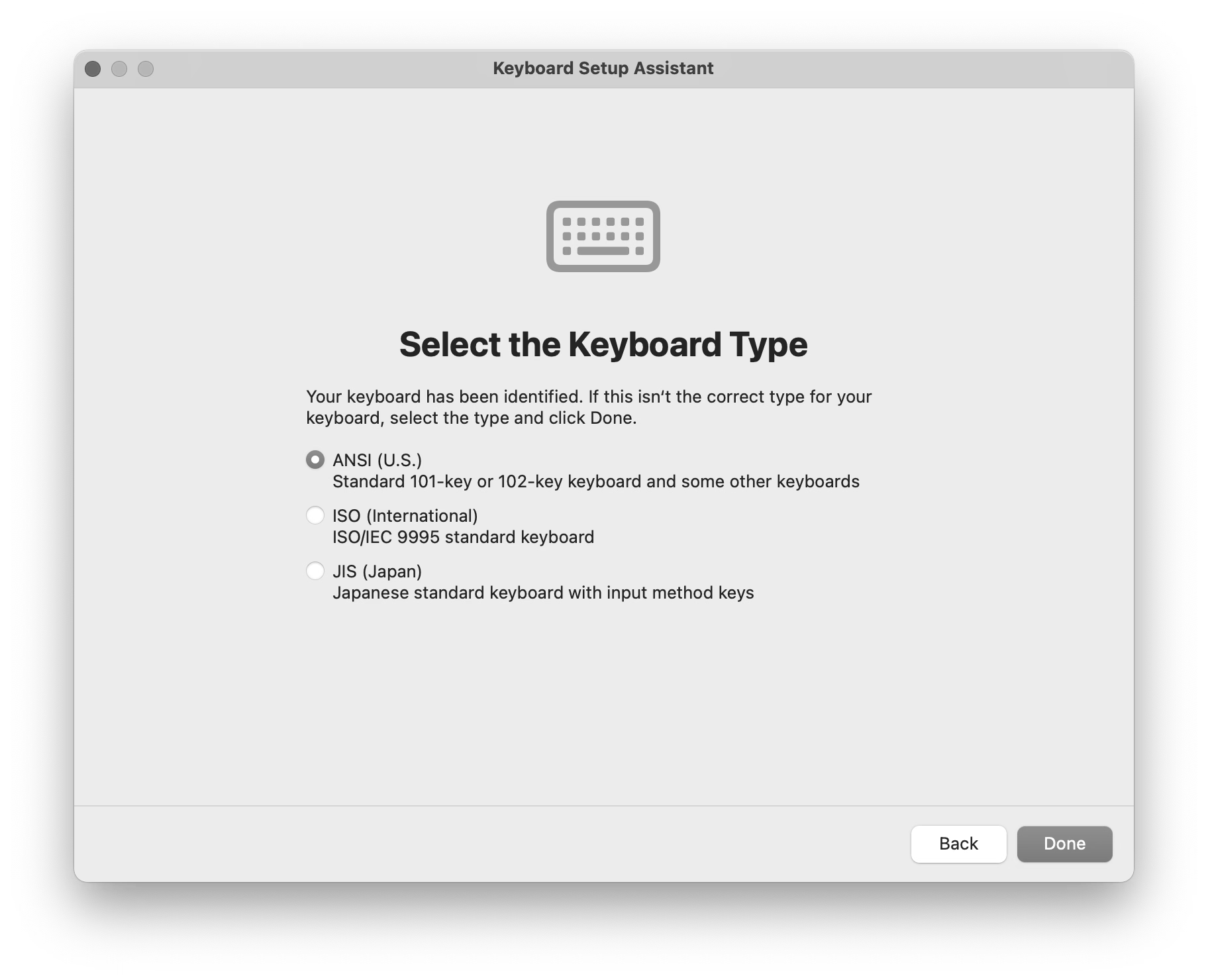
But overall, I thought it is a clever solution to a surprisingly hard problem. Sometimes primitive is better than nothing.