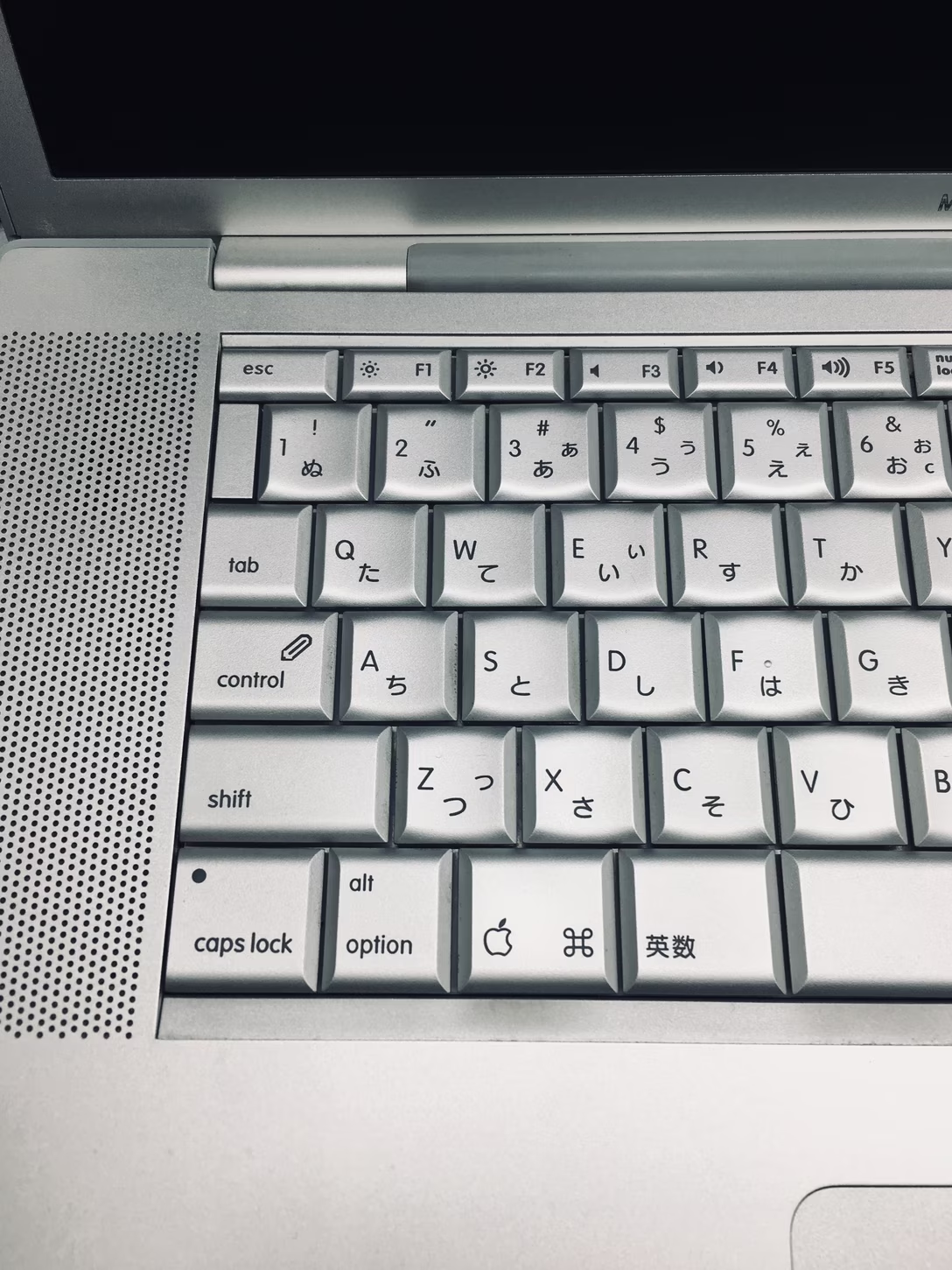
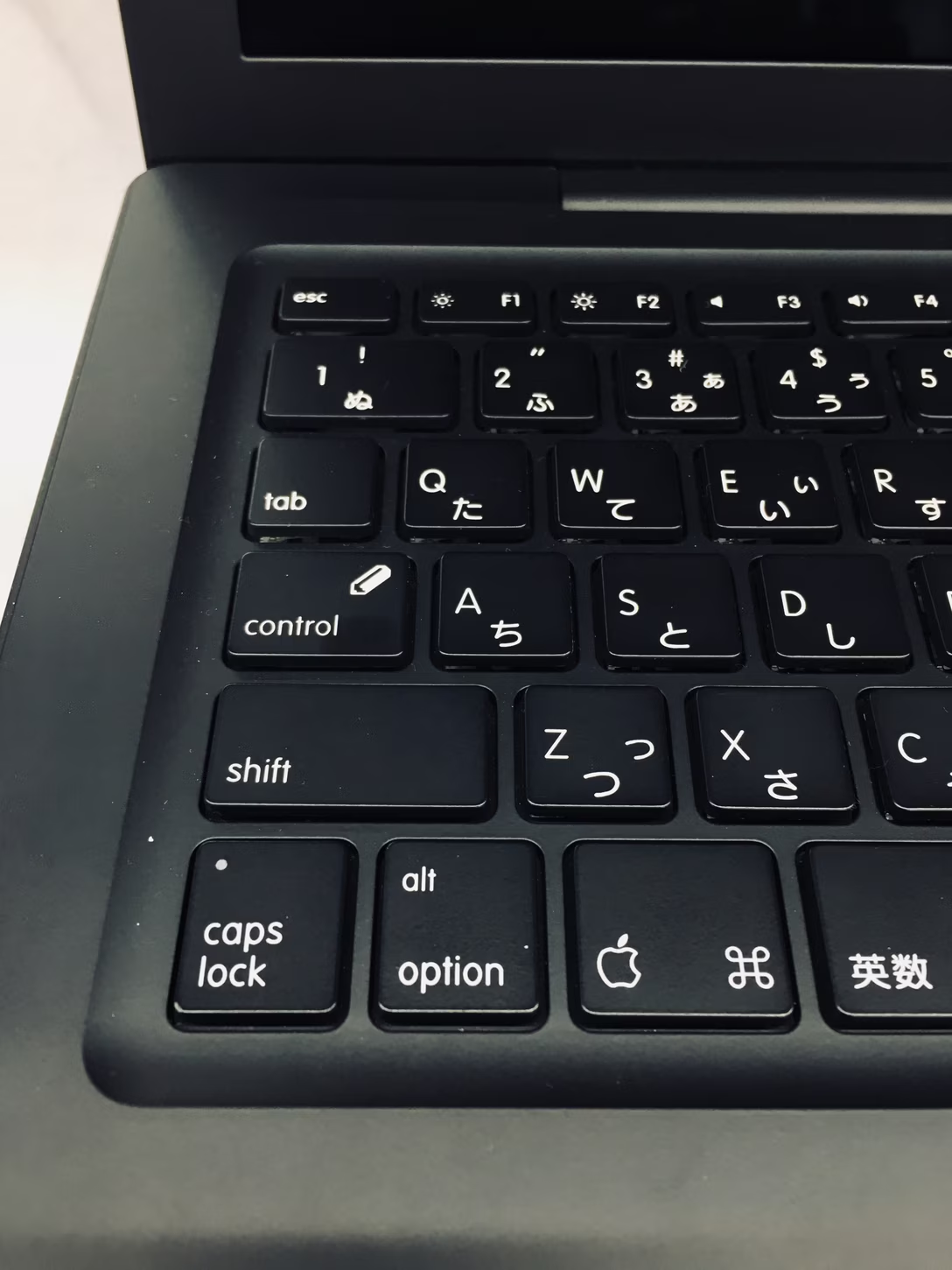
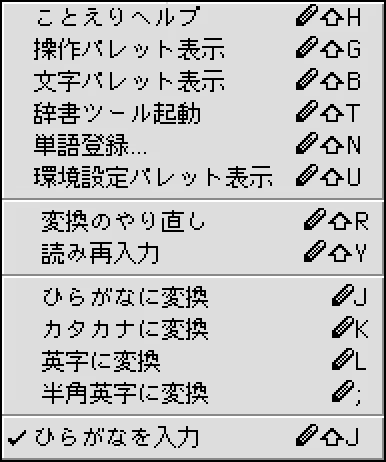
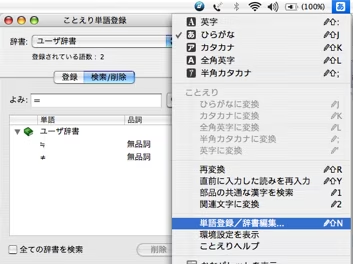
While I didn’t have as much fun with car lights, I experienced another nice motor memory moment last week when using CarPlay.
During my drive, I wanted to ask the new Siri something – but as only an occasional driver, and my phone out of sight, I was puzzled as to how to actually invoke it.
I did see the new Siri app icon appear in the sidebar on the car’s screen, but tapping on that only showed me a list of prior conversations. Sure, I could probably initiate a new chat by tapping the button in the top right corner, but that corner felt really far away from where I was sitting, and didn’t feel inviting to someone who – just as a reminder – was driving a car at that time:
So before giving up, I did one thing that somehow felt very natural – I pressed and held the “home” button in the bottom left corner:
And… it totally worked.
I feel that with any good motor memory story, your fingers do something seemingly on their own, and then it’s up to you to figure out why they did so.
I believe in this case they did so because Apple built a good set of overlapping gestures and expectations:
In many other places – iPhone, Apple TV – you long press a physical button to invoke Siri.
Also, on Apple’s touch devices and on Apple TV, “long press” on a touch target has been a consistent entry point to an “advanced function” in a same way right click is on desktop.
Lastly, on earlier iPhones asking for Siri was literally a long press of the physical home button:
So, kudos to the many designers on sustaining a stable gesture system that lasted decades, and embedded itself in my fingers so well that it felt completely natural to invoke in a situation I really wasn’t allowed to split my attention or play with the interface.
An extra delightful moment in that last video – note how the physical home button and the virtual Siri button match in size.
In my inbox, over the years, in no particular order:
From: YouTube Premium
Subject: YouTube Premium Individual plan price update
Email summary: The monthly price is increasing from $13.99 to $15.99.
From: 1Password
Subject: Important: We’re updating the cost of your subscription
Email summary: The annual price is increasing from $35.88 to $47.88.
From: GeoGuessr
Subject: Upcoming Change to Your GeoGuessr Subscription
Email summary: The monthly price is increasing from $4.99 to $6.99.
From: DreamHost
Subject: Upcoming DreamHost Price Change
Email summary: The monthly price is increasing from $13.99 to $16.99.
From: Printful
Subject: Product and shipping price updates
Email summary: Some prices and shipping rates are increasing.
The only two emails I could find that were actually honest about the price going up in the subject line, instead of obfuscating it with terms like “change” or “update,” were Apple’s and Panic’s.
The former had a subject “Your Subscription Price Increase,” and looked like this:
The latter was titled “Playdate’s price is about to go up a bit” and looked like this:
Also note both telling you what the previous price was.
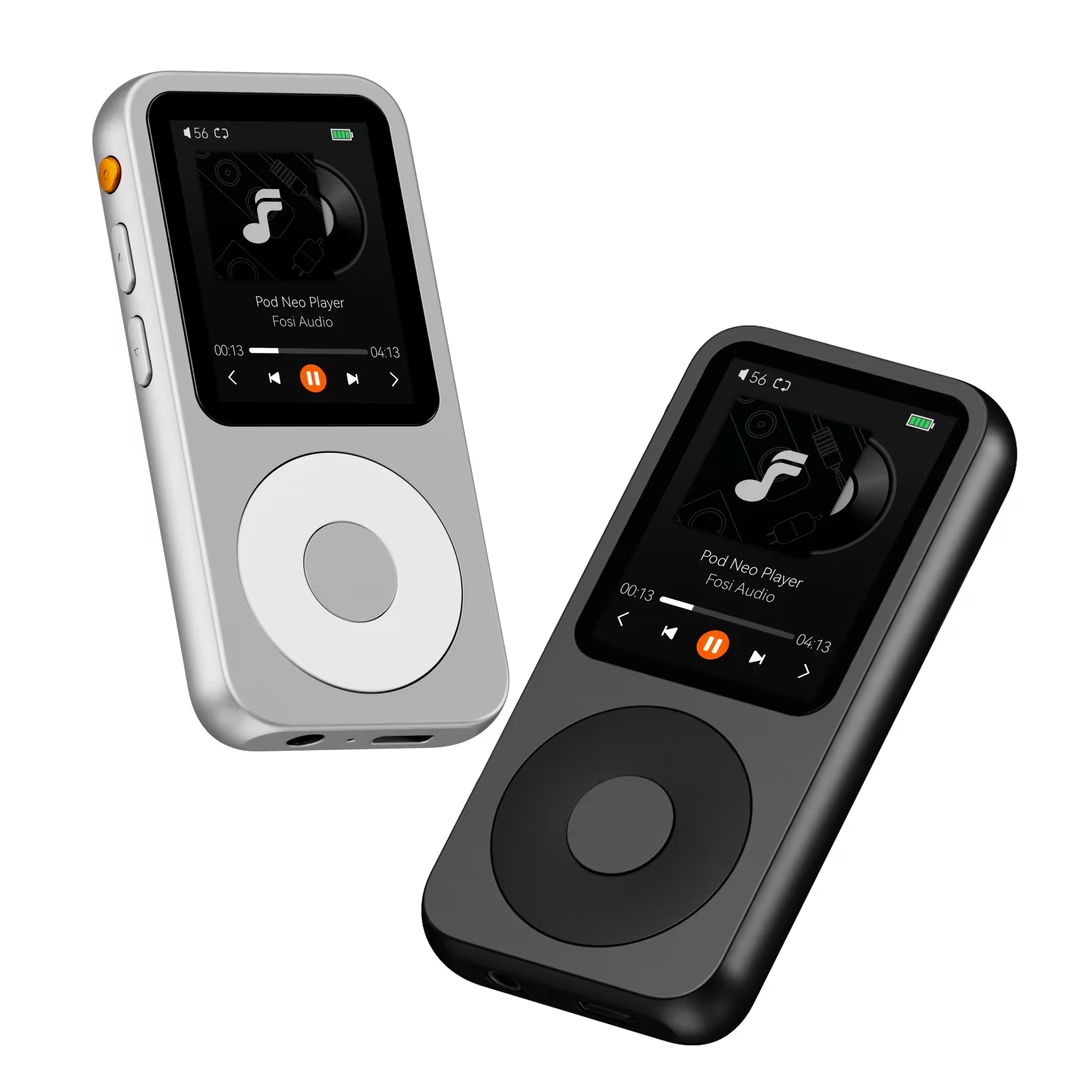
On his channel about new and old hi-fi equipment, Techmoan profiles a modern Fosi Audio Neo player.
Techmoan’s video was originally linked here, but I failed to notice it was an unreleased, patron-only video. If you want to see it, subscribe to Techmoan’s Patreon – it’s worth it! – or wait until Saturday when the video is released to the public. I will re-link it here then. I’m sorry about that.
Fosi Audio Neo apes the iPod. At first glance, it looks exactly the same – a deck-of-cards-sized device with a wheel, and above it a screen showing either the currently playing track, or a hierarchical, textual menu:
But the reviewer quickly discovers that the iPod copycat is a disaster in use, its creators accidentally highlighting two important rules:
“simple” does not mean “fewer things,”
simplicity cannot happen without a lot of small details done well.
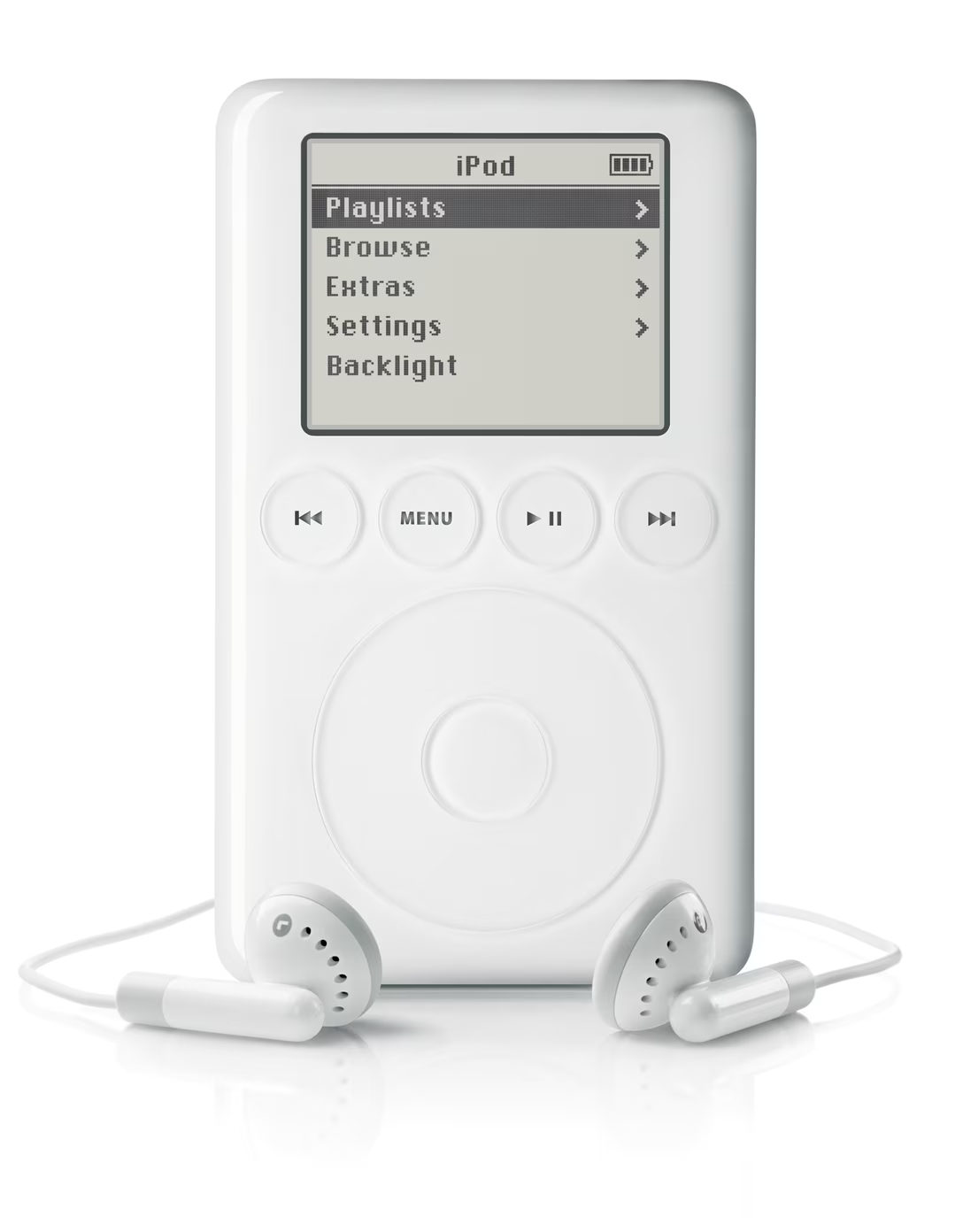
To the first point: iPod actually had five main buttons, not just one. This is most visible in the third generation, which put most of the commands above the wheel:
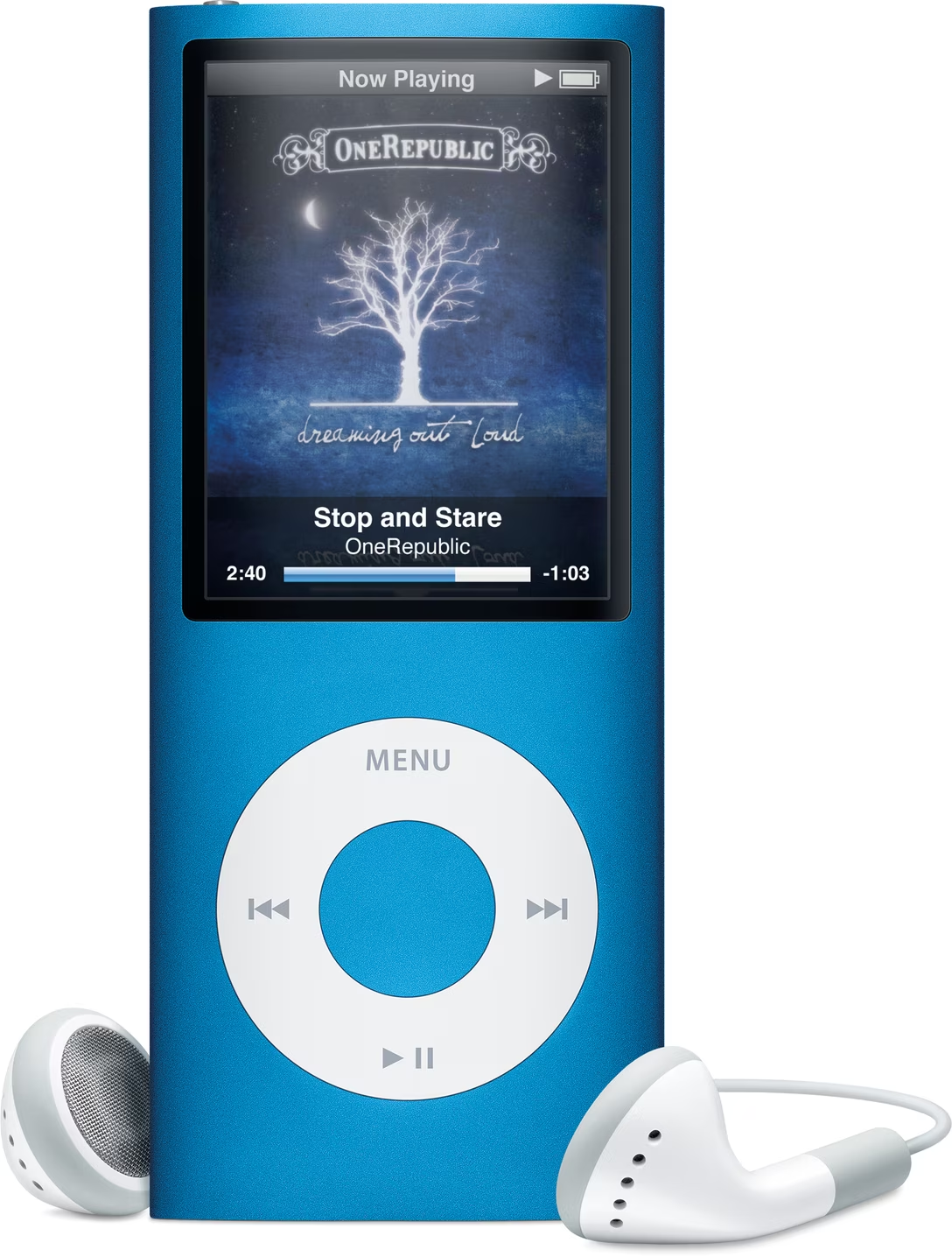
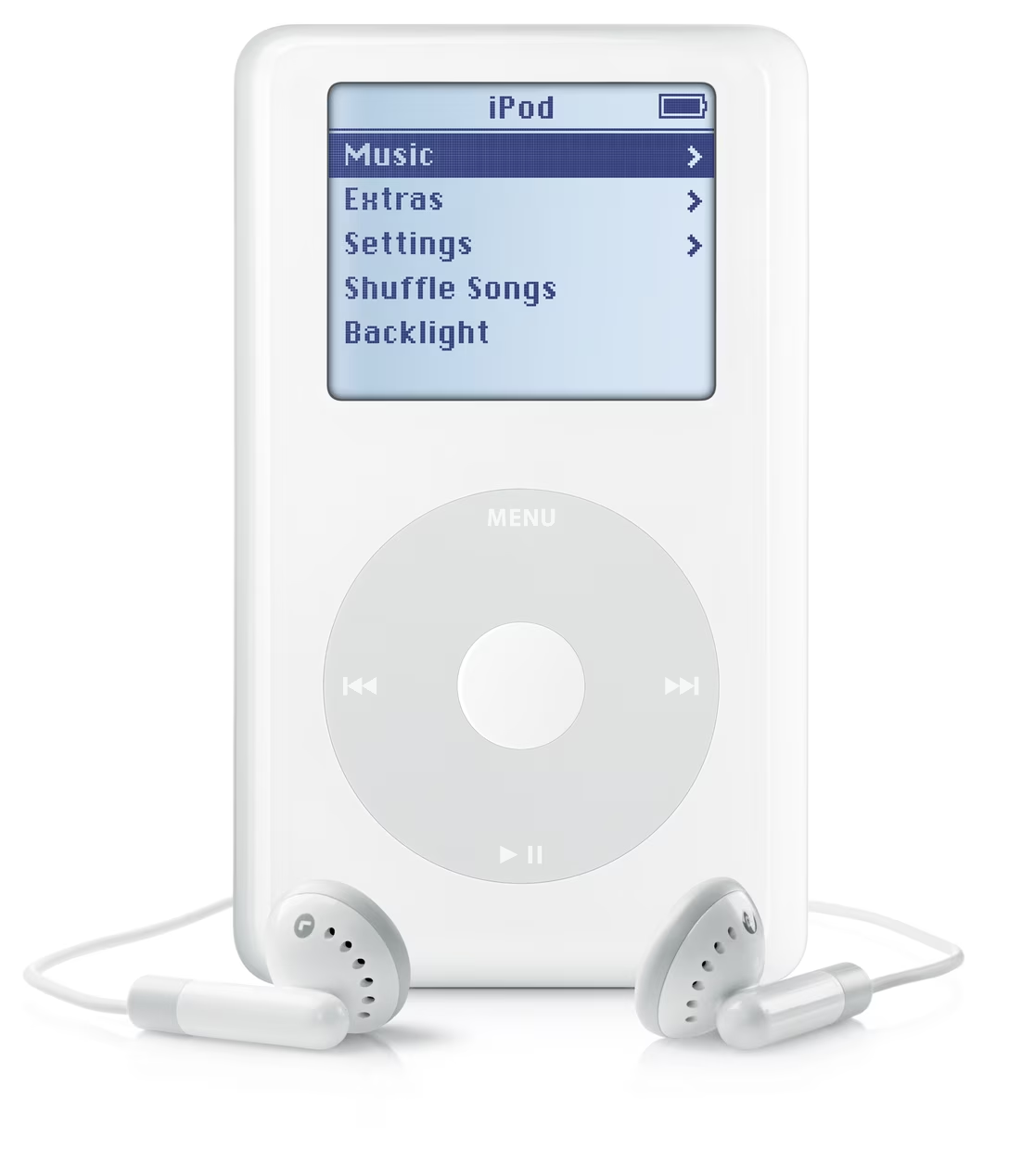
In all the other models, the buttons were integrated around, or even within the wheel:
But the modern product only has one button, and that’s too few for all the necessary functionality. Now “going back” means an unnatural long press. The other necessary commands – like pausing, next track, and previous track – are offloaded to an onscreen menu, which means extra modes and focus states that the original iPod didn’t have. By trying to be simple in a naïve way, the creators of the Neo made their device more complicated.
As for the details? The new player has no acceleration curve when you scroll fast, which would help you traverse long lists as quickly as short ones. It has no scrollbar to give you a sense of how long the list is. It has no haptic-like beeps to help mesh the fluid rotation with discrete item jumps (your mouse wheel is doing the same thing!). It has no side-to-side transitions to help you orient yourself in the hierarchy. And, the reaction to every click seemed so slow that it made even me, the viewer, anxious.
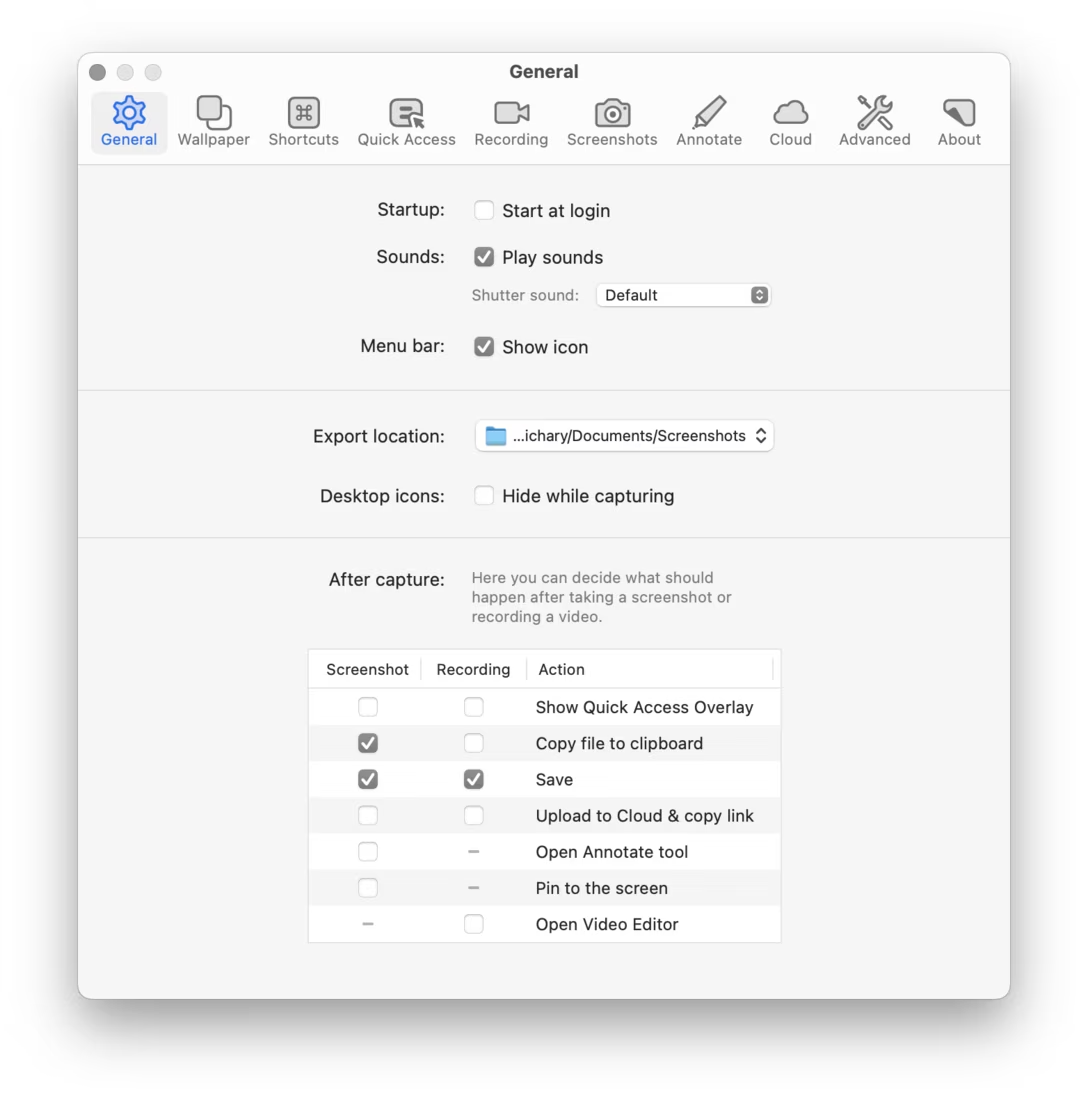
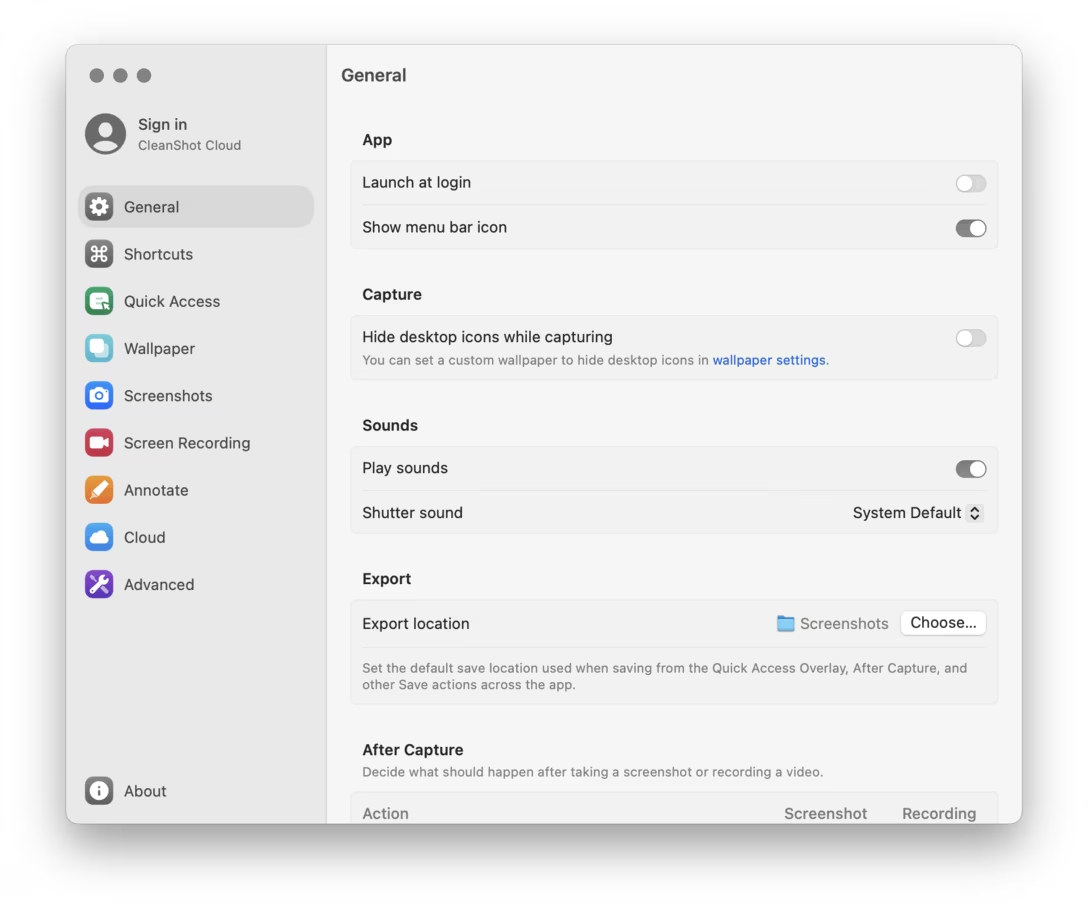
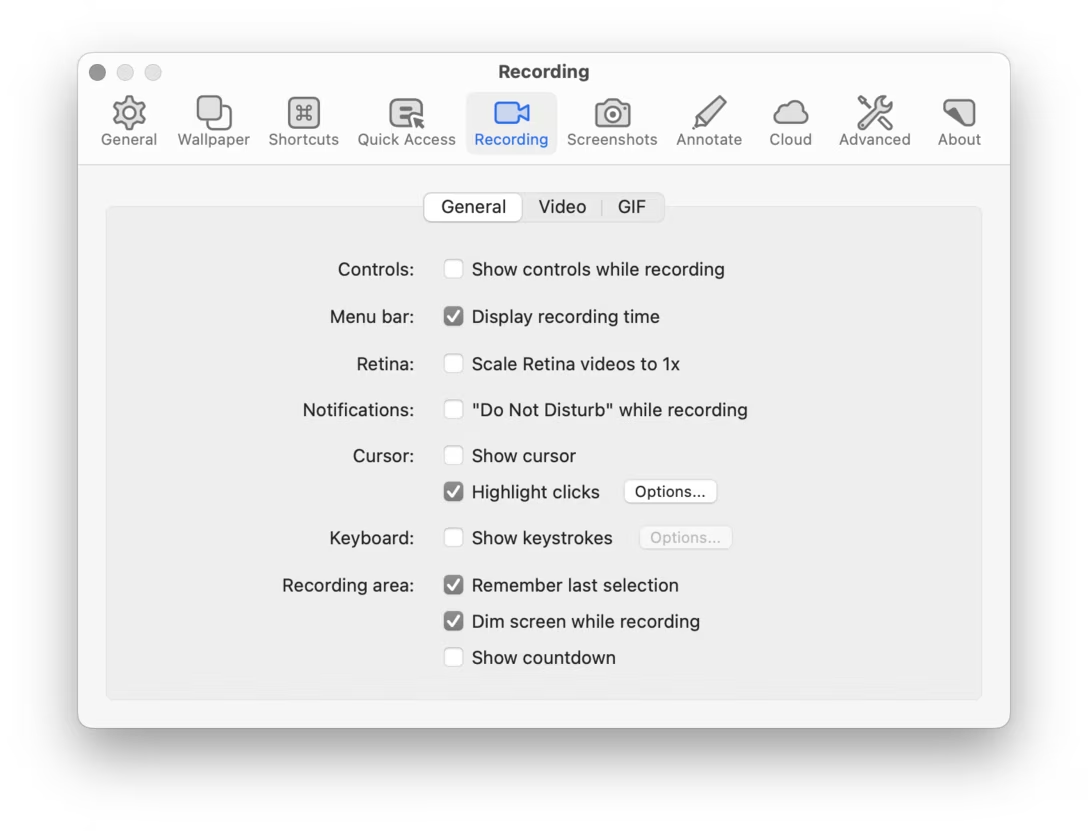
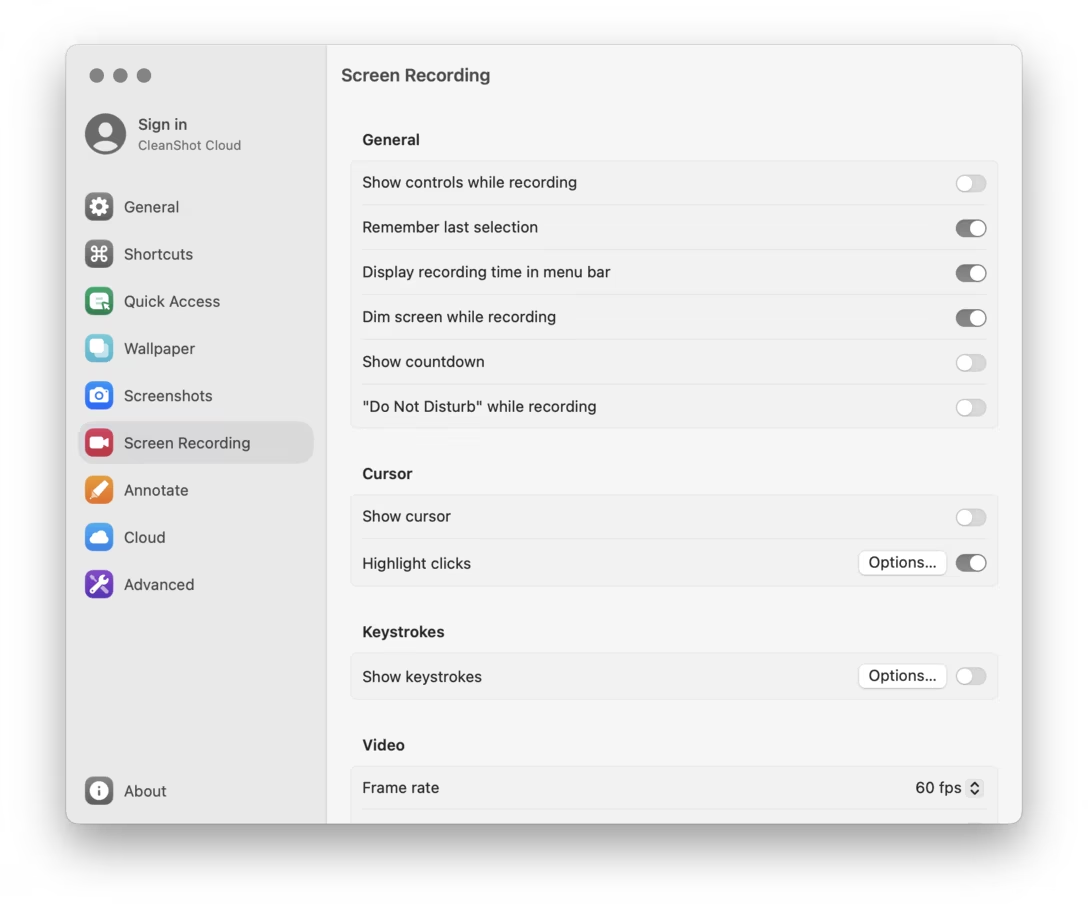
This second aspect is similar to Photoshop vandalizing its dialogs, or CleanShot bulldozing its settings. Here, the new player also underestimates the sophistication and thoughtfulness of the things it aims to copy. The difficult truth is that while software needs to be simple to the user, that simplicity is nothing but complicated to people designing it.
I tried to find a good iPod click wheel explainer, but I couldn’t find any. (There have been a few web approximations over the years, but they also get a lot of nuances wrong.) I wonder if I should create an online iPod simulator, walking designers through all of its important interface details.
I spent most daylight hours yesterday driving in torrential rains in pretty bad visibility, and I was astonished how many cars didn’t have their lights on.
It looked something like this. The cars with tail lights on were somewhat visible, but the cars without them didn’t stand a chance:
Some drivers definitely lacked enough imagination to turn on their lights. But even though I knew to do that, I struggled, too – my rental car light interface felt so opaque that I almost chose to drive with the wrong lights on. And it all had to do with iconography.
Cars have two main settings for lights:
“regular driving,” meant to be used at night and during limited visibility – like in heavy rains,
“parking,” where front lights are less prominent, meant to only be used when stopped.
The UI for lights seems to typically look like this:
Without knowing, can you figure out which setting is which?
The left icon with two lights facing away from each other means the parking lights. The far-right icon with one light pointing slightly down (“low beams”) is regular driving lights. The latter is the right thing to do in the rain, but the assignment feels kind of arbitrary to me, and I could totally see the icons going the other way.
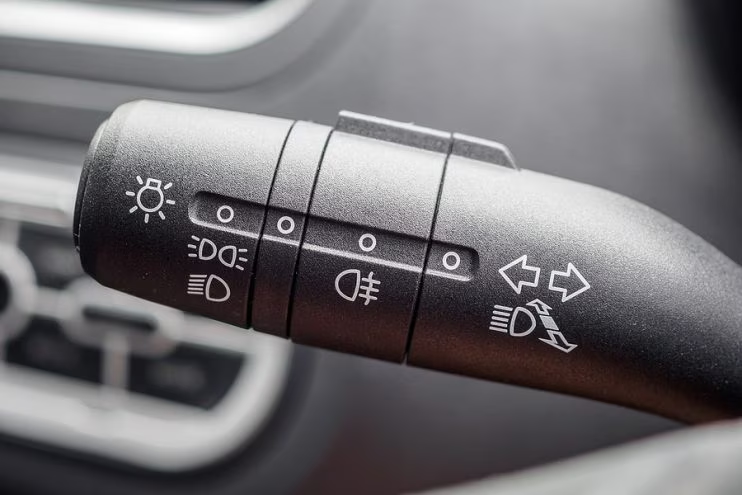
Also, the above is a somewhat gentle situation. In my car, the lights were on a stalk, and the setup looked more like this:
Here:
the lightbulb on the left is a meta indicator for “this is the main light setting” (you can see it above too, on the dial),
the middle part with the wavy line is fog lights,
the arrow-heavy thing on the right informs of two things: pull on the stalk for high beams (another mode), or rotate the stalk left or right for turn signals.
That’s a lot of stuff going on, and many similar icons that do not appear immediately understandable. The whole interface seems optimized for motor memory, but harder to approach at first.
In both modes, the feedback from inside the car is exactly the same – you see the interior dashboards illuminate, and the front lights go up. At night, you might spot the difference in the front light intensity. But in the daytime rain, it’s less likely – especially if it’s a rare intense rain you don’t encounter often.
(Many cars have an AUTO option now, but I wasn’t sure I could trust it, and if it would properly account for the rain reducing a lot of visibility.)
Lost perhaps amidst the recent conversations about icons in menus and app icons was another subtle change: Apple started embracing more iconography on buttons, too.
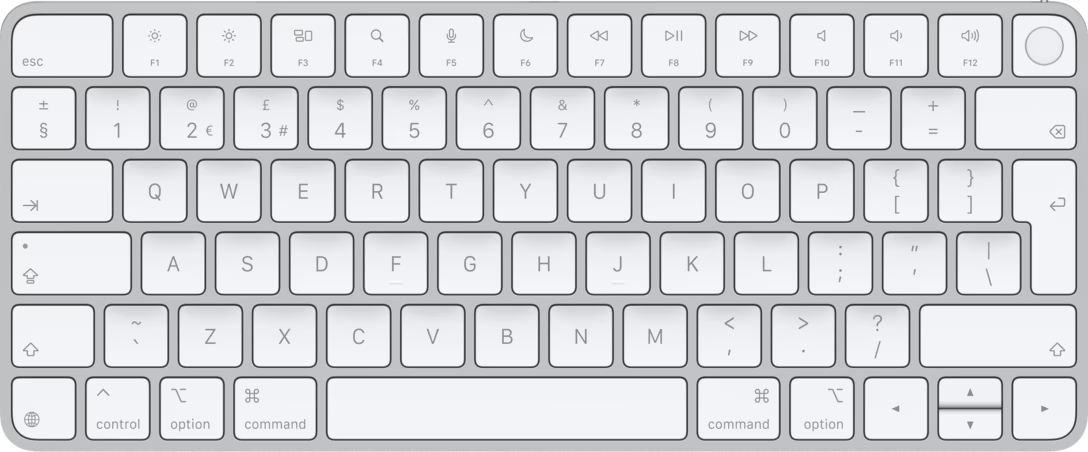
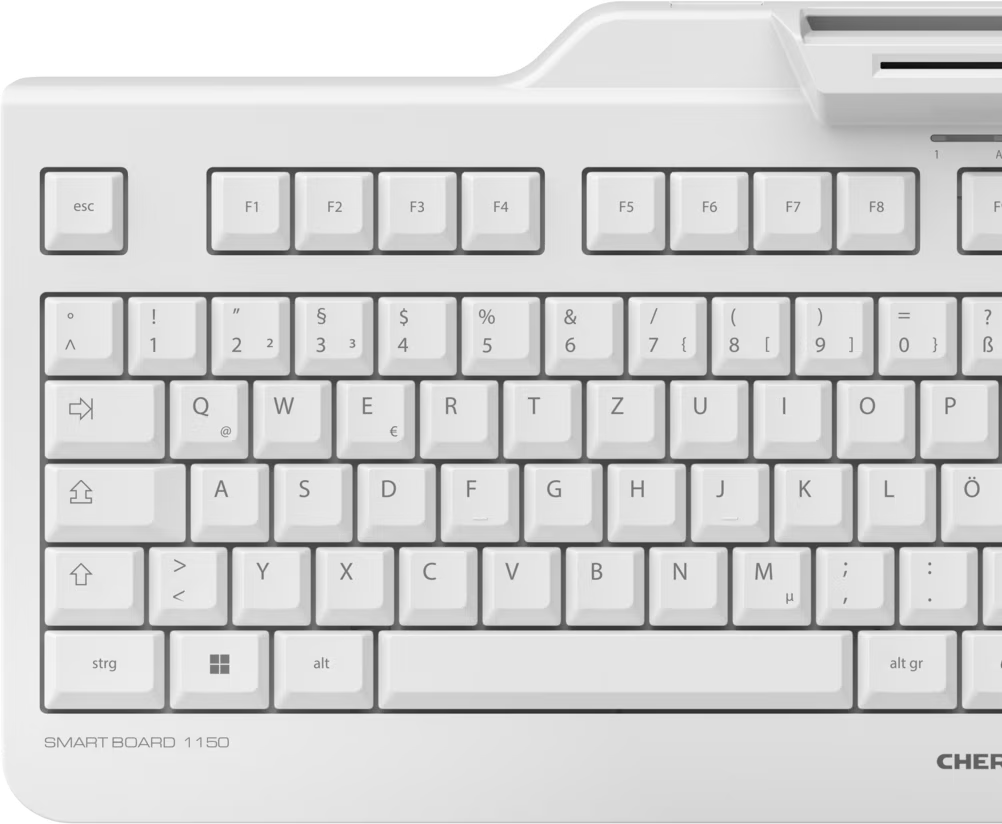
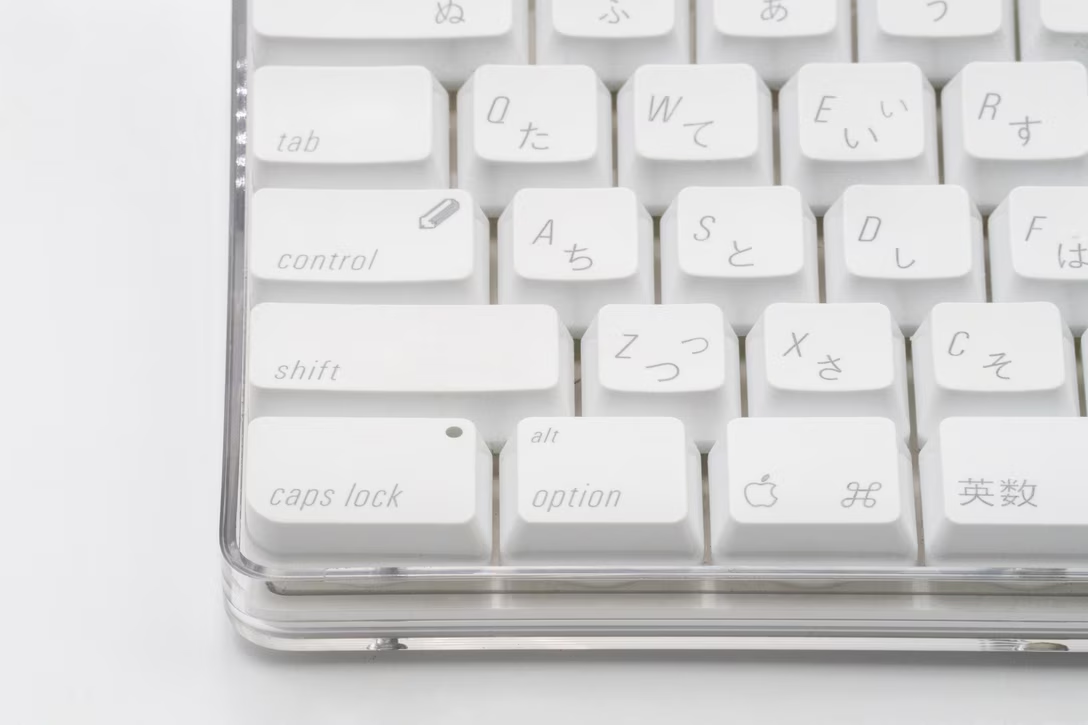
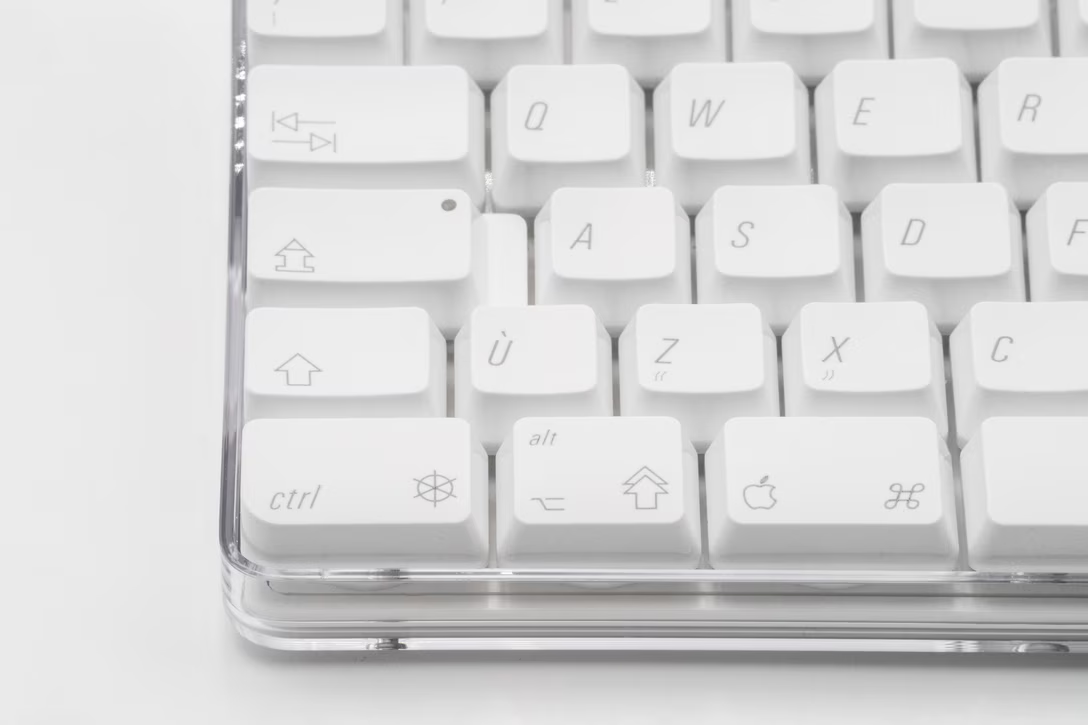
You can see it on keyboards, where the U.S. models followed in the footsteps of international ones, now showing symbols instead of legends for Tab, Caps Lock, Shift, Fn, Enter, Return, and Delete. Here’s the previous generation and the 2026 one:
The shift also happened on screens. Below are examples from the last three versions of iOS (18, 26, and 27), side by side.
When starting a new note, it’s not just the keyboard’s ↵ that replaced Return. The back icon also lost its legend, and Done became a checkmark:
Here might be the best case scenario, with Cancel and Done swapped with icons:
In this AirDrop screen, Done became a close box:
Elsewhere, Cancel morphed into ×, in an unfortunate position next to a different ×. Plus, Search on the keyboard became a loupe:
When screenshotting, Done was splintered into a checkmark and an ×:
And here, Done transformed into a checkmark, while Edit became a new kind of a paint icon:
Sometimes, what appears on the surface to be simple is actually far from it. For example, there’s a trend in Twitter clients to use icons instead of text labels for buttons. Just icons, no text at all. These icons don’t take much space, look elegant and maintain that simple feel of Twitter, except…they’re actually just confusing.
Fadeyev also quoted Jef Raskin’s take on icons:
In every study that considered the question, icons were demonstrated to be more difficult to understand than were labels, especially at first viewing, which contradicts one of the most frequently cited reasons for using icons, namely, comprehensibility for beginners. […] Although it is true that tiny icons can take less screen space than labels, you have to ask: At what cost? The smaller a button, the longer it takes to operate it, and the more difficult it is to find; also, it is difficult to make a small icon distinctive.
I like that take.
Here’s my personal go-to cheat sheet when it comes to iconography:
icons are compact, allowing you to squeeze in “more UI,”
people probably understand only a few icons (close box, checkmark, plus, some chevrons), and can learn others – but the learning process will be harder than you think,
icons can break the monotony of an all-text interface,
well-made icons make the interface look more attractive in a way type can’t.
I don’t believe Apple is doing it all just for aesthetical reasons. My guess is that it’s more about the first bullet point above: liquid glass added so much chrome and padding that Apple simply ran out of room for text labels encased in glass.
At the first glance, Apple is avoiding the car light problem by using popular icons. However, there’s a new challenge: most of these icons are too popular, and overloaded with meaning:
checkmark: “commit” or “to do item/checkbox”?
×: “close” or “clear”?
loupe: “search” or “zoom”?
The only outlier is the edit icon, relatively new and likely unknown. With the extra challenge that on-hover tooltips don’t exist on touch devices, the way forward would be to use the paint icon consistently to teach it to people, but it seems Apple isn’t yet doing a great job at that. The below screenshots are all iOS 27, where you can see the leftover Cancel and Done labels in place, and a missed opportunity to put the new edit icon next to Customize to help people connect the concepts:
I wish I could peek inside Apple to see how these efforts are faring, and what’s in store.
To go back to keyboards, I am curious why Apple didn’t consistently apply text and icons for all the affected keys, like they did for the bottom row a while back. Here there was enough room:
And how could we solve the car problem, if we think iconography makes it harder for less experienced drivers? I could imagine a similar idea here as well:
But the funny thing is that most modern cars have a digital dashboard, so for the first time, tooltips are an option. You could imagine turning the stalk and seeing this kind of a message appear for a few seconds, the description and the icon side by side to help the user connect one to the other:
Of course, introducing a tooltip means “now you have two problems.” And, we might be attacking the symptoms here – the real reason might be a complex system underneath, whose complexity is relayed to the user without any translation. Or, perhaps the icons themselves could be changed to better represent “parking” and “driving.” But let’s save all those for future posts.
This post has been edited after I originally confused a few light modes.
In the 1990s, users of some Unix-based operating systems would sometimes see a peculiar error. It happened occasionally when sending an email to a person you might have already sent email to before, and in addition to the error being confusing, the message itself was particularly bewildering.
Let’s say you wanted to send an email to “MWichary.” Instead of a confirmation, you would see this:
550 mwichary... User unknown: Not a typewriter
As many strange errors tend to be, this one was at an intersection of four different things.
The cause of the error was something many of you will recognize – code being anal about lower- and uppercase. Behind the scenes, a piece of software called sendmail always assumed lowercase user names, which was true early on. “MWichary” was quietly changed to “mwichary” – a user that didn’t exist – and the program reported the literal outcome, instead of its chain of reasoning.
The second part was a sort of a meta-error in the error handling routine. Sendmail correctly reported back “User unknown,” but then reflexively added whatever the system error value reported, for extra debugging color. These are usually helpful, reporting things like “Host is down” or “No space left of device” – I bet you’ve seen some of the very distinctive strings if you ever did anything adventurous in the terminal.
In this particular context, however, the system error was pretty useless. “Not a typewriter” meant basically “this is a program being run in the background; it’s not meant to accept any user input or write anything for the user to read.” It’s not an error as much as a condition, and is true for a lot of programs quietly doing the operating system’s bidding.
But… why was the message phrased this way?
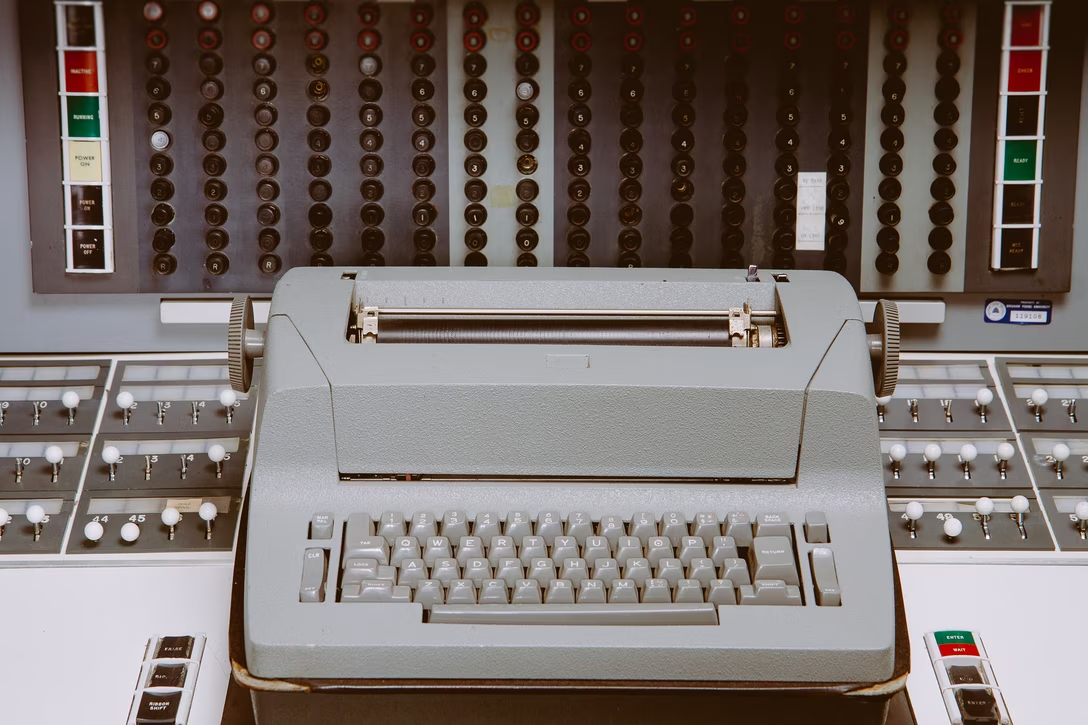
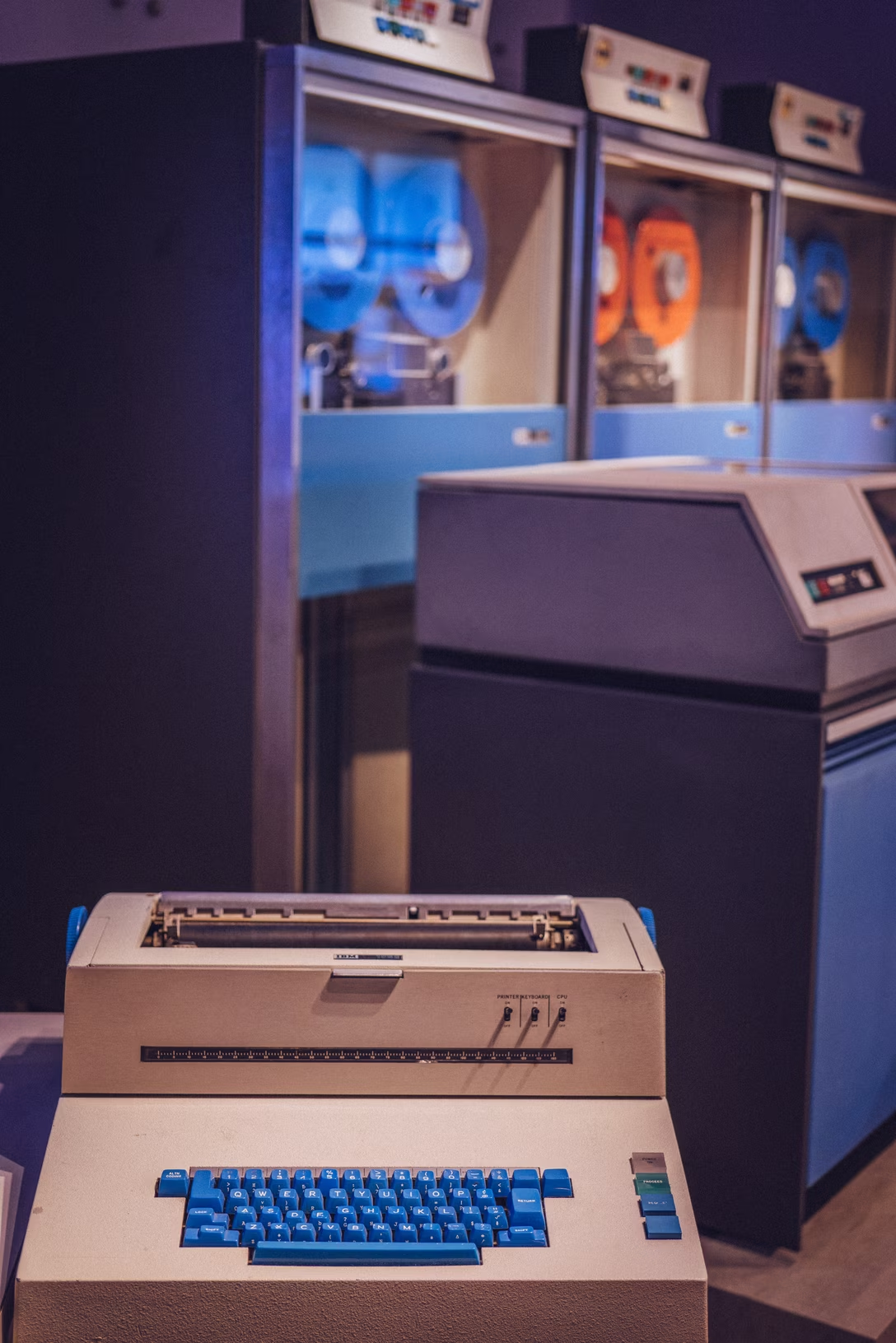
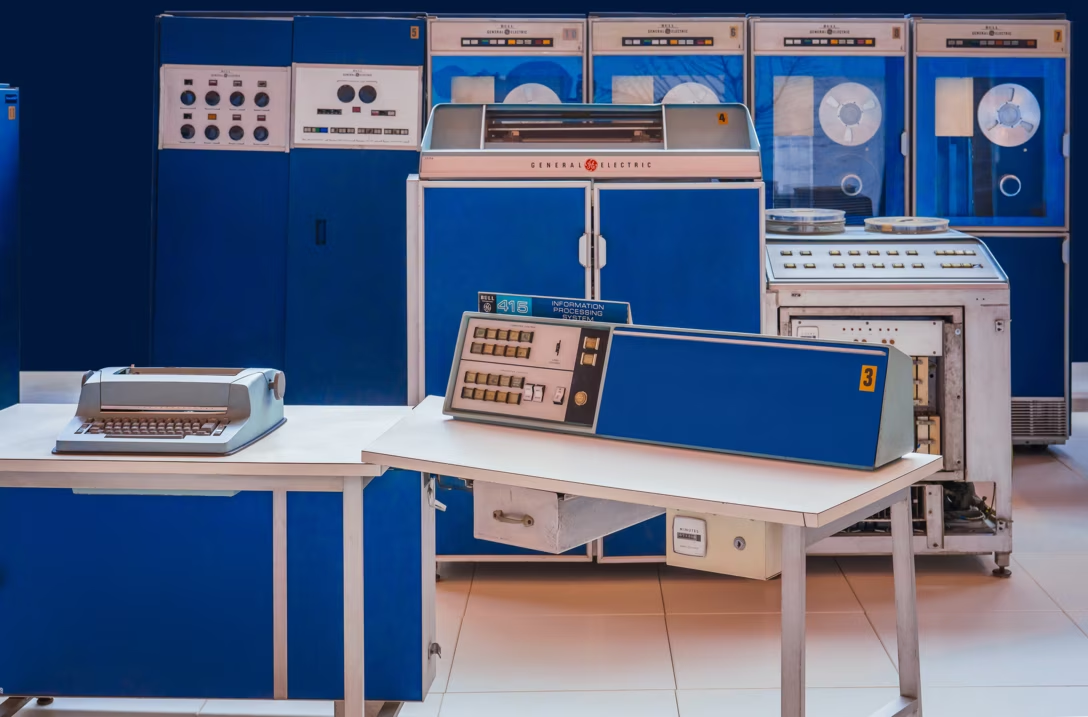
That’s just history. Computers were originally connected to typewriters as input/output. Some of these typewriters were local, attached to the front panel, or console. Others were remote typewriters, or teletypewriters, often shortened to teletype or even tty. If you recognize these terms, that’s because they are still with us today!
You can see how “This doesn’t have input/output I can do something with” can become a terse “Not a typewriter” in an era when every character feels costly, and a typewriter is your only option for input and output. Then, the string was simply kept a few decades too long, even after typewriters were replaced by teletypes, terminals with screens, and eventually Terminal and Console apps.
The fourth piece was fun with grammar: the simple choice of joining the two messages by a colon made it feel like the user was supposed to be a typewriter.
The message was eventually renamed. If you encounter it today, it will say “Inappropriate ioctl for device,” which I guess is an improvement. But its code remains ENOTTY.
It’s entirely possible it will still be named that decades from now, even after we all forget what typewriters were.
An 11-minute video from MattKC documenting huge effort to revive a backup tape from a 2000 game Frogger 2: Swampy’s Revenge:
This is a pretty harrowing story of restoration, including an extremely obscure backup tape made by a short-lived Dutch company, attempts to reverse engineer a poorly documented data format, a data recovery company that damaged the tape instead of restoring it, and a mad hack to trick the drive into reading it anyway.
A good video from Linus Boman about clip art, most (in)famous from Microsoft Office, and specifically PowerPoint of the 1990s–2000s:
Turns out clip art is a lot older than I expected, and… it also never fully went away. On top of that, Boman covers a lot of aspects – from quality and perception, through the “user interface” of clip art, to how the means of conversion and reproduction changed it forever. I also loved the little “sidebars” in the video.
Even if you don’t care about clip art per se, a lot of the threads in the video will be relevant to things like shadcn, Inter, Google Fonts, Canva, The Noun Project, the Claude aesthetic, and so on.
One thing that might be fun to add to the ⌘1/2/3 tab post is this: while ⌘1–8 select tabs from the left, ⌘9 doesn’t jump to the ninth tab, but to the last tab:
I think it’s thoughtful – a recognition that both edges are important. (Previously we’ve seen Bear understanding that, too.)
Why not ⌘0, though? Sure, you can say it’s not as elegant (0 is smaller than 9), or that it wouldn’t work in Hungary…
…but I think the Occam’s Razor is simply that ⌘0 has already been taken by a popular “zoom to 100%” command by then, and overlapped too often for comfort.
On the most recent episode of the Waveform podcast, the hosts talk about two new announcements in the MMORPG world (relevant bit starts at 1:21 and goes on for 14 minutes):
each game already had a “relaunch”: RuneScape via Old School RuneScape in 2013, and World of WarCraft with its Classic edition in 2019 – both revisiting and perhaps straight replaying the respective original game, but with some new improvements.
The new announcements are yet another revisit for each universe:
RuneScape announced RuneScape 4 – an old game engine but with more modern graphics,
World of WarCraft announced World of WarCraft: Forever, which feels like a cross between “reboot” and “rewind” – going back to the original, but creating brand new events and universes within.
I haven’t played either game, but the segment made me think: why have we never seen non-game software do this kind of stuff? I can think of multiple reasons, but at the same time I am surprised I can’t come up with even just one example of a software company doing something similar – I mean, rewinding the clock – with one of their bloated apps.
I think that kind of push and pull is important, especially today. I don’t love using Google Sheets, but my favourite spreadsheet is not Excel 97, either. My favourite spreadsheet is some hypothetical anachronistic version of Excel 97 that also has modern high-dpi typography, and a ⌘K command palette, and today’s trackpad gestures, and support for AVIF and HEIC.
…and I still think I would love to see “Excel 97 Revisited” today. But I’m not sure I’ve ever seen anything like it.
Please let me know if I am missing something obvious!
The first is don’t let anyone or anything, or anything acting like anyone, or anyone promoting anything, convince you that craft is outdated or will ever be outdated; you will only improve, only make the sounds you imagine in your mind’s ear and feel in yourself, by working steadily to achieve them. Also recognize that expected paths lead to unlikely ends the more patiently and curiously, guided by instinct and experience, you walk those paths. There is always an excuse to not put in the work. If you allow “AI” (I put it in quotes because it’s less a specific thing, in this context, than what is often cast as, to borrow a historical term, a specter) to become that excuse, well, it’s unfortunate, but there would have been other excuses. So, the best thing to do is put the threat you may perceive from AI in a tidy little box full of all those other excuses, don’t distinguish it from them, and get to work. […]
I’ll close now as I opened, with the bad news. These two suggestions, you may have noted, have something in common: they don’t happen instantly, at the push of a button. They take time. Put in the time.
I linked to his work before, and here’s The Art Of Storytelling with another interesting video – about what made Jobs such a good presenter:
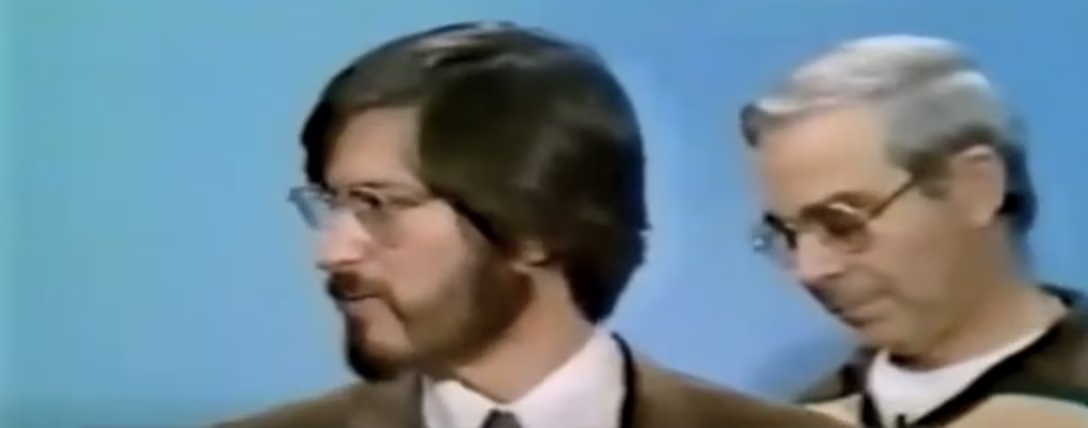
I’m not going to spoil the findings, which are presented well with good corroborating examples. But the most interesting thing to me was one short video snippet of Jobs being visibly nervous before a very early, 1978 presentation:
It made me think about other examples of Jobs being off his presenting game.
The most well-known one is likely the 2005 announcement of the “iTunes phone,” or Motorola ROKR E1, just over a year before the iPhone. It’s a really painful watch, seeing Jobs squint at the sort of interface he usually makes fun of, regretting the whole deal, very aware of the smartphone they themselves are working on, but unable to speak about it yet (the relevant part starts at 17:24):
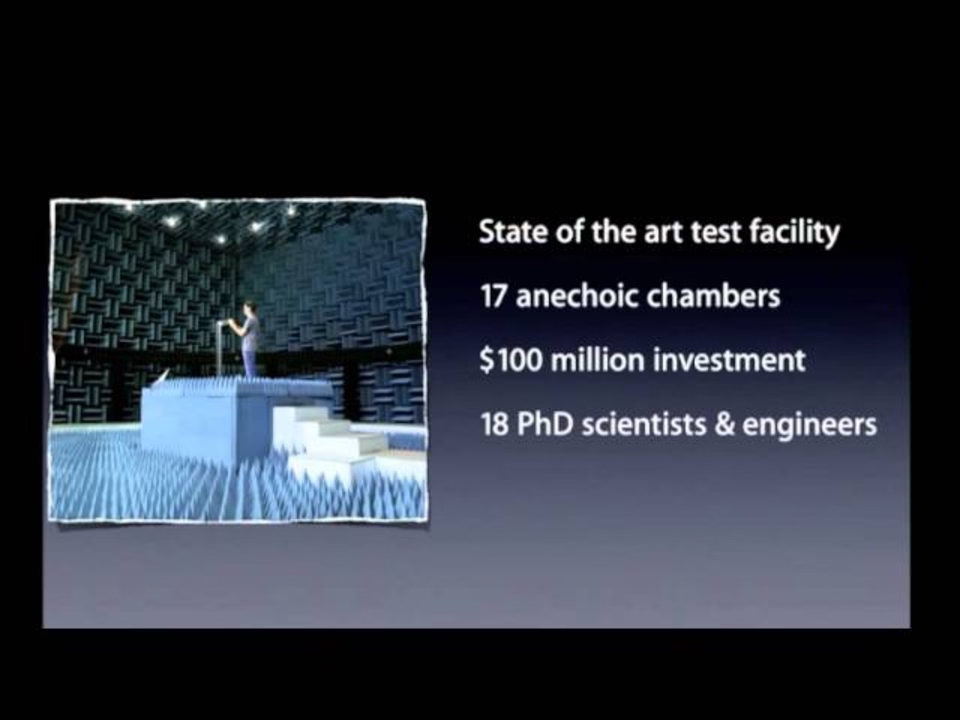
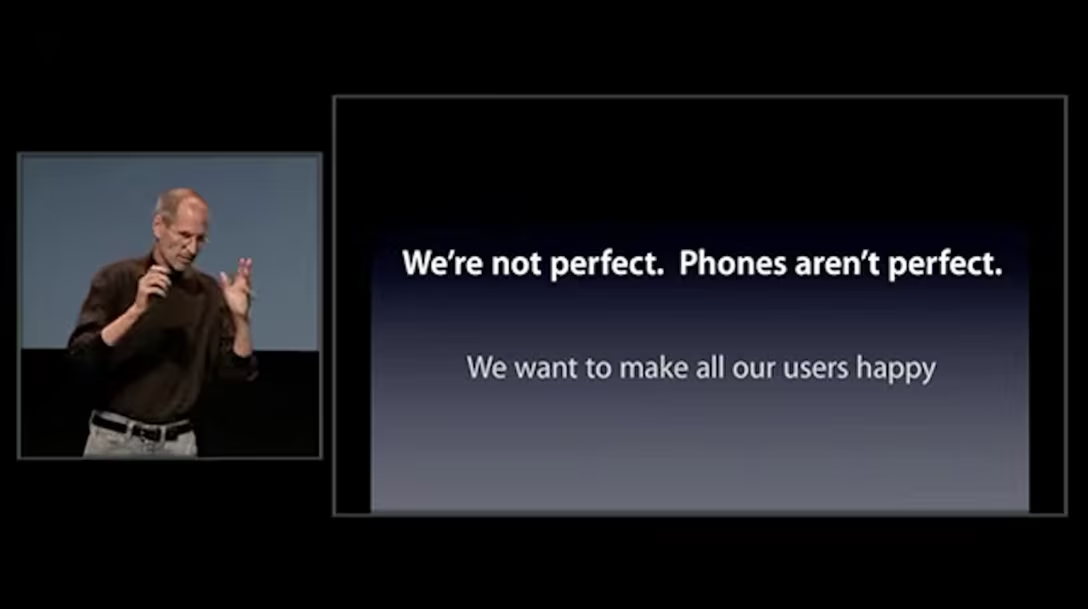
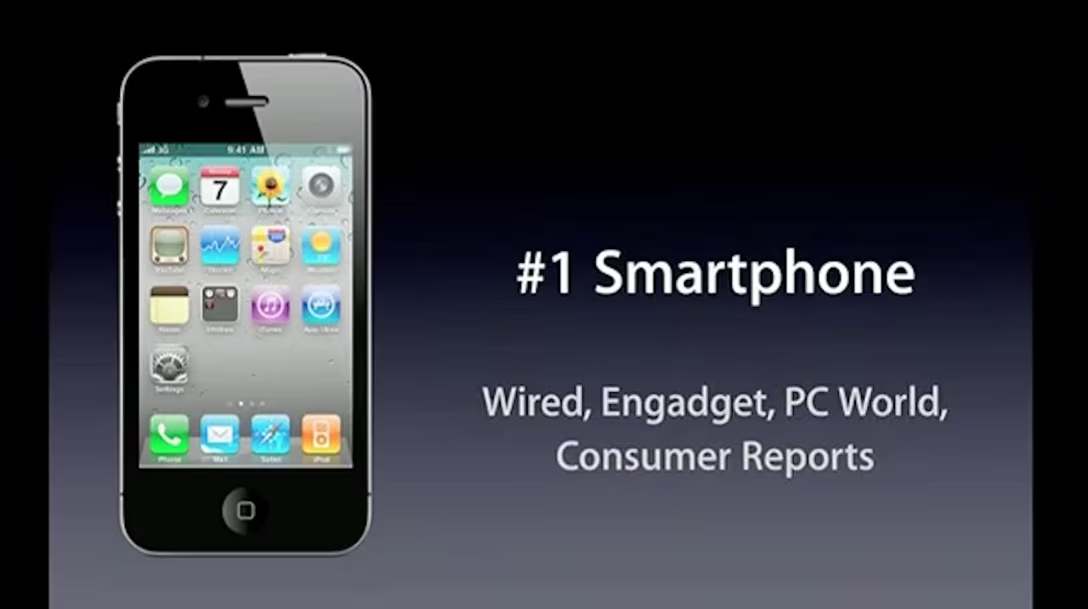
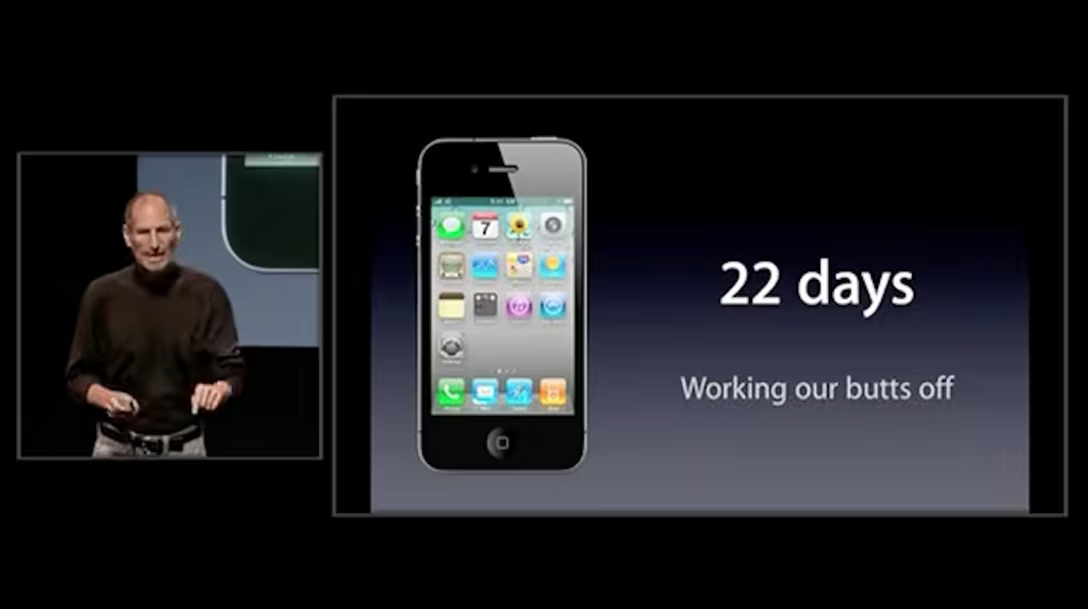
But I have another, trickier suggestion: the “Antennagate” presentation of 2010, where Apple had to do damage control over the issue of the iPhone 4 losing cell signal when gripped a certain way:
Now, this isn’t a bad presentation. I actually think it is a great one. The arguments are valid, the data solid, and the whole thing comes together well. In the recently leaked and generally rarely witnessed slide-less Q&A portion, Jobs displays understanding of the issue and answers questions well; perhaps I’m grading on a curve here, but even his one moment of anger/frustration seems so much better handled than the famously impatient and immature Jobs would have done earlier in his career.
Both videos are worth studying and teach how to do damage control well, and how to tell stories of things you would otherwise choose never to talk about.
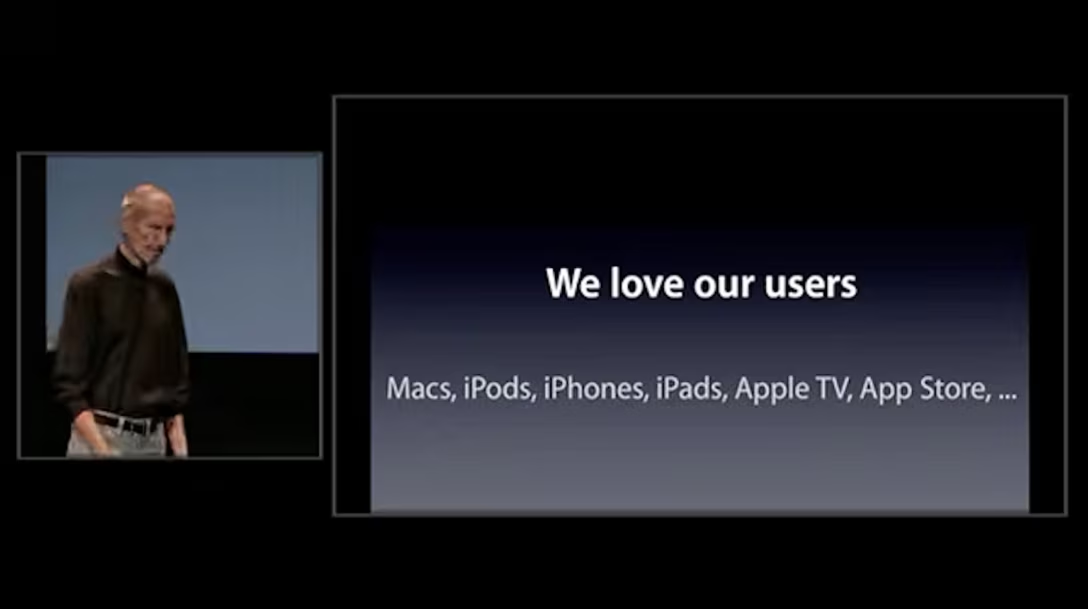
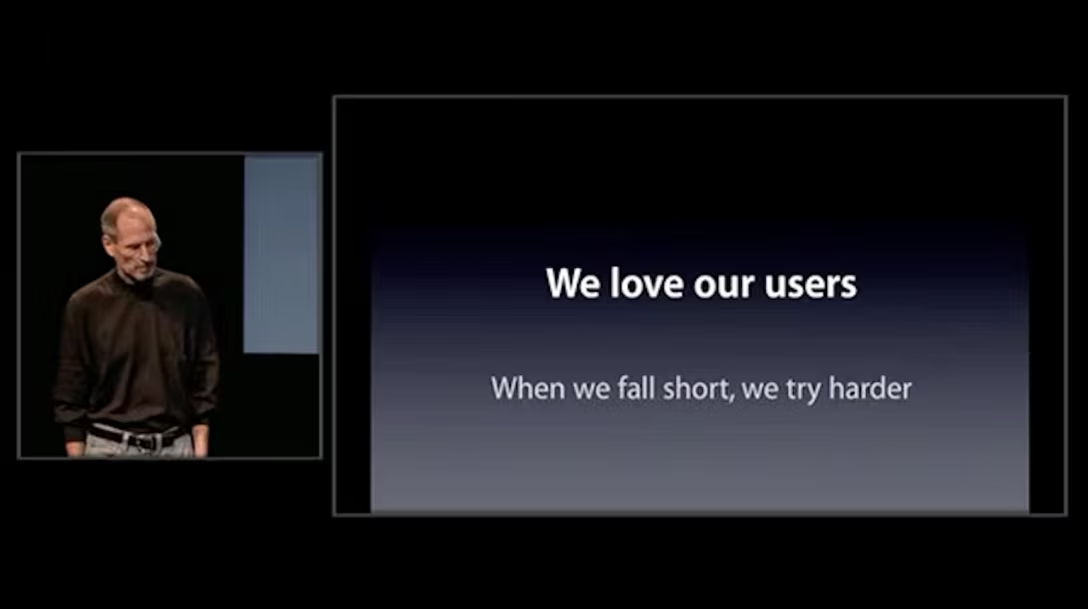
But also, early on, it was really fascinating to see Jobs reading off of so many generic, cheap-looking slides with literal sentence fragments, breaking the “show, don’t tell” rule, and – I think – generally using the slides as a crutch walking him through the narrative. It really took me aback because I don’t ever remember Jobs doing that as prominently.
It makes sense. Jobs had to rush back to work from vacation, and the time to put this all together was very limited. I don’t mean necessarily to pick on anyone here, but rather find in all this a confirmation of a universal truth. Sure, Jobs was smart and had a lot of charisma on stage. But in the end, at some point, slides are just like any other kind of craft. You design the slides, you revise them, you practice, you let the practice influence the content, you get feedback, you kill your darlings, you revise again, and repeat all that so many times you get sick of it all.
It’s clear to me that the team here ran out of time for this, and there’s something comforting in the fact that even Jobs couldn’t wing it, and still had to put in the work.
My favourite piece of writing I’ve done about motor memory remains “Shift + Shift” from 2018. I have linked to it over the years, but if you haven’t checked it out yet, you might find it interesting.
Just this week, I have had another similar moment, and amazing in a slightly new way.
How many of you tap ⌘1, ⌘2, ⌘3 to switch between tabs? This convention has been there for as long as I remember, and so has been my fingers’s embrace of it. The system works in Chrome and Safari, in the Terminal (and Ghostty, which even shows the shortcuts on tabs themselves), in Nova, in Figma, and presumably tons of other places:
(Just about the only place where it doesn’t work is the Finder, and that’s only because ⌘1/2/3 keys there were first assigned to switching the view style – icons, list, column view – some time in the early 2000s, some years before the tabs came. Hard to change a shortcut people are already used to; luckily, I personally don’t use tabs in Finder.)
At this point, I press ⌘1 and ⌘2 and ⌘3 without thinking, just as instinctively as I would ⌘Z for undo, or ⌘C for copy.
So instinctively, in fact, that last week I was looking at Messages, I wanted to switch to the group chat, and my fingers just reached for ⌘1:
I have never done it before. I have not heard this was possible, nor seen it announced in the menu, or a tooltip, or via onboarding. I didn’t even think about it. My fingers just… did it. Completely on their own.
And it worked.
I was just there, looking at my hand amazed, piecing together what just happened as if I were watching someone else’s actions.
It’s funny to pause and think about such a seemingly tiny thing. After all, this happens all the time. Every time I slam Esc to dismiss a dialog I never closed before, every time I press ⌘V to paste something in a new location, every time I tab from one field to another in an app I just installed – sure, these might be system defaults in various places, but I see them break once in a while; when they do work someone might deserve credit for wiring them properly, even if I take it for granted.
In these moments, you only notice things going badly; as a matter of fact on thesame day I pasted some bolded text into the very same Messages app, and tried to press ⌘B to undo the bolding – and that didn’t work.
And I think that’s why that ⌘1 in Messages is worth a little celebration. Over the years, enough apps and websites and operating systems quietly decided to spend extra effort to participate in the ⌘123 convention, together building a dependable interaction system that more and more people’s motor memories could learn to trust over time.
That included mine, including one extra thing that separates it from the story I linked in the first paragraph – and one you probably already noticed.
The Messages app doesn’t have tabs. My motor memory kicking in wasn’t just a recall of something that I’ve already done before. Somehow, in my brain, this convention felt so great that it quietly extended from “⌘1 = first tab” to “⌘1 = first content thingy,” without me even realizing.
And that’s so amazing, right? It’s stuff like this why I keep harping on Safari’s problematic tabs and other compromised interaction systems, and that’s why today I raise a small toast to the designer at Apple who thought about ⌘1 in such a clever way.
What was really fun about this one was the fact that the design of the level puts a splinter in player’s head – you see a bridge above on the left, and you just have to wonder: is it at all possible to, somehow, concoct a jump to get there, and skip a lot of the normal level progression?
Turns out, it is – it just takes a lot of imagination, practice, and determination.
Which is another fun thing, only half-acknowledged in the video: I’m pretty sure that the speedrunner, Muty, did something that the creators of the game never thought was even possible. I haven’t personally made many video games, but even for “serious” software, it’s a special, always interesting, and often great to witness your user squeezing more from what you made than you yourself imagined or planned for.
(I write “often” because sometimes people’s hacks or creative solutions on your platform become your future maintenance problem… but that’s a story for a different post.)
The first is the concept of “zone of proximal development.” The idea, as I understand it, is that possible tasks you face span a few categories:
stuff you already know how to do,
stuff you can learn to do on your own,
stuff you can learn to do with assistance (e.g. from a teacher),
stuff you simply cannot do or imagine doing.
The space between these things is a zone. A good book or a teacher would help you navigate the zone, by giving you tasks hard enough that they will expand the zone, or even teach you how to expand it on your own – but not too hard so that you give up in failure and frustration.
Woods argues that this doesn’t just apply to traditional classroom teaching, but also software, where the role of the teacher is taken by things like:
But most people learned the basics when it was simple, so they don’t notice that it got complicated.
I think this is brilliant and spot on. I always knew the creators of an app would have a problem of not seeing complexity creep in, but this made me consider that the app’s early users might also be biased the same way, and not exert much pressure.
If you are familiar with an app, armed with your desire paths and motor memory, you have a lot of capacity to just ignore new menu items, new panels, and new complexity – provided it doesn’t get in your way. New AI option? Turn it off. New tab? Never click on it. New alternate way of doing things? Just continue with the old way.
But as a new user, you don’t have that history, or that experience-backed confidence that a bunch of stuff can simply be ignored as it’s not crucial to everyday operation. Add to this the industry’s perverse incentives that often present new additions as the most important ones, and it’s much harder to make a sense of it all as a newcomer. And all the while, the creators and existing users might not see the problems you do.
Over the years, I learned about many gotchas and strange differences between keyboard handling on Mac and Windows – pertinent especially to web apps, which use the same codebase to cater to both. I thought it might be helpful to someone if I compile them all in one place.
This post is meant to be a reference, and there aren’t any cute or riveting stories hiding inside – if this seems boring to you, feel free to skip to the next one!
Different names for keys
What Windows calls Backspace, Mac calls Delete. What Windows calls Delete, Macs call Forward Delete. (This means saying “Delete” without specifying the platform might actually be confusing.)
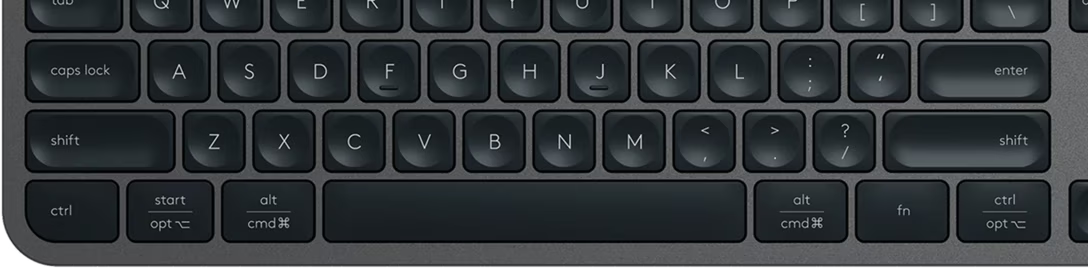
What Windows calls ⏎ Enter, Mac calls ⏎ Return. However, Macs also have an ⌤ Enter, although only on a numeric keypad (previously, it was even there on laptops!). On keyboards without the physical Enter key, you can simulate it via Fn+Return.
In most Mac software, Enter and Return do the same thing. There are a few exceptions – for example, Photoshop adds a new line on Return but commits on Enter, and some classic pro apps like Cubase or Pro Tools do different things, too – but it seems to be a dying tradition. (If you are curious about the history of Return and Enter, I wrote about it once.)
Windows customarily calls the secondary key Numpad Enter. I don’t believe Fn+Enter works to simulate it.
Generally, third-party keyboards use Windows verbiage – so, Backspace and Enter. If a keyboard offers Mac conventions at all, they usually only extend to modifier keys.
Modifier keys
⌃ Control on Windows is the equivalent to ⌘ Command on a Mac. (Paste, for example, is ⌃V on Windows and ⌘V on a Mac.) But, confusingly, Apple devices still have a Control key, too. This was originally meant for terminal applications, but these days many GUI apps use it as an extra modifier key of much lesser significance than Control on Windows.
This means that for apps, Windows devices offer Ctrl, Alt, and Shift – and Macs offer ⌘ Command, ⌥ Option, ⌃ Control, and ⇧ Shift. That’s one more modifier key, and thus more space to breathe. (We’re not counting the Windows key or the 🌐 Globe/Fn key since those are technically reserved by the operating system.)
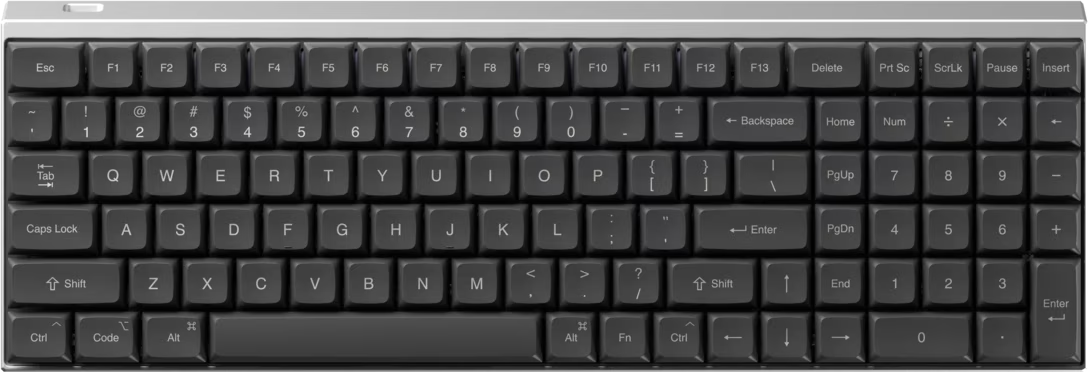
Some keyboards offer extra key caps you can swap to match the platform, for example:
Others cover all the bases on fixed key caps, in an awkward way:
Many stick with Windows-only legends.
(Just swapping the key caps is not enough. The keyboard also has to swap the scan codes it sends, since the code for Alt is the same as the code for ⌥, and the code for ⌘ is the same as the code for ⊞.)
Words vs. symbols
Apple devices rely more on symbols on their keys and in their menus, although they don’t do so consistently. Here are all of them:
⇧ Shift
⌃ Control
⌥ Option
⌘ Command
⏎ Return
⌤ Enter
🌐 Globe/Fn
⇥ Tab
⎋ Esc (not printed on keyboards, for some reason)
⌫ Delete
⌦ Forward Delete
⌧ Clear
≣ Contextual Menu (only on full-size keyboards)
⇞ Page Up (only on full-size keyboards)
⇟ Page Down (only on full-size keyboards)
↖ Home (only on full-size keyboards)
↘ End (only on full-size keyboards)
Actually, I lied about the last four. On modern Apple keyboards, they are:
↑ Page Up
↓ Page Down
⤒ Home
⤓ End
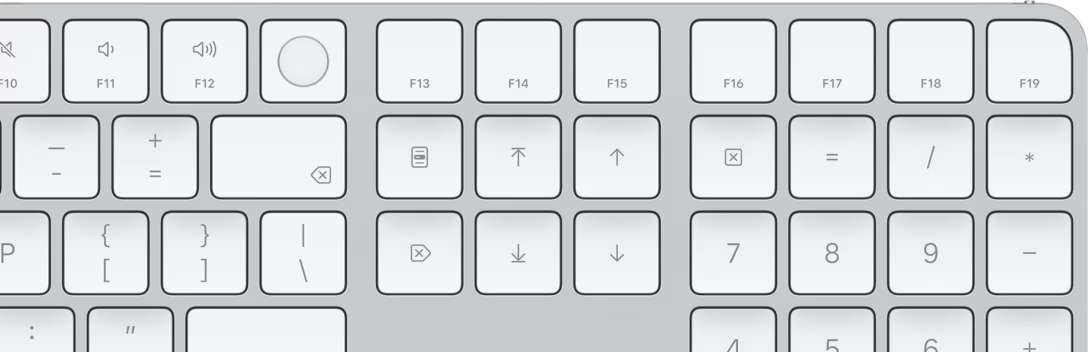
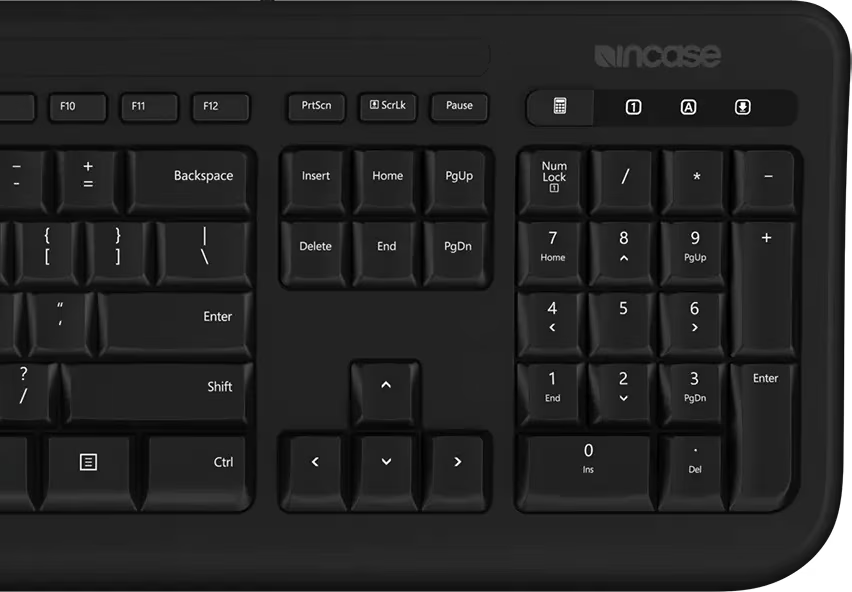
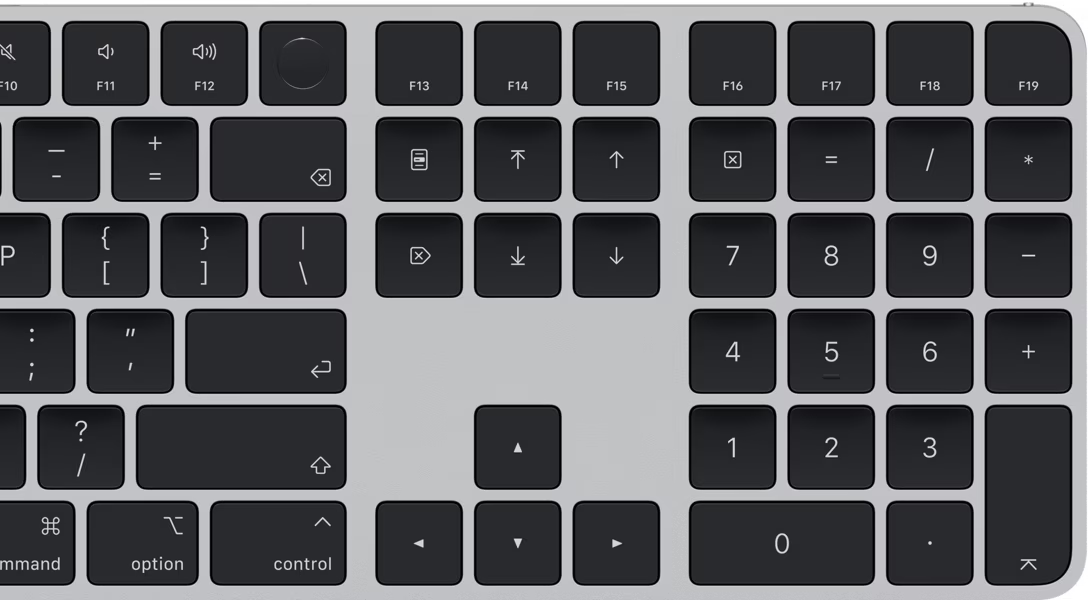
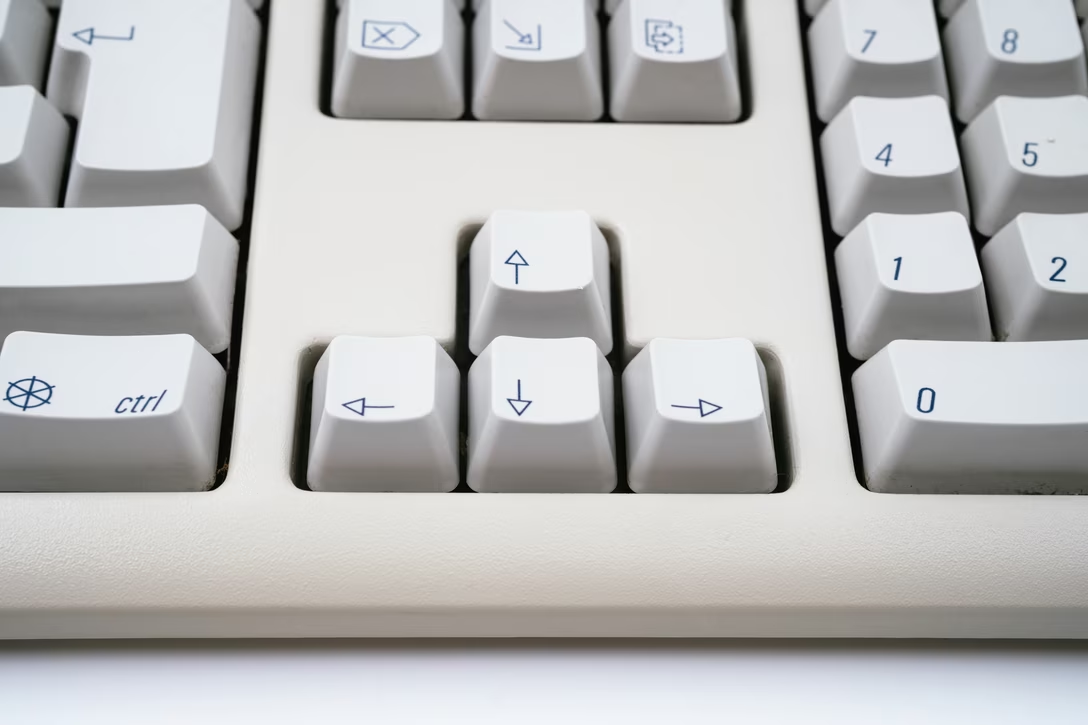
Reusing the regular arrows for Page Up and Down is one of a few perplexing decisions from Apple’s keyboard designers. The arrow key symbols look like this – ◀▶▲▼ – but only on Apple keyboards. Here is an older and a newer Apple keyboard showing what happened:
(Luckily, the confusing dual arrow key situation only happens on less popular, full-size keyboards.)
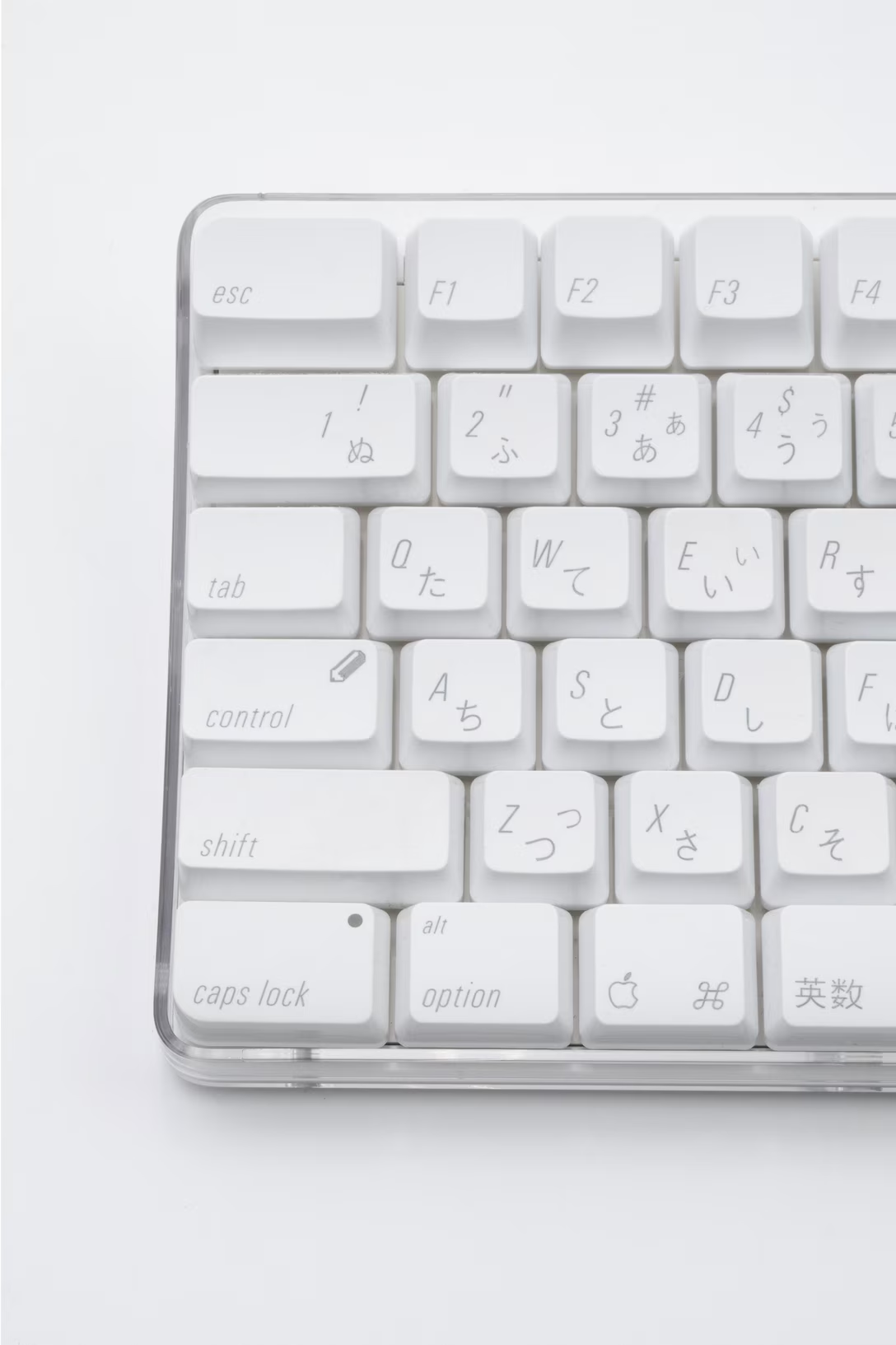
Historically, Apple keyboards used symbols more on non-US keyboards, but starting with the 2026 models, they unified when they show symbols and when they show symbols and legends, across all keyboards. (The only key with just a text legend is Esc, making the appearance of ⎋ in menus extra puzzling.)
Windows keyboards typically use words – this is why in tight quarters you sometimes see shortenings like Ctrl, Bkspc, PrtSc, Del, PgUp, Win, and so on. (I don’t think Apple ever abbreviates their legends with the exception of Esc for Escape.) In some countries, the legends are translated – as an example, in Germany, Ctrl sometimes appears as Strg.
The symbols that crossed over to Windows side are:
⇧ for Shift
⇪ or 🔒 or a similar symbol for Caps Lock (on non-US keyboards)
⏎ for Enter – note the same arrow as Mac’s ⏎ Return
← for Backspace – note a different arrow than Mac’s ⌫ Delete
⇥ for Tab (you can also sometimes see ⭾, which is a symbol representing Tab and Reverse Tab together; Reverse Tab used to be a separate key on some 1970s terminals)
⊞ for Windows key – the style of the logo will be different depending on the age of the keyboard, roughly matching the Windows logo at the time; some keyboards also use a more abstract shape, or call the key Start or System instead of Windows
≣ for contextual menu key (a.k.a. Application Key) – just as Apple added that key on its large keyboards, Microsoft started removing it in favor of emoji key, Office key, and then Copilot key
⌃ for Control (especially in nerdy contexts)
I have not seen any other popular symbols on the Windows side of the aisle, and I am not even sure if the above would be widely understood. But here’s an example:
Here is the same Chrome menu on Windows and on macOS:
(In other words, you’d never say “⌃V is Paste on Windows” like I did above.)
Function keys
Both Windows and Macs have function keys.
On Windows, traditionally those were claimed by the operating system or the apps as shortcuts. Here are some examples of well-known function key assignments:
Alt+F4 – close the app
F1 – help
F11 – maximize window
F12 – dev tools in browsers
On Macs, traditionally the apps didn’t reach for function keys, as those were reserved solely for the users to do stuff with. (However, some combination of ⌃ and function keys are used by the operating system for accessibility options, and I occasionally see apps use function keys these days.)
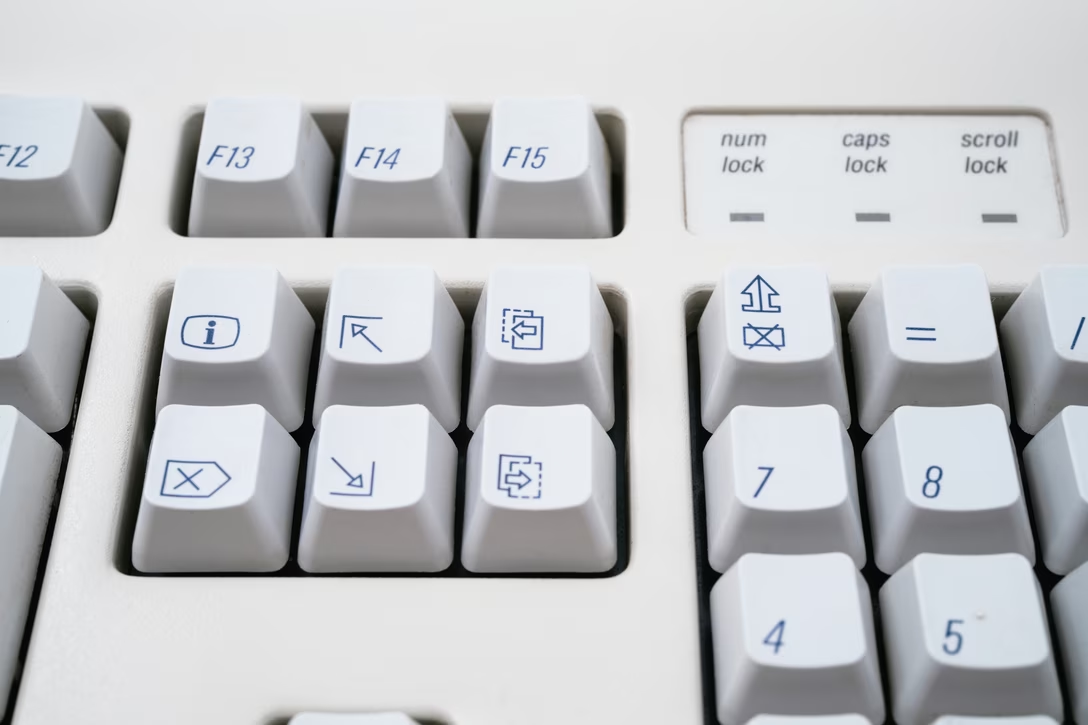
Windows keyboards top off at F12, but some Mac keyboards reuse the three special PC keys, and even take over the unnecessary Num Lock/Caps Lock/Scroll Lock island, and end up going up to F19:
Access to extra characters
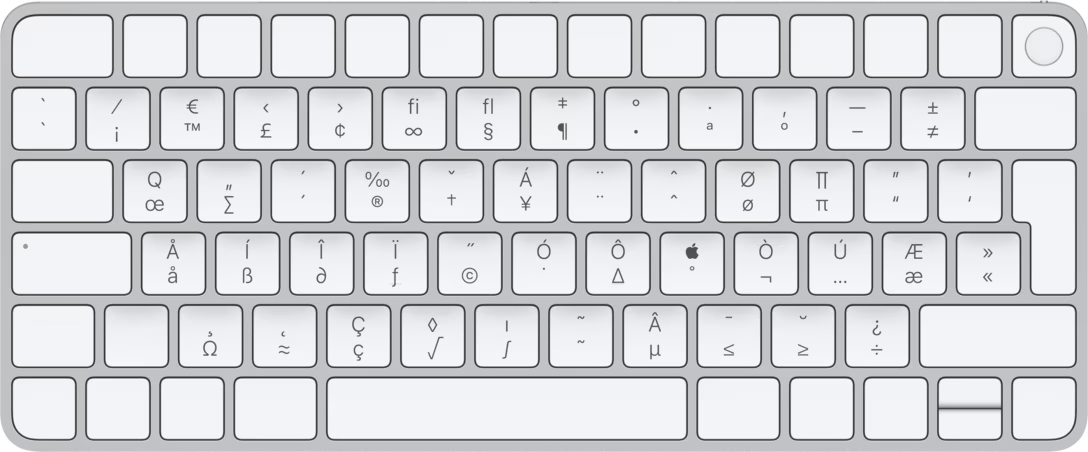
In text fields, Apple has a system where pressing ⌥ with printing keys outputs more characters, for example ⌥Q outputs œ, and ⌥7 outputs a ¶ pilcrow. Additionally, ⇧ works in this context, so for example ⌥⇧Q outputs Œ, and ⌥⇧7 outputs a ‡ double dagger.
Note that not only letters, but basically all printing keys have secret ⌥ and ⌥⇧ assignments. (Also note some of these are dead keys.)
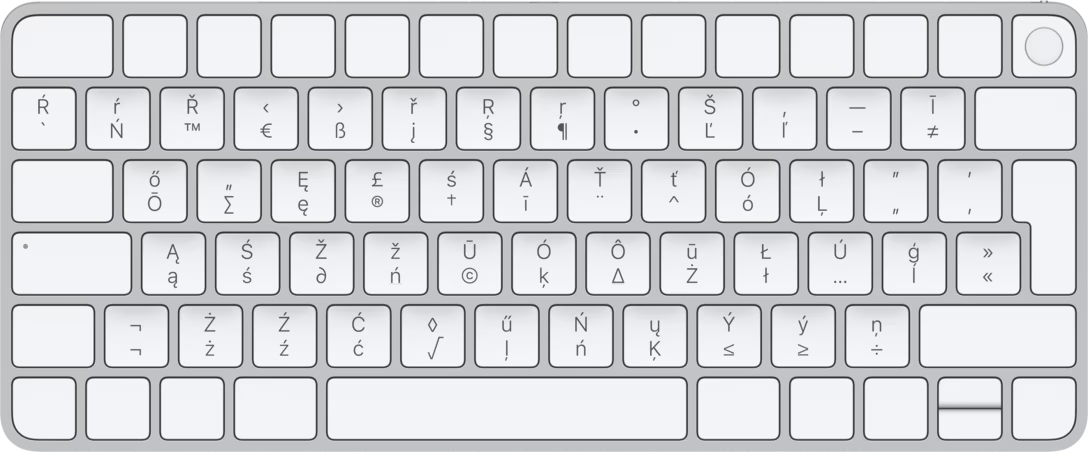
Also, ⌥ assignments vary per location! The above was U.S. English, here’s Polish with a lot of differences:
This means it’s best to avoid ⌥-based shortcuts in text fields, since they might conflict with some important character.
By the way, while the above two are just mock-ups, on some physical keyboards (here: British English), some of the important ⌥ invocations are actually printed on keys:
Windows doesn’t have the above feature. However, Windows has an alternative feature where typing Alt+numpad keys allows to enter any character by its code. (For example, Alt+0128 outputs €. Num Lock has to be enabled. I don’t think it’s possible to do it without a numeric keypad present.)
Mac has a version of this feature, but it requires adding Unicode Hex Input keyboard and switching to it beforehand. Then, pressing ⌥20AC outputs €.
Right Alt key on Windows
While Mac modifier keys are completely symmetrical, Windows makes an exception for Alt. On many non-US keyboards, right Alt is also known as AltGr, and does something similar to ⌥ on a Mac: it outputs letters when pressed in combination with printing keys.
For example, on Polish keyboards AltGr+A = ą, AltGr+C = ć, AltGr+Shift+A = Ą, and so on with 15 more combinations. Many other keyboards do similar things.
The way it differs from ⌥ on a Mac is that these are usually reserved for core letters and punctuation necessary for each language, rather than the typographical smorgasbord that Apple provides.
For legacy reasons, and also for keyboards that do not have a physical AltGr key, you can also invoke all these using Ctrl+Alt combinations instead (so, Ctrl+Alt+A = ą). This means that just as you have to be careful about ⌥-based shortcuts in text fields on a Mac, so you should be of Ctrl+Alt-based shortcuts on Windows.
Just like on Macs, on some keyboards, selected AltGr options will be printed in the corners or fronts of keys:
Text fields
Text fields in Mac OS apps and web browsers/websites use some of the standard Unix/Linux shortcuts based on the ⌃ Control key:
⌃A – move to the beginning of the line
⌃E – move to the end of the line
⌃F – move to the right, or forwards (hold ⌥ to jump through words)
⌃B – move to the left, or backwards (hold ⌥ to jump through words)
⌃N – move down or to the next command
⌃P – move up or to the previous command
⌃L – scroll the window so that the text cursor is in the vertical middle
⌃H – delete (backspace)
⌃D – forward delete
⌃K – delete (kill) to the end of the line
⌃T – swap (transpose) the adjacent characters
⌃O – insert new line, but (contrary to Return) do not move the cursor there
You can combine many of the above with holding ⇧ to extend the selection.
A small group of vocal users love these.
Windows still supports Shift+Delete for cut, Ctrl+Insert for copy, and Shift+Insert for paste. I am not sure how many people use these.
On a Mac, in simple input fields, ↑ and ↓ jumps to the beginning and end (same as ⌘←→). This often conflicts with command line history, autocomplete pop-ups, and so on.
Windows doesn’t have this convention, and Home and End serve this purpose instead.
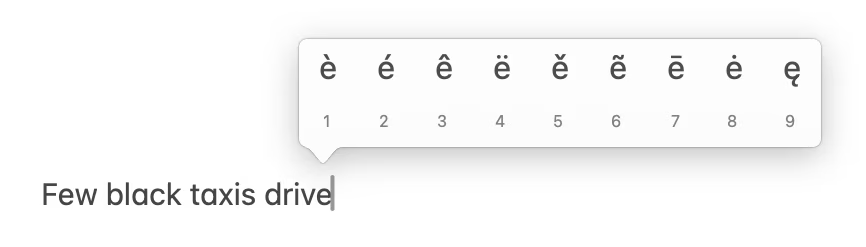
Macs support the iPhone-inspired convention of holding a key to show related accented characters, instead of triggering auto-repeat. Windows doesn’t have this feature.
Differing shortcut conventions worth knowing about
On a Mac, redo is typically ⌘⇧Z. On Windows, it’s typically Ctrl+Y.
On a Mac, refresh (in browsers, etc.) is typically ⌘R. On Windows, it’s typically F5, although browsers support Ctrl+R, too, and seem to be shifting to that being the default.
Reserved keys
Windows’s eponymous ⊞ Windows key is reserved solely for the use of the operating system, and so is Mac’s 🌐 Fn/Globe key. (Although I am not 100% sure of that as I found one place you can create 🌐 shortcuts as a user – I’m just not certain if it’s intentional.)
However, each platform also has a lot of shortcut combinations that are effectively unavailable, for example ⌘⇥ and ⌘M on a Mac, or Alt+Tab and Ctrl+Shift+Escape on Windows.
If you’re a web app, you will compete for shortcuts with the operating system (like any app would), but also with the browser itself. You can typically take over shortcuts like ⌘S or ⌘P, but depending on the browser or the platform, some might be sacred and unavailable. No Mac browser will allow a website to claim ⌘Q, ⌘W, or ⌘T. Safari won’t allow a web app to override ⌘R. Arc browser won’t allow to override ⌘⇧C. (This is not a complete list.)
Jumping around
Tabbing and Shift tabbing is customarily used to jump between UI elements, but it behaves slightly differently in native apps.
On Windows, tabbing jumps through all interactive elements:
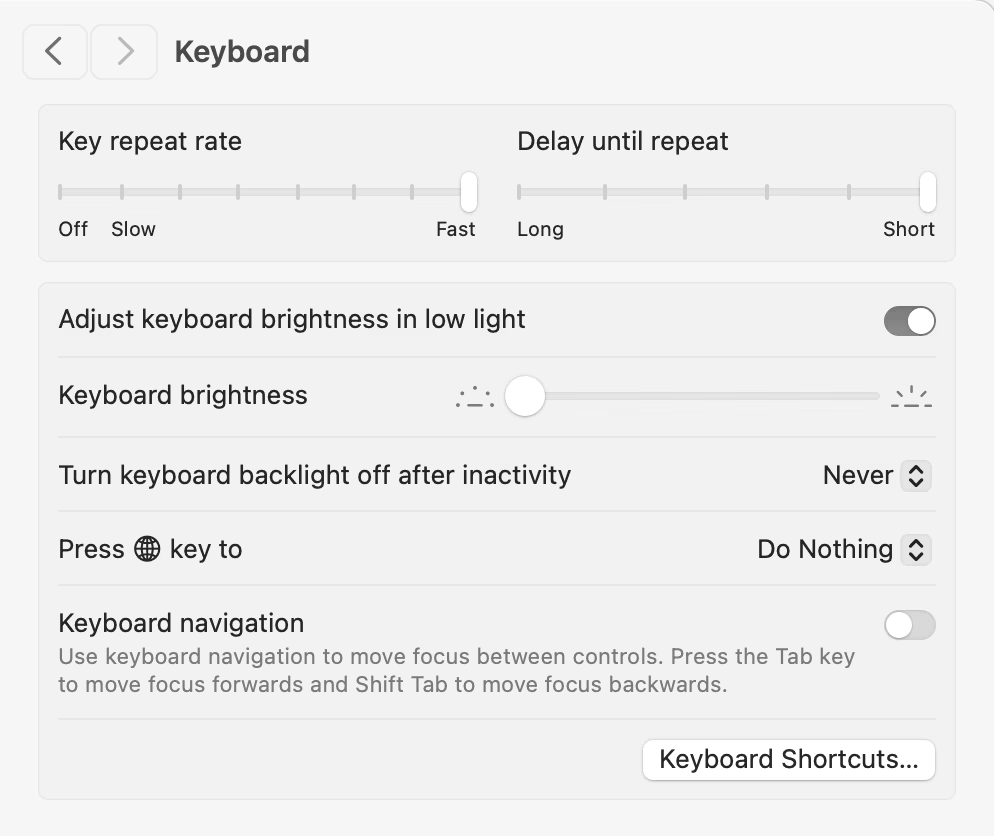
On Mac, Tab jumps only to those interactive elements that require keyboard to operate (such as input fields). You can toggle a System Settings preference and ask macOS to mimic Windows behaviour – see the last toggle below – but it’s not supported well everywhere.
PgUp and PgDn work differently:
On Windows, they move the text cursor a screen up or down.
On a Mac, they scroll the view up and down, but they do not move the text cursor if it’s present (so, they are more an equivalent of clicking on the scrollbar chute).
Similarly, Home and End work differently:
On Windows, they scroll the contents (and move the cursor if present) to the top or the bottom of a view, or move the cursor to the beginning or the end of an input field.
On a Mac, in views they scroll to the beginning or end without moving the cursor. In input fields, Home/End do nothing, but you can use ⌘←→ to accomplish the same.
On both platforms, Fn+↑↓ does PgUp/PgDn, and Fn+←→ does Home/End. (Do you see how confusing it is to say that given that ↑↓ already mean PgUp/Dn on a Mac?)
Windows has a tradition of enabling access to menus and visible controls by pressing Alt and letter keys. This has evolved over time and is not as consistent as it used to be, but it might be worth knowing about.
Less popular keys
On a 100-plus-key keyboard, Windows might have:
Insert – still used in some contexts for overtyping
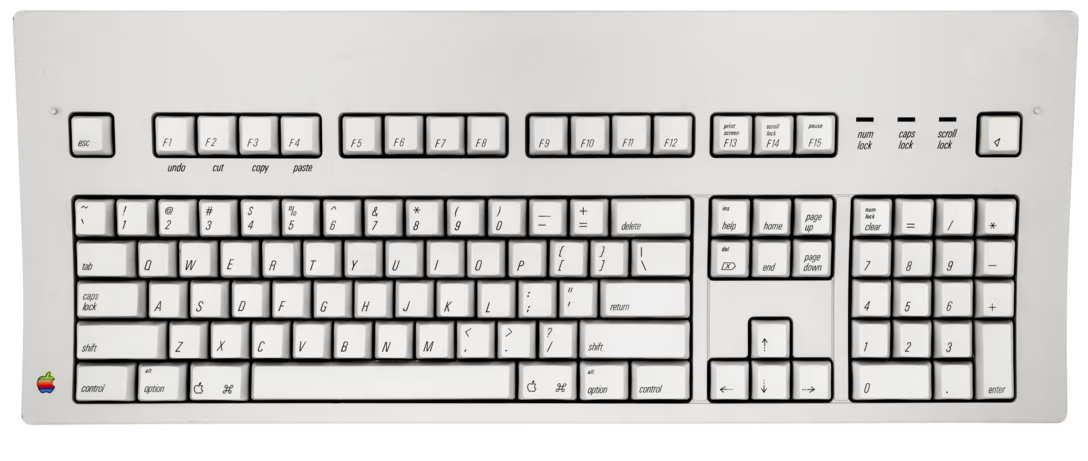
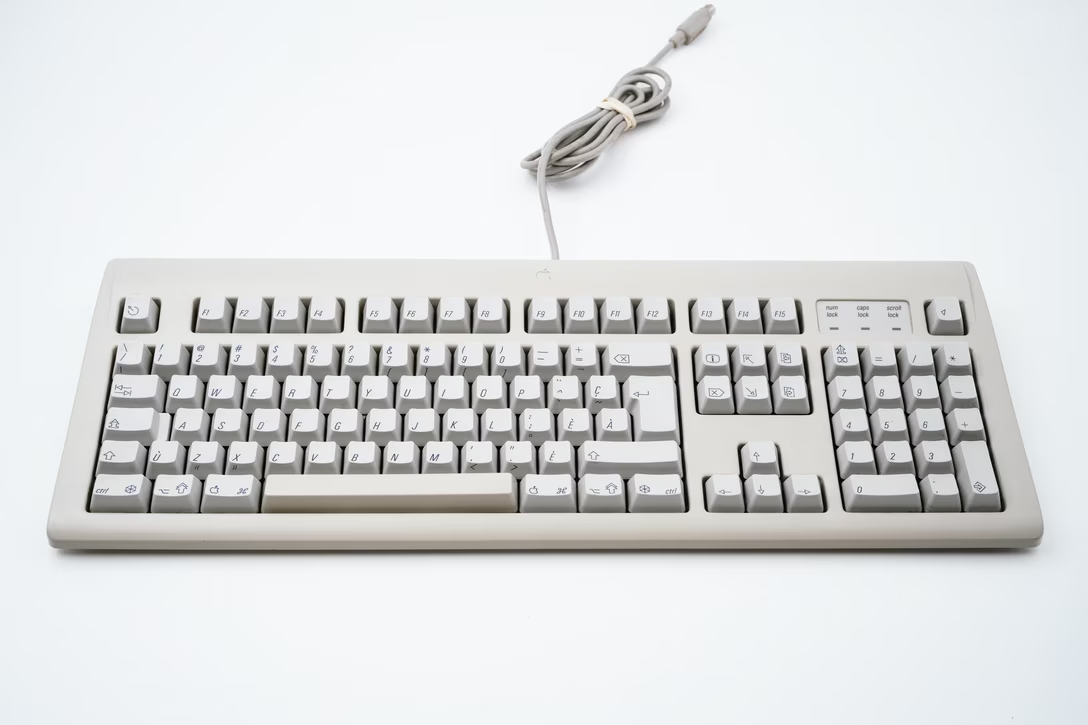
In a strange twist of fate, it’s not only third-party keyboards that favor Windows legends. Some of Apple’s keyboards in between 1980s and 2000s showed PC legends, too! (This was to court PC compatibility of then-beleaguered Macs.) Here’s the classic Apple Extended Keyboard, showing legends for Insert, Delete (naming it Del to avoid confusion with its own), Print Screen, Scroll Lock, Pause, Num Lock, and Alt:
Did I miss anything or make a mistake? Let me know!
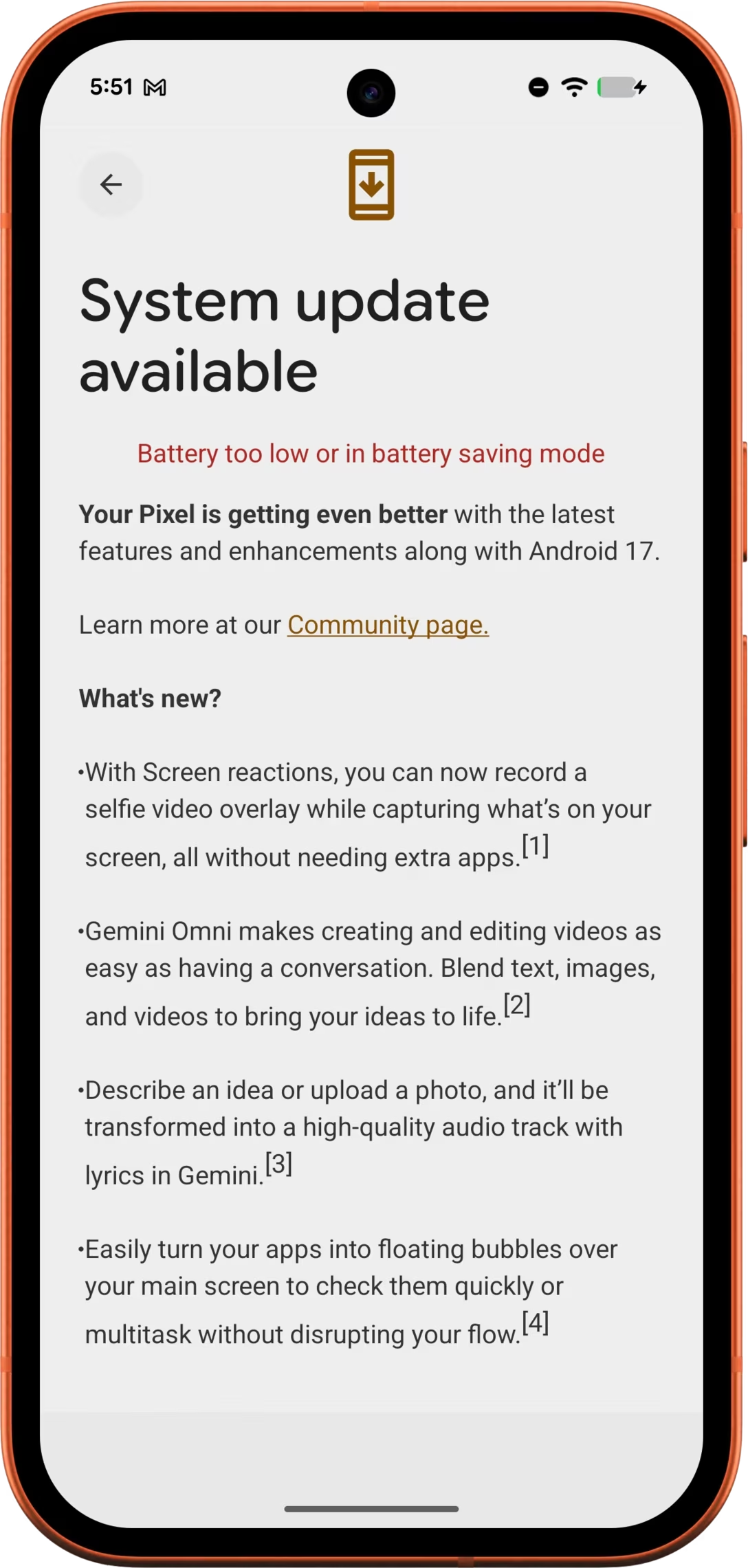
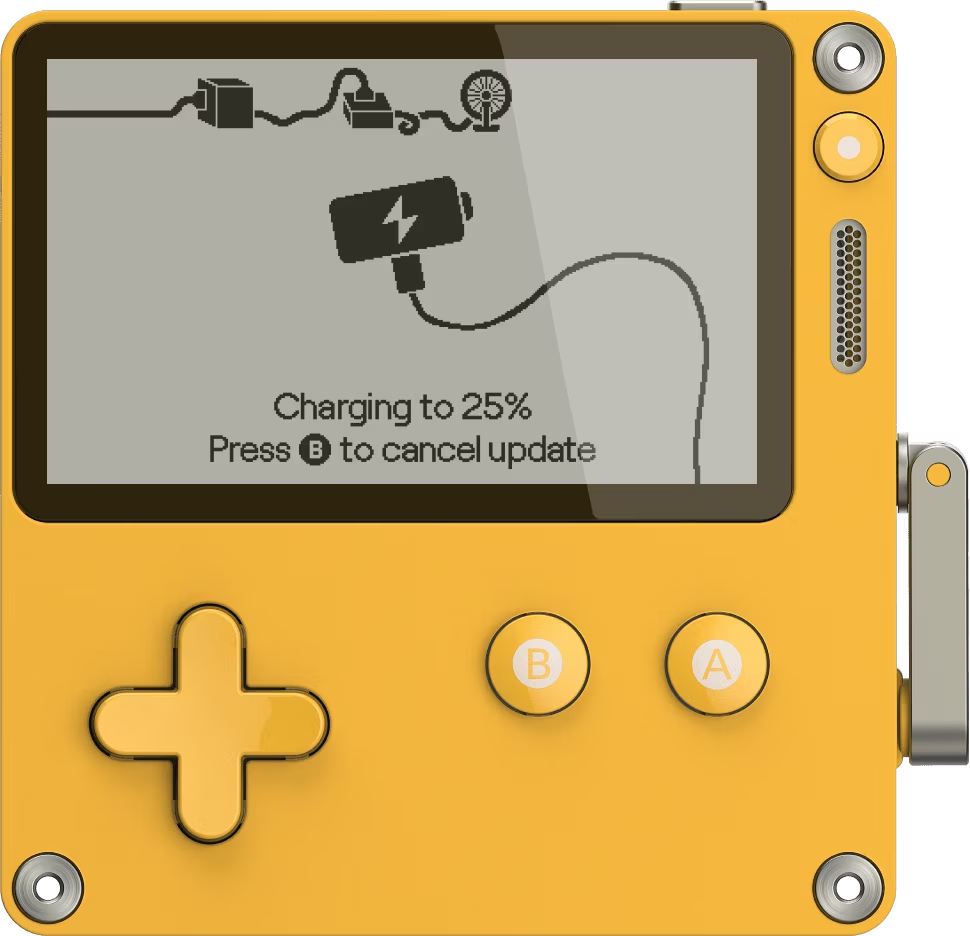
Here’s what happens when you try to update your Android phone if it’s low on battery (even if it’s connected to a charger):
It’s a pretty cheap error UI, a misaligned string thrown carelessly in between existing interface pieces. It doesn’t even bother explaining what “too low” means.
Compare this to what the Playdate does in the same situation:
If the device battery is depleted, the software simply charges if first to the necessary minimum (spelled out on screen), before automatically proceeding to the actual update – all without any user intervention.
We previously talked about fire-and-forget states, or interfaces which give you confidence that once the process starts, it will finish on its own. (If you don’t like military references, we could call these tap-and-walk-away.)
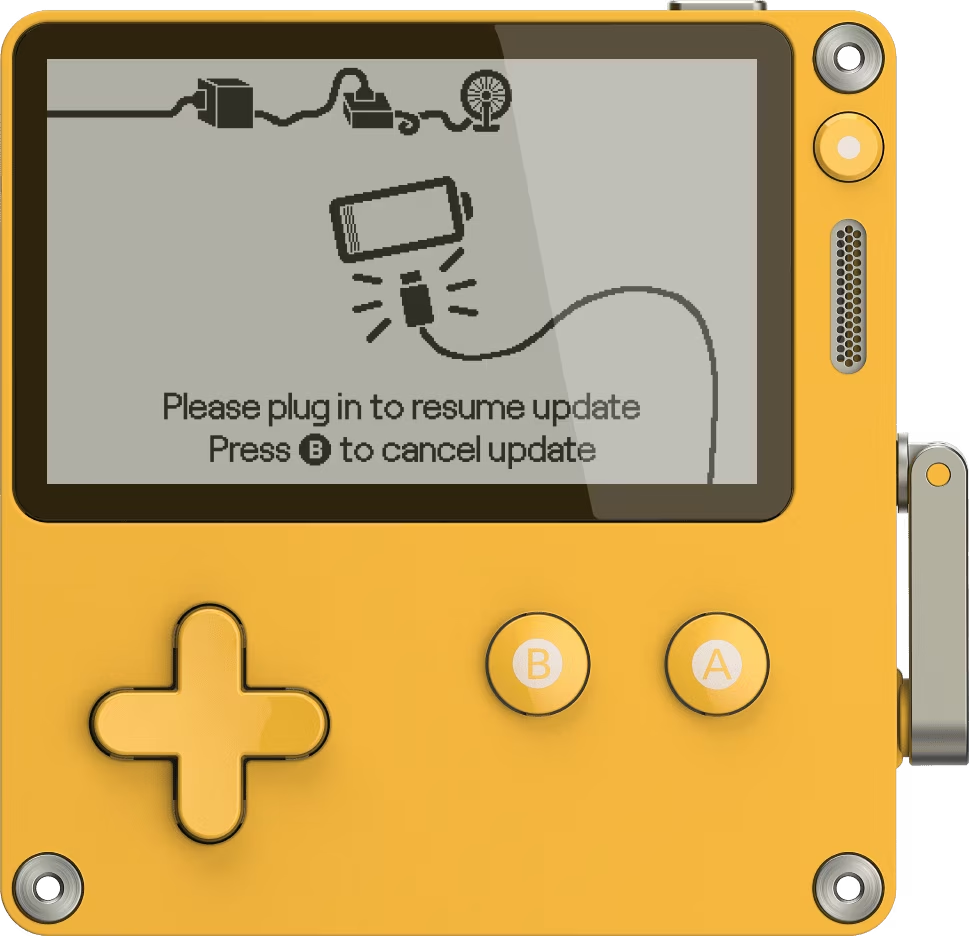
This is a really good example. There is even a nice corresponding version for when your Playdate needs to be plugged in first:
Once you do, the process again continues by itself right until the end.
A fun little video by Bofner talking about how two Castlevania games on the original Nintendo Game Boy achieved a certain visual effect that wasn’t technically possible:
What I really liked was this sequence of events:
Game Boy introduces a special immovable layer to accommodate HUD/GUI elements within games (such as score displays or life meters),
Castlevania programmers come up with a creative hack to use the HUD layer draw a movable spike wall instead,
then, they use another hack to draw the HUD anyway, outside of the HUD layer.
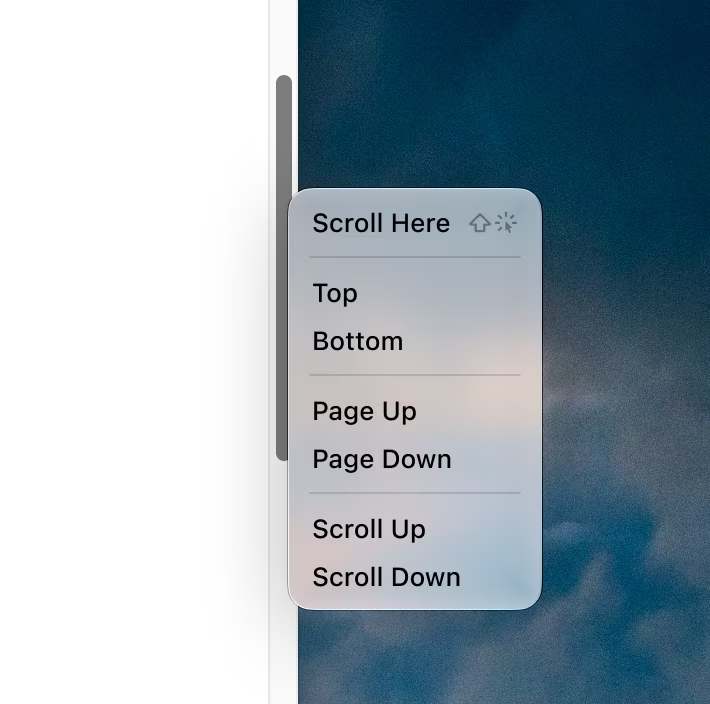
This is how interaction systems slowly fall apart. […] It is likely that Safari’s exception will now be treated as “blessed,” and start spreading further. Given enough time, more and more pills will go in whatever direction they want when dragged – and people will learn not to trust any of them.
I didn’t quite get this right, as it seems this hasalready happened. It might have been Safari that used a “blessed” interaction from elsewhere. Conversations with a few readers helped me piece together a larger story of how we got here. I fired off some of my old iPhones and emulators to verify them, and so let’s go back in time all the way to 2007.
Step 1: These rotary controls for timers have been here since the first iPhone. Note how you drag the background, not the selection, but that works because the background is styled as a physical object, you see the options extending in both directions, and the selection remains fixed in place.
Step 2: In iOS 7 in 2013, the camera app adopts a similar treatment, but on a horizontal plane. This is roughly as above, flattened, but with the background still extending in both directions, showing adjacent options. This also made some skeuomorphic sense because this control is very “mechanical” – you could imagine such a wheel on a real-life camera.
Step 3: In 2023, Safari follows in those footsteps for its tab groups (which originally was a more traditional menu). It might have felt like the right thing to reuse, but the control doesn’t feel as refined as the Camera’s. It also introduces the problems where tapping no longer scrolls to the initial position (mentioned in part 1) and the too-eager tab group creation overflow (mentioned in part 2).
Step 4: This is where the trouble begins. Camera gets redesigned for iOS 26 and liquid glass. The team decides to rearrange and simplify the control visually, but at a price of making the interactions feel more complex: there are now only two items visible by default (the background doesn’t extend to hint at other options in its resting state), the current selection no longer stays in place, and the control generally suggests tab-like interactions but doesn’t provide them.
Step 5: At some point in the beta process, the Camera team perhaps realizes the same thing I found challenging in part 2 – these now look like pills, and elsewhere the system taught us finger drag moves pills rather than the background. In iOS 26 beta 4, the direction is reversed compared to all previous versions of the app.
Step 6: Seemingly almost immediately, people complain, since many years of motor memory are now compromised. So, in beta 5, Apple adds a setting called “classic mode switching” – similar to natural scrolling years before, on macOS side.
Step 7: However, not long after that, in beta 6, Apple removes the setting and reverts to the original direction from steps 3–4.
Things that come to my mind:
Inverting the control to go the other way in step 5 was where the consequences of previous steps reared their ugly head. I imagine perhaps the strength of complaints surprised Apple, which found itself without a backup plan, between the rock and a hard place: earning either the immediate ire of power users (whose motor memory was disrespected) or the future ire of other users (who will experience no consistency between pilled controls going forward).
Adding a setting would be kicking the can down the road, but so is – as I hoped to establish in part 2 – leaving things as they are: There’s still a systemic problem where controls in Camera and Safari are now at odds with other pilled controls.
What makes a control a control is not paper principles, but a collection of details working together. Removing the extended background, restyling the control, and making the selection no longer stay in place might feel like small changes in isolation, but at some point Theseus would like a word. I see this sometimes in other surfaces, where individual UX changes compound over time, become basically dead reckoning, and result in a boiled frog.
I wonder if Apple succumbed somewhat to the “dumb consistency” problem: often it’s better to be inconsistent in a smart way than consistent in a dumb way. It might feel good for all the tabs and the pills and the toggles to look the same visually, but that feels like dumb consistency if they behave differently. It might seem good for Safari to reuse Camera’s toggle, but the Camera is generally a one-of-a-kind, bespoke app, so it has some leeway here. Safari doesn’t really get to play by those rules.
I am curious why the Camera team didn’t invert the direction and the ordering of things. In this case, two wrongs would make a right, and this would keep the motor memory intact. (I imagine the reason is that this would trip up people who remembered things cerebrally, rather than “in their fingers.”)
I feel the team wasn’t given or didn’t give itself enough time, which jibes with how unpolished the entire liquid glass effort was in its first year. In a perfect world, the camera control would probably have been redesigned again before launch to avoid tricking the motor memory – or perhaps the whole original iOS 26 change reverted.
That’s Camera. Where’s Safari in all that? Just where it started: Safari’s control today again seems just like a cheaper, more hurried, less thoughtful version of what Camera does. The Camera toggle doesn’t have the jarring “swipe to the left to create a new space” flow, doesn’t need to support tap to top, shows you the background affordance more readily, uses haptics, feels less buggy, and even only allows you to swipe one notch at a time, so the control feels precise and never runs away from you.
In the just-released iOS 27, the Camera is even slightly improved – it again shows more of its surroundings even before any swipes.
I haven’t noticed any updates to the Safari control.
The story of this entire system now appears to be this:
The Camera team made mistakes that could have been avoided; changes to deep motor memory do take years and have to be planned and approached with patience.
The Safari tabs have been drafting behind the Camera tabs, but still introducing smaller mistakes of their own: continuing to prioritize strange interactions in lieu of intuitive ones, and forgoing some of the nuance.
Both look like pills and, when dragged, go in the opposite direction as other pills in the system.
In all these screengrabs, I’m dragging my finger to the right:
I don’t, of course, know all the details, and I realize I am harsh in my assessment. I sympathize with the depth of the challenge not just for the team – motor memory can be brutal, and established interaction systems are really hard to evolve – but also in coordinating with other teams in a closed-off culture like Apple’s.
Then again, these are iPhone’s top-tier surfaces so I think it’s fair to expect excellence, and this is also not the first time Safari team has made some puzzling design choices. Perhaps most importantly, Apple is also the platform owner and they set the tone for other apps, which we’ve seen recently in their indirect influence over CleanShot’s settings.
I hope you found some interesting things in this long post. As a reminder why it all matters, and why protecting systems of interactions like tap to top (part 1), or slide on an object to move it in a predictable way (part 2) is important, this is a quote from one of the readers:
It’s actually worse [in Camera], because often you are in a bit of a hurry to take a picture and it behaving unexpectedly is the last thing you need. I had this once or twice: suddenly it was in video mode and by the time I had it back in regular photo mode, the train I was trying to photograph was long gone.
I’ll be curious if we see more evolution of these spaces, and hopeful Apple resolves the problems. But now, I’m ready to stop talking about Safari’s tabs for a while.
Thank you to Nikita Prokopov, Daniel Dickison, Jeremy Kanter, and Martin Hoffman.
There is this lesson every programmer learns when building or debugging something, and it’s “reduce your blast radius.”
Let’s say I want to draw some stylized text showing current time in some code I haven’t touched in a while. Instead of doing all that in one fell swoop, I should:
use a non-changing test string, instead of the current time (so I reduce the surface area of things that could fail),
start with unstyled text, instead of immediately stylizing it (same as above),
or, even, begin by modifying the text or color of something that’s already drawn, to make sure I’m touching the right file, that the compilation succeeds, that auto-refresh works, etc. (perhaps using the venerable border: 10px solid hotpink, as mentioned recently by Roel Nieskens).
Coders intuitively develop a sense of how big of a leap to take in what situation. You can theoretically noscope a complex regular expression in one go and it will feel fantastic, but if you fail, you might end up going slower than someone who attacks the problem piece by piece.
There’s a version of this outside of programming, and I sometimes call these peace-of-mind functions.
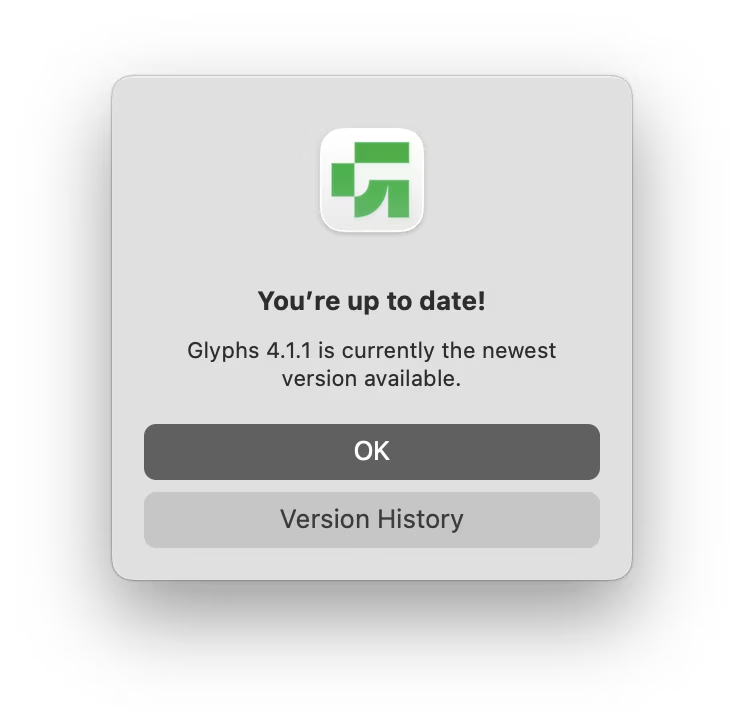
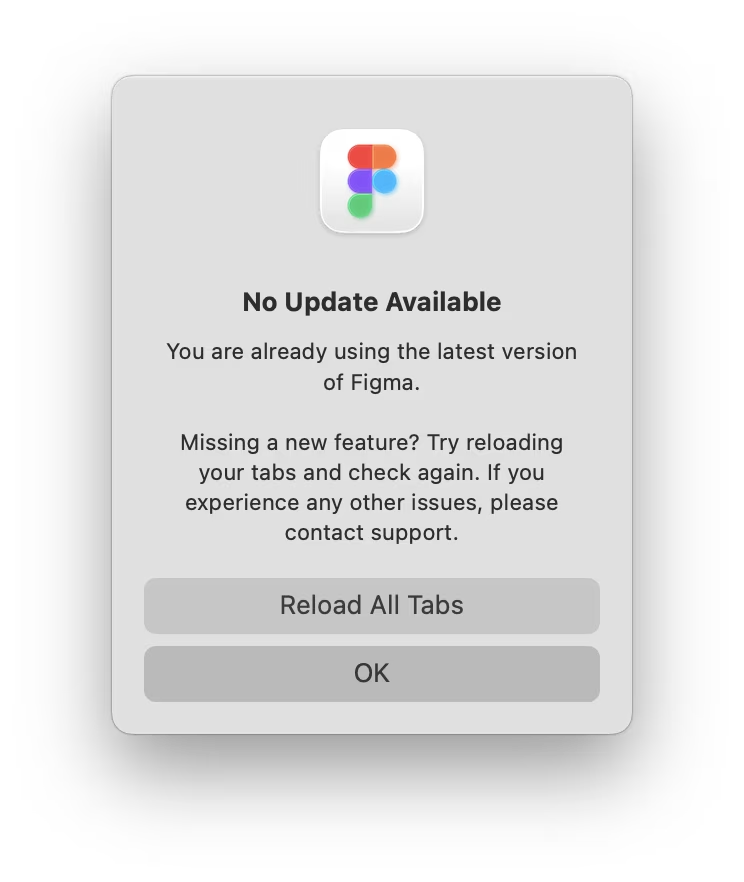
Perhaps the most common one is a menu command called Check for Updates, found in many apps. At least when it comes to kind software, “newer” means “better,” so if something seems to not be going well, making sure you’re on the latest version can save some headache.
Here’s a pretty standard example in Glyphs:
Figma goes extra, explaining its slightly more complicated situation:
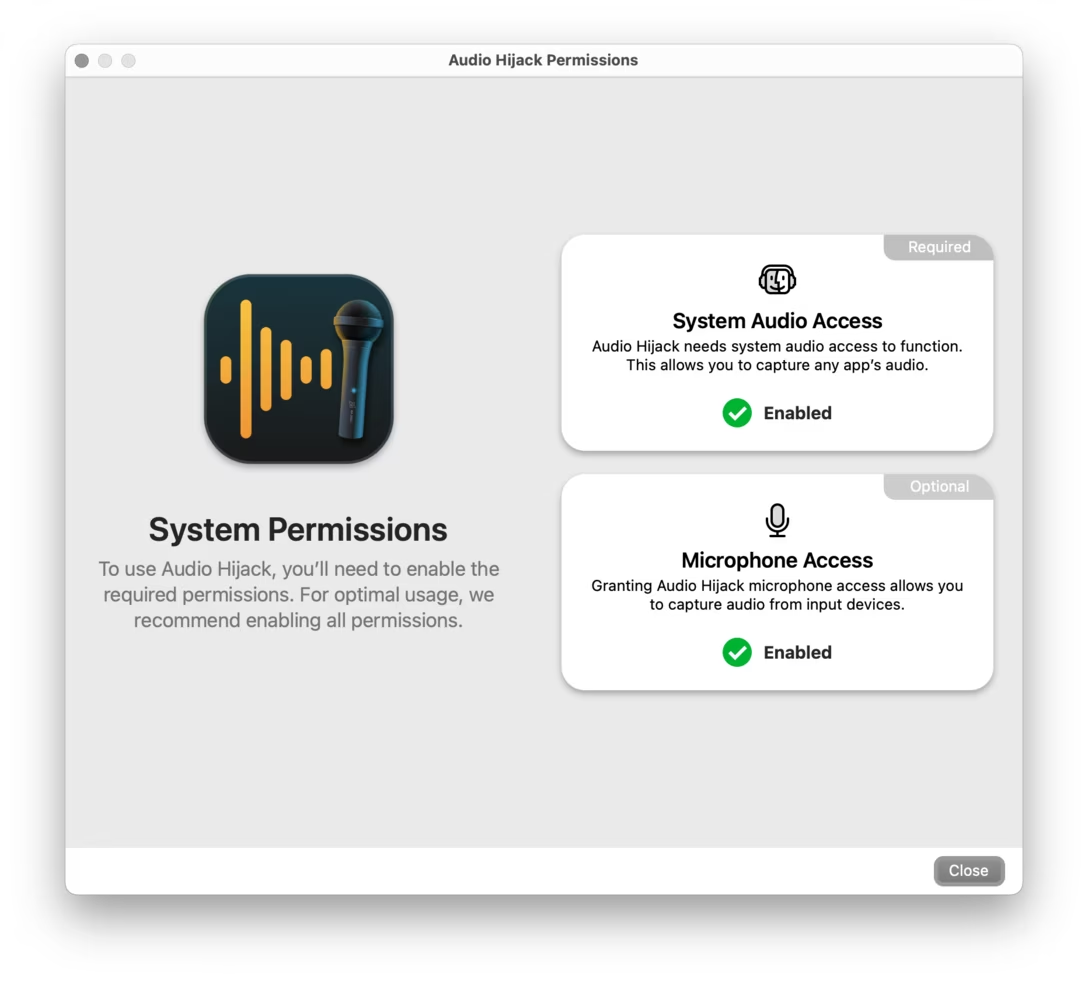
Another common peace-of-mind dialog is necessary permissions. Here’s a nice example from Audio Hijack:
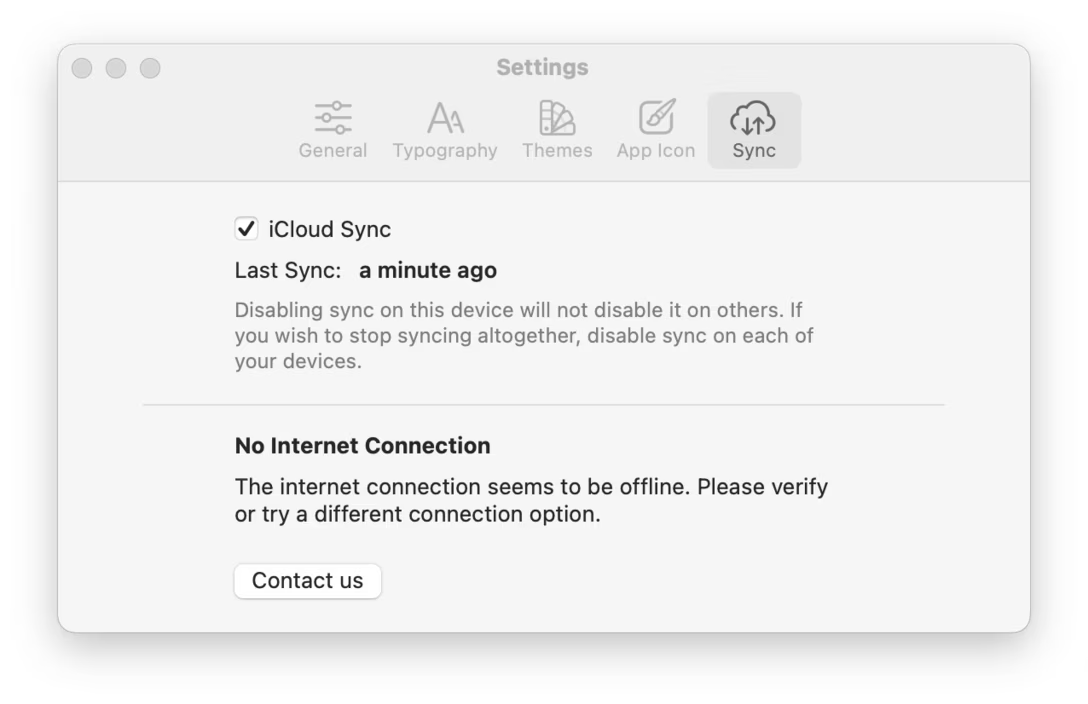
One more category is cloud syncing. Here, Bear provides additional information about why a sync might be in trouble:
These three peace-of-mind functions seem pretty common these days, but here are a few more specific examples.
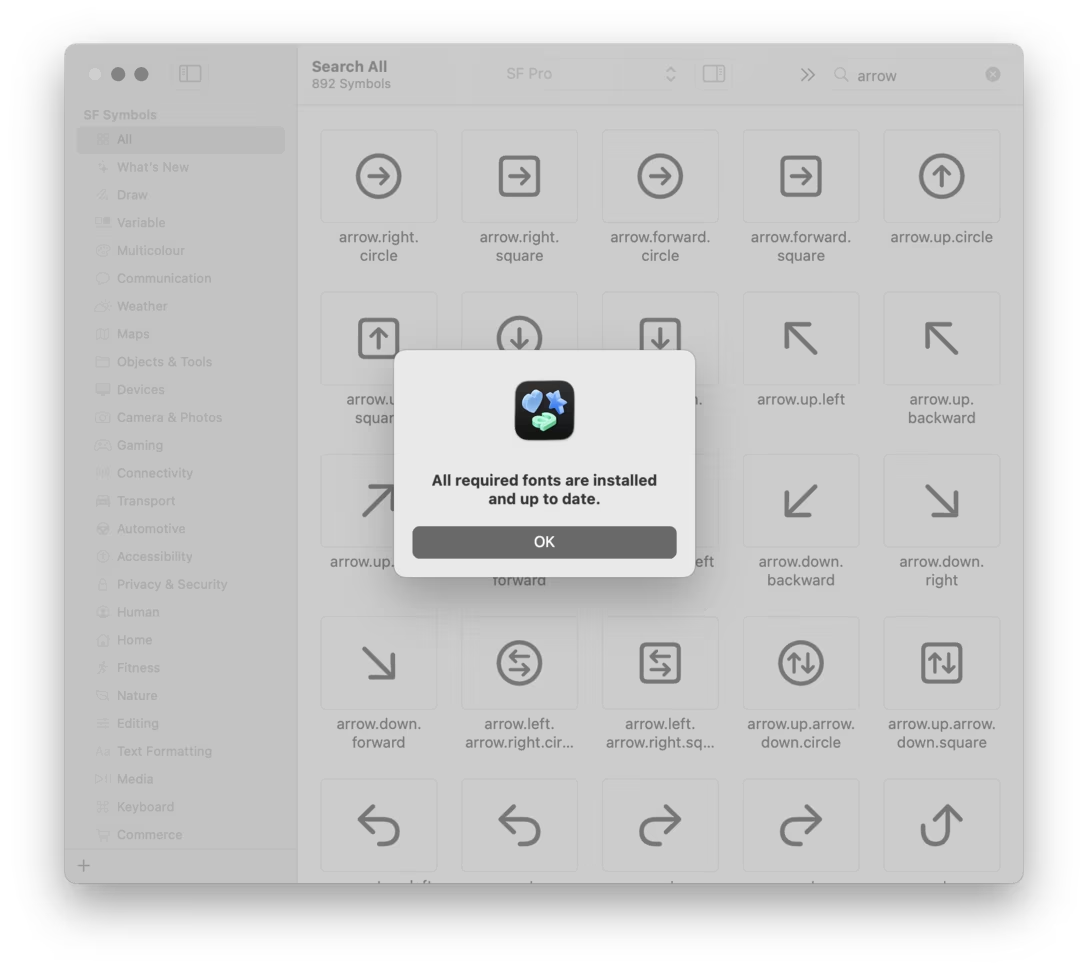
The SF Symbols app has a Check Installed Fonts… command to make sure the fonts are in order (SF Symbols don’t exist as a separate font, but piggyback on other fonts like SF Pro).
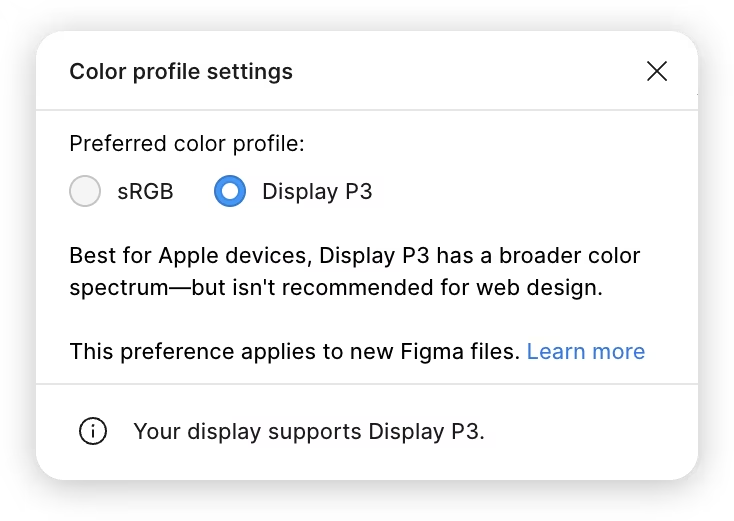
In Figma, we added a line at the bottom that plainly says “knowing all we know, your screen should be able to display the extra colors necessary for Display P3”:
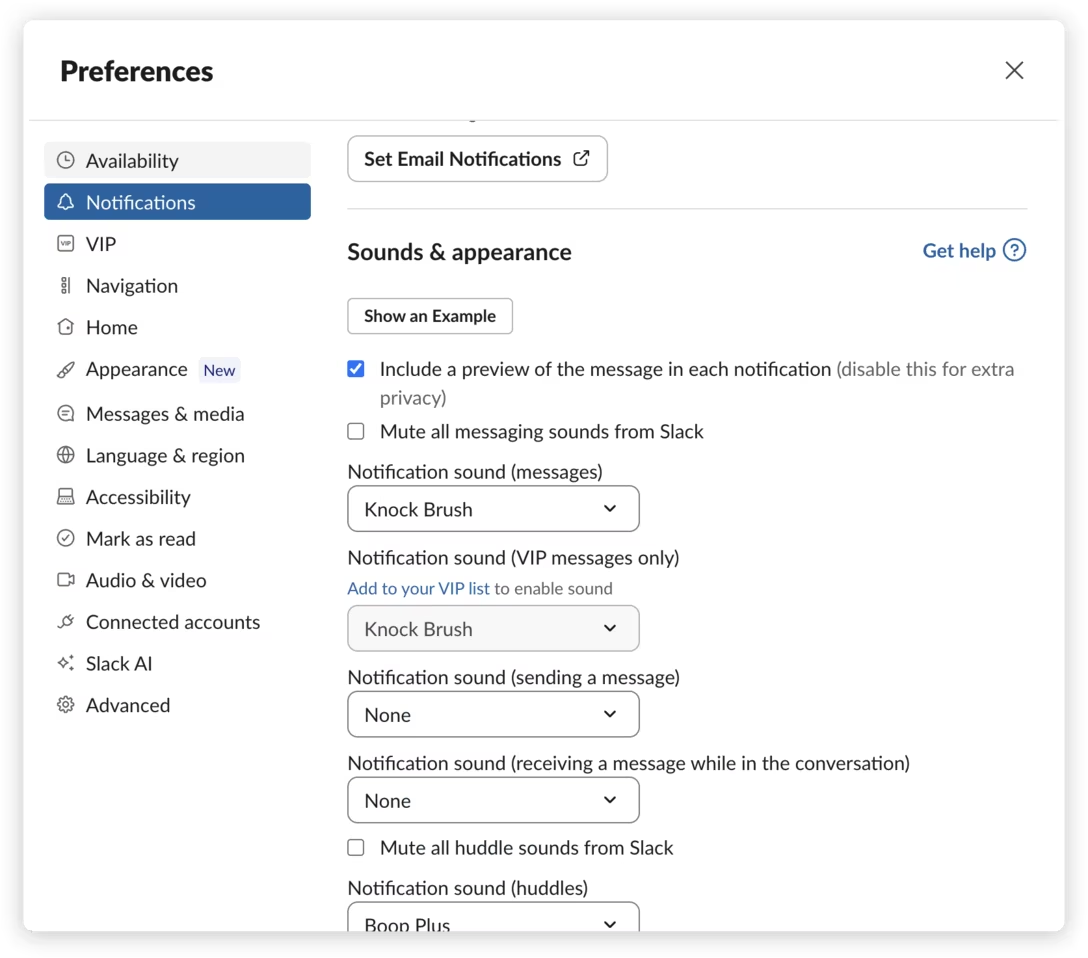
Right inside notification settings, Slack allows you to click “Show an example” to summon a fake notification:
And even though none of these peace-of-mind functions above are very in-your-face, sometimes they get hidden even further. Here, the Detect Displays button only appears when you hold ⌥, allowing you to hasten auto detection:
And, in the previous Audio Hijack example, you could hold ⇧ to “flush the pipes”:
These might all feel somewhat disappointing. Shouldn’t those things just happen automagically? Why would I need to jump through hoops only to arrive at a window saying “everything is fine”?
The way I understand and appreciate it is that the creators of these know that there are limitations to magic: that some things cannot be guaranteed, or that users might have battle scars from other apps. Cloud syncing works like magic most of the time, but when I’m on a plane, I would love to have a written confirmation that everything has been synced. Sometimes I click Skip This Version on an update, and forget I did that. Permissions just go haywire once in a while.
These functions reduce the blast radius. If Figma tells me “your display supports P3” but I still don’t see the rich-gamut colors, I can turn my attention to the file itself, instead of wasting time debugging the part of the chain that isn’t actually broken. If I click “Show an example of a notification” in Slack and nothing comes out, I know the problem is somewhere ahead of Slack, likely in System Settings.
There is, of course, a risk that some of these anti-magical interfaces might end up like some loading states do – a self-fulfilling prophecy that makes the owners care less about things just working quietly and robustly in the background, without the user every worrying. But all of these above feel okay to me, giving me peace of mind that at least here, in this neck of the woods, everything is working well.
Previously, we also talked about Raycast’s confetti that could serve a similar purpose.
I started GUIdebook in 2003, and last updated it exactly twenty years ago.
It’s an interesting time capsule itself now, incompatible with mobile reading and sporting an aged design. I have kept it up because it’s apparently used as a reference in various user interface courses, and if you haven’t seen it, it could be a fun browse.
I walked away from it by accident, distracted by a new job, but I always wanted to evolve it into something better as my storytelling skills and my interactive skills grew.
But the direct preview of what I dreamt GUIdebook of becoming was in my last year’s interactive piece Frame of preference. It’s a history of the first twenty years of Mac interfaces told through its settings, it has a proper narrative (I never got to it with GUIdebook), and instead of screenshots, it uses Infinite Mac’s technology to tell the stories via emulation. I’m pretty proud of how it turned out, and you might enjoy it if you haven’t seen it yet.
I would love to try a few more things like it.
But, back to GUIdebook. Keeping it alive for 20 years required multiple updates as PHP evolved, and a more recent rewrite that ditched easily-hackable PHP altogether. (Don’t ask me how I know it’s easily hackable.) None of these were particularly noticeable on the surface, but I recently added one tiny user-visible change – the screenshots are now properly pixellated:
It was fun – and slightly eerie – to update the site’s history page two decades after I touched it last.
The installer tries to erase a previous version of iTunes using (with root privileges) the rm -rf command. However it doesn’t take into account that volume names can contain spaces. […]
When the diskname (partition name) starts with a space the following happens: rm -rf /Volumes/ harddiskname/iTunes.app 2> /dev/null
So rm removes /Volumes (all mount points!) and a nonexistent path harddiskname/iTunes.app, but no errors are displayed because they are /dev/nulled.
And a very similar thing a decade later, from Steam’s Linux installer:
I launched Steam. It did not launch, it offered to let me browse, and still could not find it when I pointed to the new location. Steam crashed. I restarted it.
It re-installed itself and everything looked great. Until I looked and saw that steam had apparently deleted everything owned by my user recursively from the root directory. Including my 3TB external drive I back everything up to that was mounted under /media.
The culprit was identified by another user a few messages down:
rm -rf "$STEAMROOT/"* could be evaluated as rm -rf "/"* if $STEAMROOT is empty
These are the sort of classic user-generated content meets string concatenation/interpolation bugs that haunt engineers’s dreams.
The solution: If a user gives you a string, you have to wrap it as safely as possible so that it could never break apart into pieces in transit.
So you wrap the path with quotation marks. (I believe you can actually do this everywhere in Linux – cd "/usr/local" will work as well as cd /usr/local – except no one ever does so as it’s quite annoying.) But then, a string with quotation marks would escape containment, so you have to escape those by changing " to \". And then, naturally, you also have to escape any freefloating backslashes to \\.
Of course, there are usually functions that take care of all of the above; you just have to remember to use them, as well as think about the edge cases like a variable being empty to begin with.
Here, the wrapping isn’t for security reasons, but to help people understand where the command ends and the string begins. But this introduces a new challenge, as any type of visual wrapping – quotation marks, bolding, italicization – can draw undue attention to the string itself. So, sometimes you just leave it be and hope for the best:
But let’s go back to the installation issues. I bet there are were tons more string interpolation and escaping bugs that we simply never learned about. Yet, as users of a project called Bumblebee learned in 2011, nothing beats the destructive power of a simple typo.
The best way to start here is with the summary of the fix to the bug, because that is the best encapsulation of the story:
An extra space at line 351: rm -rf /usr /lib/nvidia-current/xorg/xorg
causes the install.sh script to do an rm -rf on the /usr directory for people installing in ubuntu.
Totally uncool dude!!! The script deletes everything under /usr. I just had to reinstall linux on my pc to recover.
Removing the space will fix this. Probably should do it quickly!!!
On the morning of December 28, 1998, the day before the game Myth II: Soulblighter was supposed to hit the store shelves, the publisher received a phone call:
[…] one of Bungie’s overseas publishers called to say that a woman had played the game and then tried to uninstall it. The game software had uninstalled Myth II as it was supposed to--but it had also erased some of the other files on her hard drive.
The first reaction was panic […] [Bungie cofounder Jason] Jones and another programmer tried to replicate the problem. They quickly found it and figured out how to correct the faulty lines of code. Fixing the problem would be easy—except for the 200,000 copies that were already packaged or on the road.
Seropian, Jones, Zartman, Donohue, and sales and marketing director David Joost met to decide what to do. They had two options. The first was to say nothing. The argument in favor of this alternative was that the problem occurred only when the program was uninstalled and then only when someone had installed the game in an unconventional way to begin with. Since the chances were slim that anyone would install the game in this weird fashion and uninstall it right away, the risk to the company’s reputation was minuscule, particularly since they could post an announcement on their Web site along with a free patch that could be downloaded to correct the problem.
The second option was to recall the game. That would force them to trace every copy that had already gone out, scrap every finished copy, and start all over again.
I was curious about the cause of the bug, and found this answer from someone who worked on the original Myth I:
So I wrote the Myth TFL installer (not this one). The reason this happened is because you could install other maps and whatnot, and to make the uninstall clean, we had to recursively delete your data folder.
In the sequel, somehow that code […] was used to delete the applications directory, instead of just the data directory in the applications directory. So if you installed it on C:\, it would delete everything recursively from there.
Nowadays, uninstall usually leaves any user installed files (like saves or downloaded content) but at the time, as the article suggests, hard drive space was more precious. Also, I wasn’t there for this issue, so I don’t know the above for sure, but having written the previous installer, I’m pretty confident that’s what happened.
I recently rewatched two reviews of AI companion devices from Marques Brownlee (a.k.a. MKBHD), which both came out in April 2024 – the Humane AI Pin and the Rabbit R1:
Brownlee is a charismatic reviewer, and I won’t lie – there’s a certain amount of delicious schadenfreude seeing two products announced with so much unnecessary hubris faceplant so solidly.
But past all that, what stood out to me was the storytelling, and this is why I wanted to post these videos; the work feels good here, and deserves studying in how to talk about these things.
Brownlee manages to cut through the bullshit and candidly talk (but also show) what these devices should be all about. There are some nice editing choices; casually pulling up the phone and getting an answer while the AI Pin is still thinking is a pretty powerful moment. The reviews also come with higher-level reflections, and what stuck with me since the original watch years ago were the segments about how more and more often, devices like these – but not just these devices – come out of the gate profoundly unfinished.
The Pin and the Rabbit are also interesting to compare. They are both underbaked in some similar ways: the quality of the AI output, overfocusing on hardware at the expense of software, and the interaction systems that throw good money after bad and come out of the gate with strange complexity – AI Pin had the tricky-to-use laser projector menus, and Rabbit R1 managed to overgimmick a simple thing that is a rotary controller. On the other hand, one of the devices felt a lot more ambitious than the other. Also, both had fascinating differences in the packaging and their whole approach – it almost feels like there was a generational difference between the two endeavors.
(Humane Inc. has folded since. You can still buy the R1, which was since updated with a new UI, but it seems the company is pivoting to more generic-feeling software.)
One way to read this is “phew, whatever I’m working on is nowhere near this bad, so I can sleep soundly.”
But I also think there’s another way to see it: as a cautionary tale. If you don’t care, if you don’t teach, if you don’t create the right processes and culture and incentives, if you don’t prevent certain doors from being opened, if you don’t push and empower others to push against the entropy and the laziness – this might be how your stuff ends up, too.
It’s interesting, teaches you new things, clearly talks about and shows its inspirations, and is free of the sort of bloviating, pretentious, nutrition-free language that often accompanies typeface reveals.
At first, I thought I was going to get creative with the positions and angles of the stencil “bridges” that traverse the letterforms. I tried fun diagonal bridges like the ones pictured below, but I found that the fancier I got, the more distracting the gaps became. And it was important to me that the design didn’t feel too clever or self-aware.
So after much experimentation, I ended up sticking with vertical bridges for the vast majority of shapes. (A handful of diagonal bridges are stashed in an OpenType Stylistic Set.)
While Nickel Stencil shifts them to the left or right to reduce the clutter of horizontal branches, Slight Chance’s bridges mostly run right down the center, leaving branches on both sides…it’s more clutter, but it’s also more corners to make soft and worn.
I happily made exceptions when this approach left a distractingly short fragment. Sometimes I shifted the bridge to one side or another (see crossbars like B and a), sometimes I used a diagonal bridge (see K and A), and sometimes I used a horizontal bridge (see T and t).
Plus, the typeface and its origins are really cool.
Marques Brownlee published a video commenting on YouTube’s just-announced A:B testing feature. In short, for some creators, it will be possible to publish slightly different versions of the video at launch time to different parts of their audience, if those versions are deemed “close enough” to the original.
Brownlee digs into how confusing this feature might be in actual use for viewers, never sure whether they’re watching, commenting, or rewatching the same video as others see, or even as themselves earlier saw. Toward the end of the video, Brownlee shifts his focus toward other YouTubers, with a monologue that I wanted to quote here because it captures something important:
You know, this is being framed as a tool to help you improve your videos. But I think for 99.9% of creators – well, to be literal, it’s not actually helping you make better videos; it’s helping you find which version of your video has the best retention, which doesn’t necessarily mean it’s a better video – hot take.
And there are so many examples of creative decisions that I have made, and that so many others have made in the video creation process, that are definitely not the best retention-optimized decisions, but they’re fun, and creative, and interesting, and new, and entertaining, and characterful.
So there’s always going to be the top 0.1% of channels that are all about mass appeal, and that’s fine. But last time I checked, a lot of what makes YouTube fun is the stuff that is more niche down, that is not mass appeal by definition. It’s the cool small hobby you found, or it’s the fun, unique thing that you just discover that only a few people are talking about that – that stuff! That’s what makes it fun.
I think if a lot of those channels and videos suddenly became like superoptimized, retention-maxing, and everything, those would get a lot less fun to watch. And so imagine if all the feedback anyone ever listened to was just to have the best retention – as you optimize over and over and over again, you start to trim out all of the other creative stuff that happens to not be the most efficient way to tell a story.
So I guess what I’m trying to say is... the skill of being a video creator on YouTube is not always necessarily about the maxed out, most efficient, optimized way to do everything, but it’s to find creative ways to share something, or teach something, or explore or explain something, or review something. So I just think making and finishing and publishing a bunch of videos is a better use of a creator’s time than making one thing and then, you know, a whole bunch of different drafts of titles, and thumbnails, and different cuts of the video to try to optimize for, like, the last few percent. […]
That’s all. I think just stand by your creative choices. You made this video, this is the video you chose to make. And now you get to share it, and you put it out, and you learn from it. […] That’s the creative process. Have conviction in what you want to share with the world.
There is another half-pulled-on thread in his video: Brownlee doesn’t say it directly, but dances around the idea that the very fact this feature was launched is reflecting on YouTube’s own insecurity as a product. Jim Nielsen follows up on that on his blog:
I find it interesting how Brownlee shares his opinion that YouTube spends way too much time chasing their competitors and not enough time being YouTube.
Which, when you think about it, is exactly the kind of place a feature like this would stem from: an insecurity in your own creative choices. How YouTube approaches its own insecurities is now trickling down as a feature to its users.
“Let’s let people make lots of variations on things, try all of them, and see what performs best” is exactly the kind of thinking you get in a platform that doesn’t know what it wants to be. So it’s left spending its time 1) doing what others are doing, and 2) following the fickle whims of whatever it can measure.
Brownlee talks a lot about YouTube videos being “fun, and creative, and interesting, and new, and entertaining, and characterful.” Those might not be the most important adjectives to apply to all of software, of course, but there are some interesting throughlines here. I have also personally not seen a lot of thoughtful A:B testing in my career. I think those are an easy way to lose yourself, to have your app become a bundle of metrics that everyone obeys, but no one understands, and – once you open the door to being driven by poorly-understood experiments – for the desire to fall back on patterns from other successful apps, without reflection, to grow stronger and stronger.
That’s how you end up with stuff Nielsen and perhaps even Brownlee argue YouTube itself has become: a set of Brownian reactions, or a warmed-over software cosmic latte, if you will. From my perspective, this often also leads to systems of interactions or features that don’t come together well to the user, as you end up borrowing from other places without the necessary hard work of translating them to feel at home and consistent with your system and its quirks and conventions. From what I’ve seen in my career, A:B tests do not promote design execution rigor. The tests are meant to be light by definition, since a lot of them are expected to fail. Before the test, there is limited incentive to invest in quality, but neither there is one after the test – if A or B successfully raises a metric, you don’t want to mess with it then, since what if you change the very thing that made it “work”?
On top of all that, we can add what Brownlee started with in his video: overeager A:B tests feel like software’s version of gaslighting. How can you trust an app if it feels like it’s changing without rhyme and reason seemingly on a weekly basis, whose changes are not announced or documented anywhere (small A:B tests never are), and when other people don’t see the things you see?
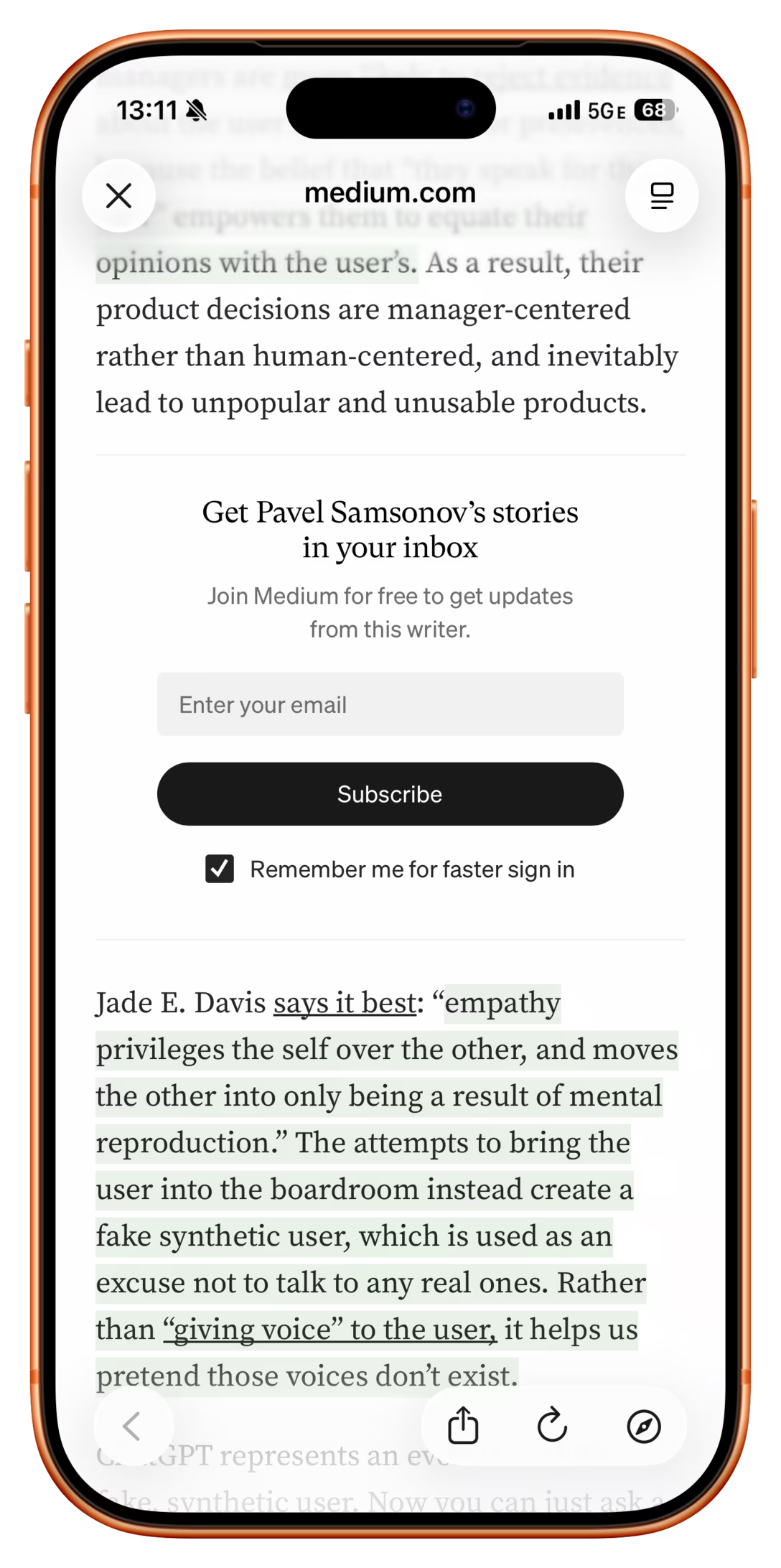
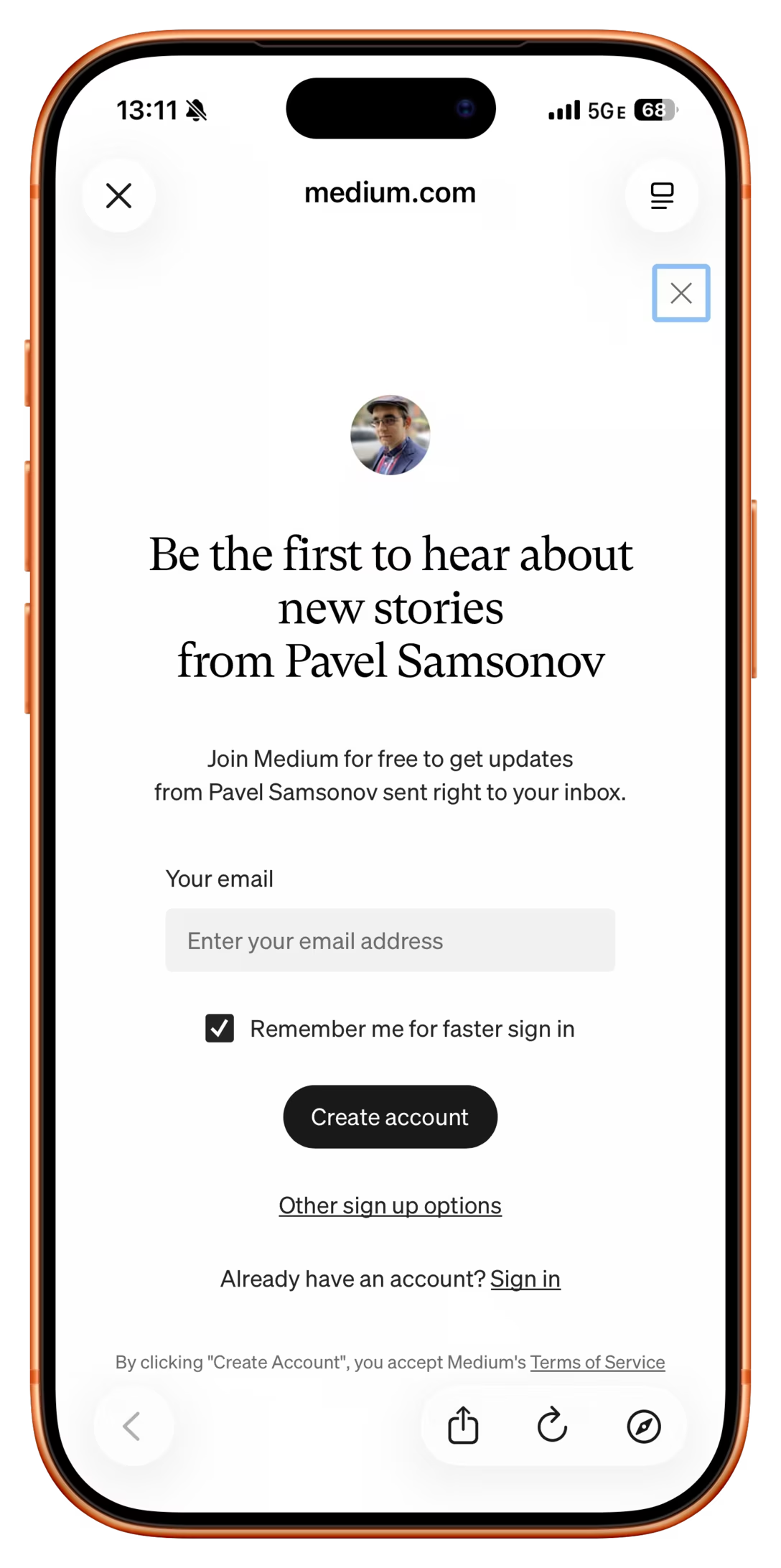
One day, as I was reading an essay on Medium, I saw an automatically inserted subscribe block:
But as I was exactly on top of it, a new thing popped in my view, an interruption on top of interruption, both saying the exact same thing:
2.
For a while now, whenever I try to follow a link to a site that no longer exists, Chrome shows a strange “This site doesn’t support a secure connection” flyout, just before hiding ititself, and then following it by a generic error page:
This feels truly eerie: either a bug where the flyout gets triggered too soon without having all the information, or the flyout is trying to warn you about Chrome’s very own internal page.
3.
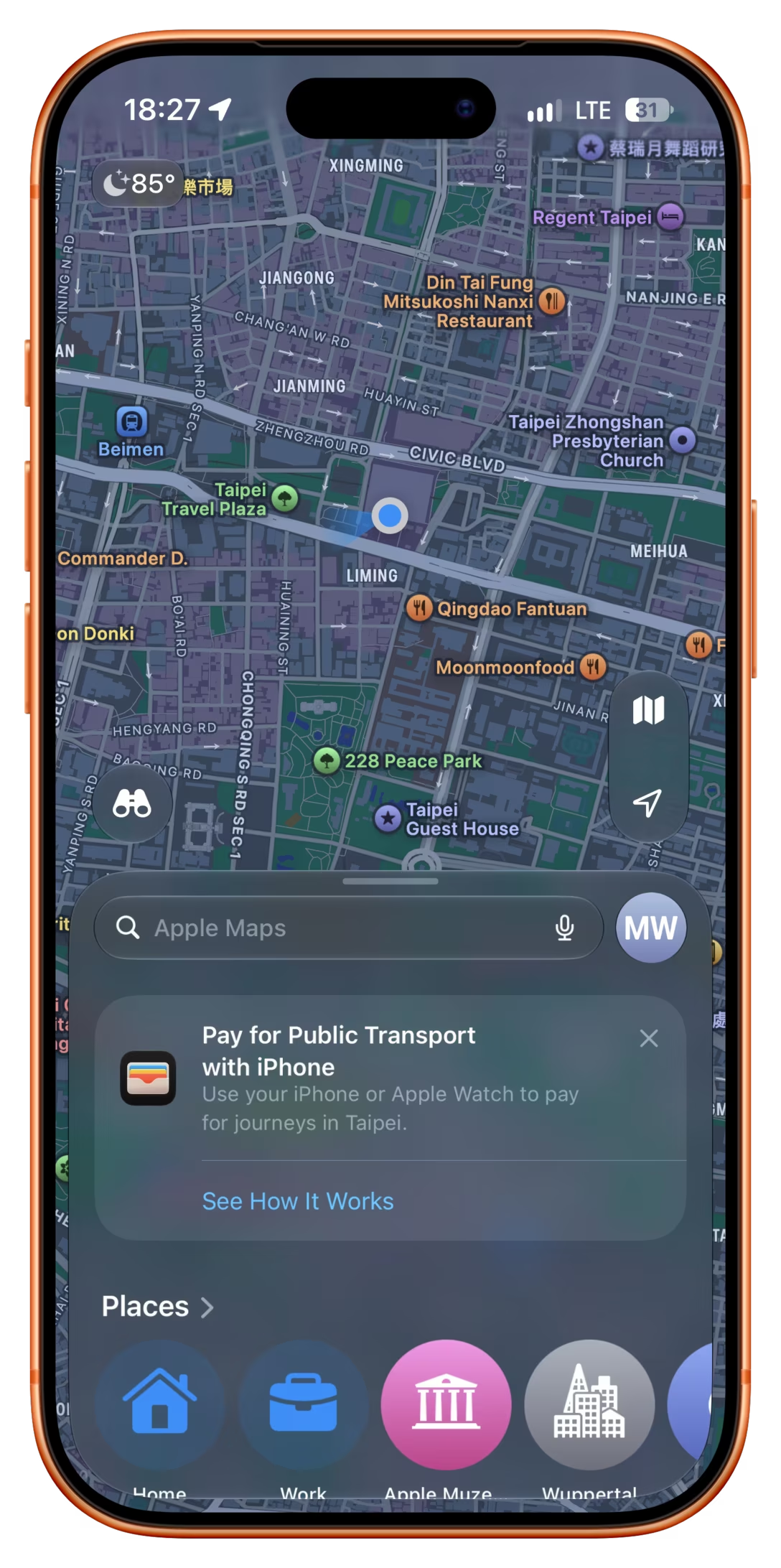
Just this week, after already having been in Taiwan for five days, and after having used Apple Pay to pay for public many times on each of these days, Apple Maps helpfully told me that I can… use Apple Pay to pay for public transit:
4.
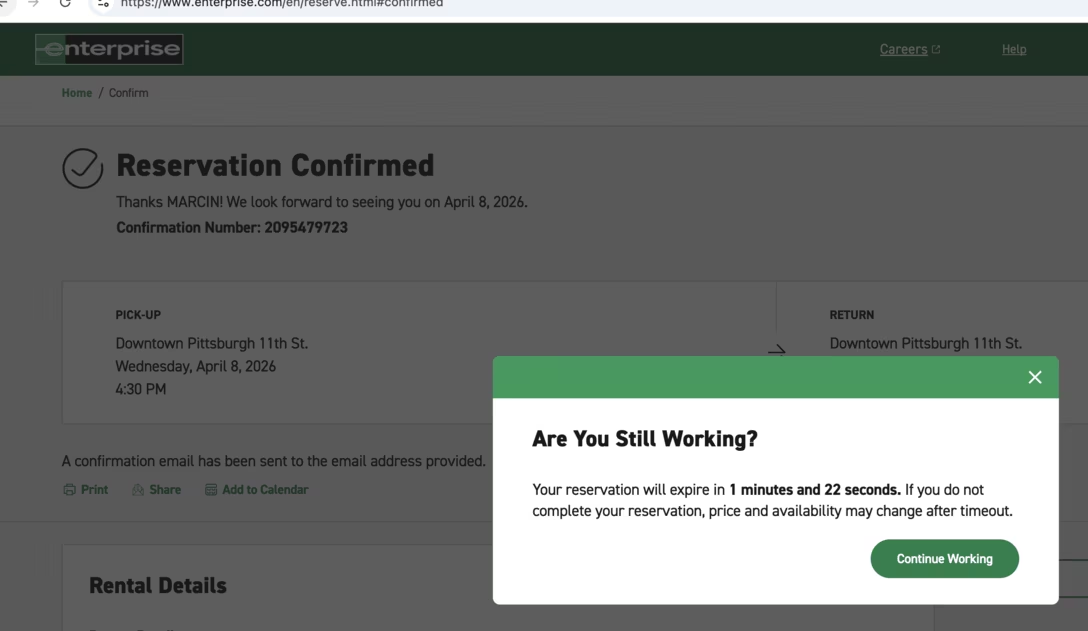
Some months ago, after finalizing my car reservation and moving my attention elsewhere, an automatic “keep the session warm or lose it” window appeared, suggesting my reservation might actually “expire”:
5.
Downloading is possible on YouTube Premium and actually helpful, allowing you to load up some videos ahead of a long flight. There even exists a section where it suggests some things to download.
However, download suggestions include member-only videos, and whenever you try to grab one of those, you get this result – a pretty poor “Video wasn’t downloaded” message:
6.
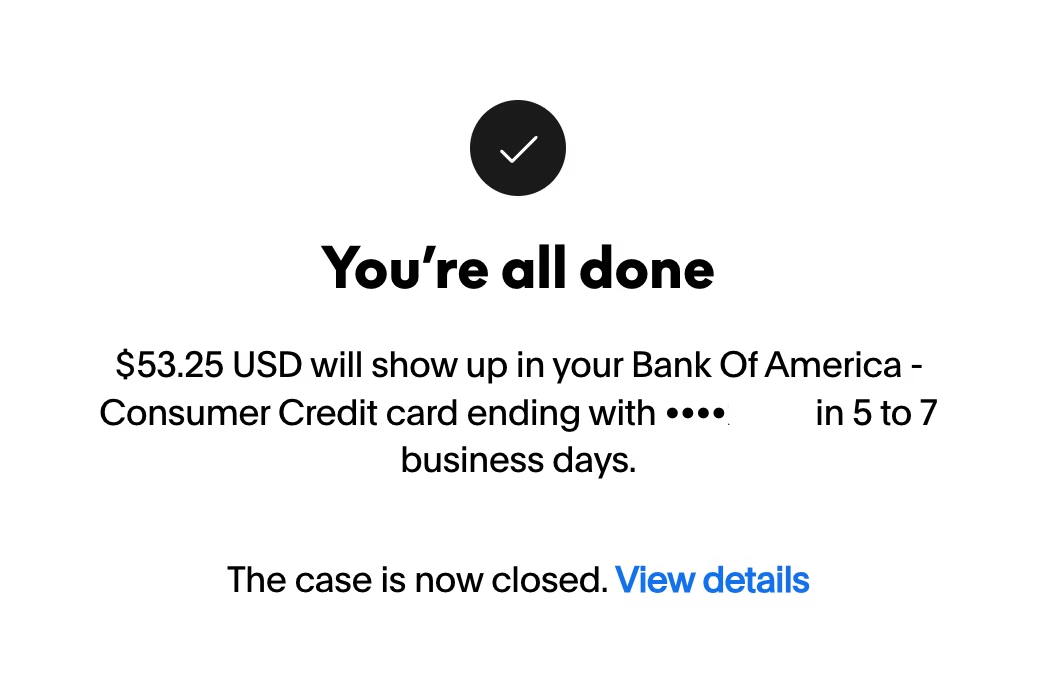
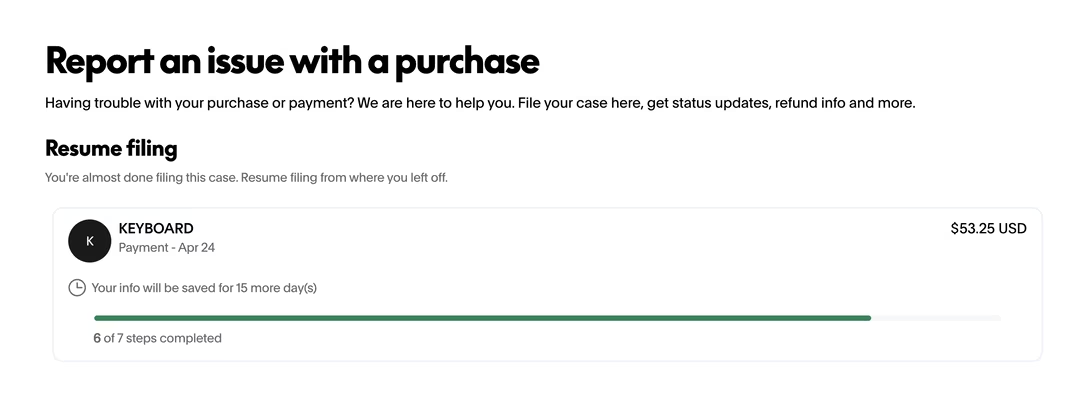
When I recently opened a dispute on PayPal for a keyboard I never received, at the end of the process, I saw these three screens in succession:
In effect the screens said, in order: we closed the case and decided in your favour, you haven’t finished filing the case, the case is open and we’ll update you.
7.
I feel uneasy bundling all these “the left hand doesn’t know what the right hand is doing” examples, because they’re not all the same.
Examples #1–3 from Medium, Chrome, and Apple Maps are frustrating and somewhat embarrassing, outbursts from badly-behaving software that doesn’t know that it’s not okay to throw pop-ups at the screen whenever you feel like it. I particularly dislike announcements of features that the user has already been using since they feel condescending to me, but I don’t want to assume it’ll be the same for everyone else.
Examples #4–6, however, are more insidious. Whether they happen because of plain old carelessness, or lack of imagination, or Conway’s Law – different teams not talking to each other – they can lead to people jumping to wrong conclusions or building entirely wrong mental models. Is my reservation truly done, or have I not actually finalized it? Is it possible to download member-only content, except I need to do something special to set it up? What is the status of my PayPal dispute?
The answers in this case: yes + no + the first screen was the one telling the truth. But each answer required extra effort for me to figure out, and that effort would be avoided if only someone tested the flows better.
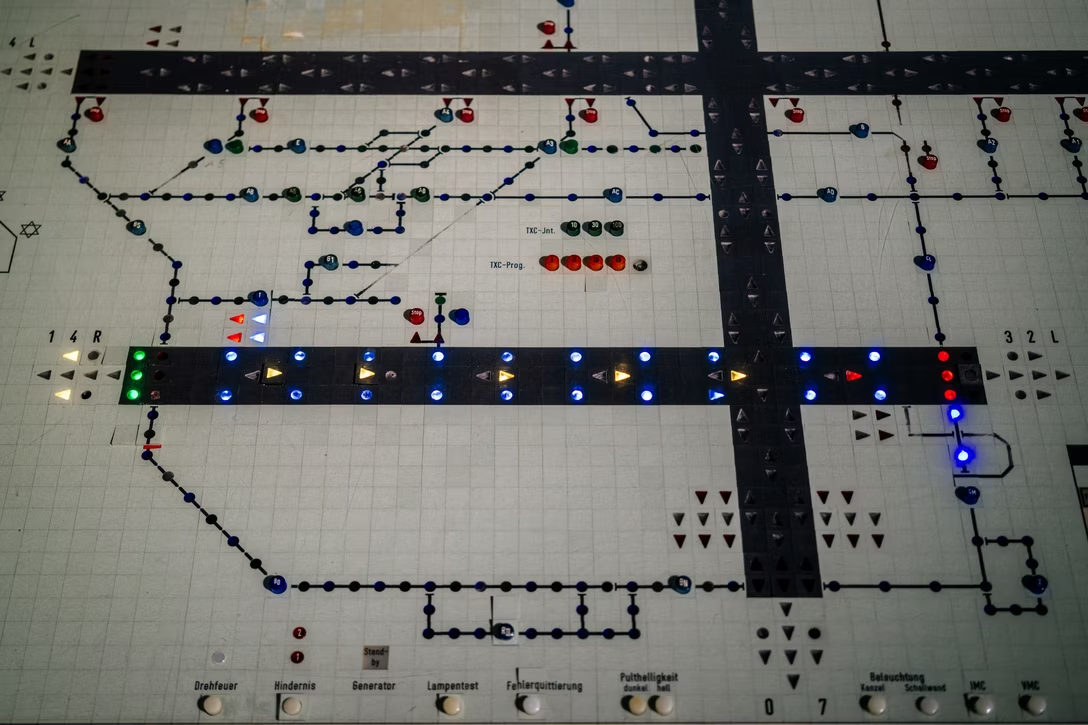
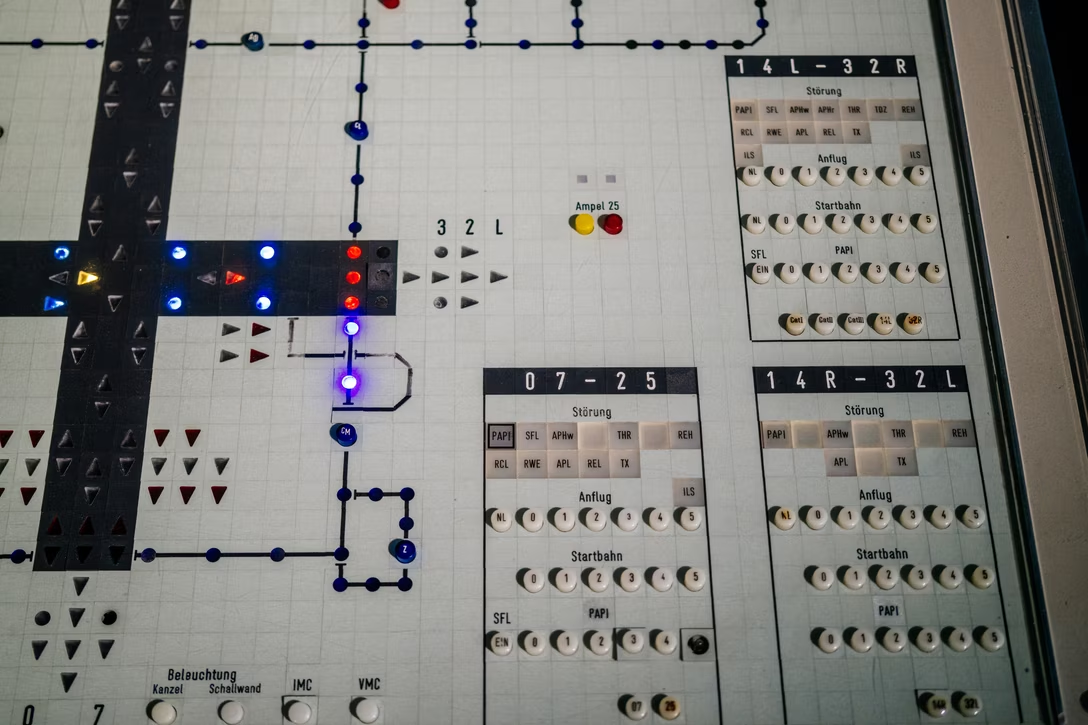
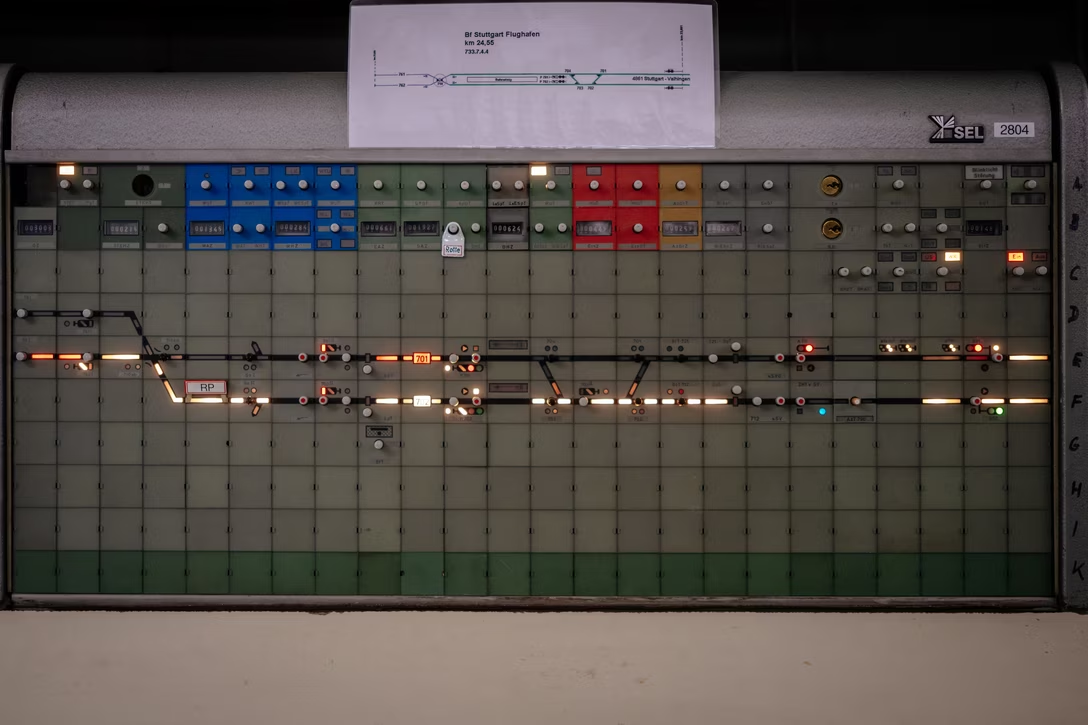
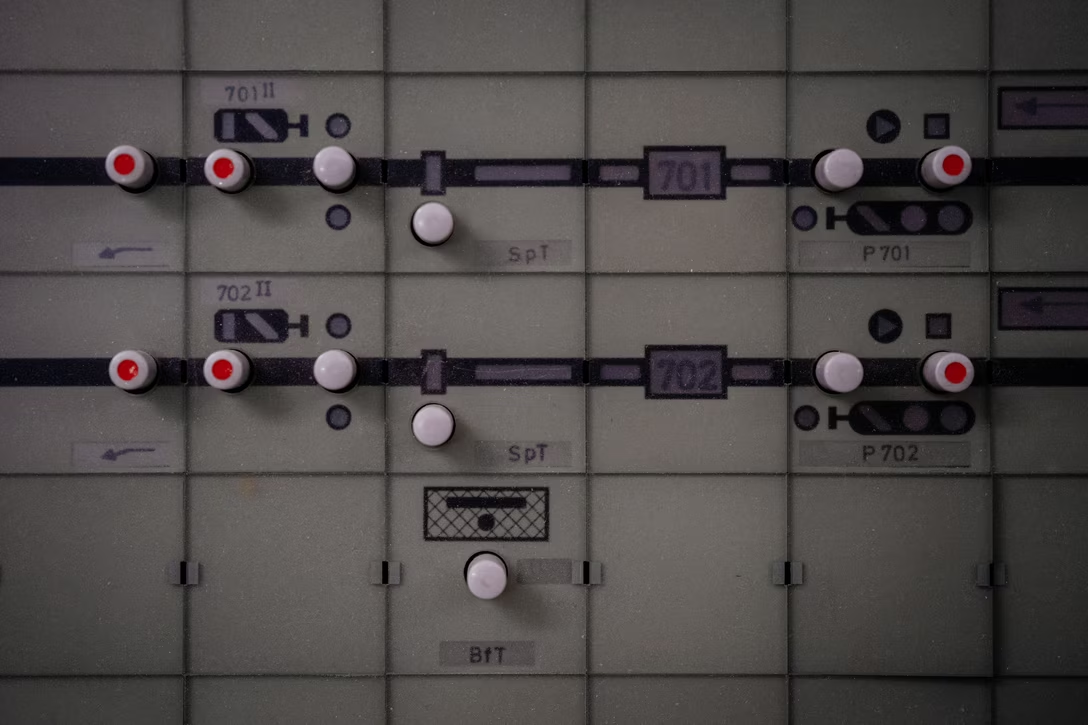
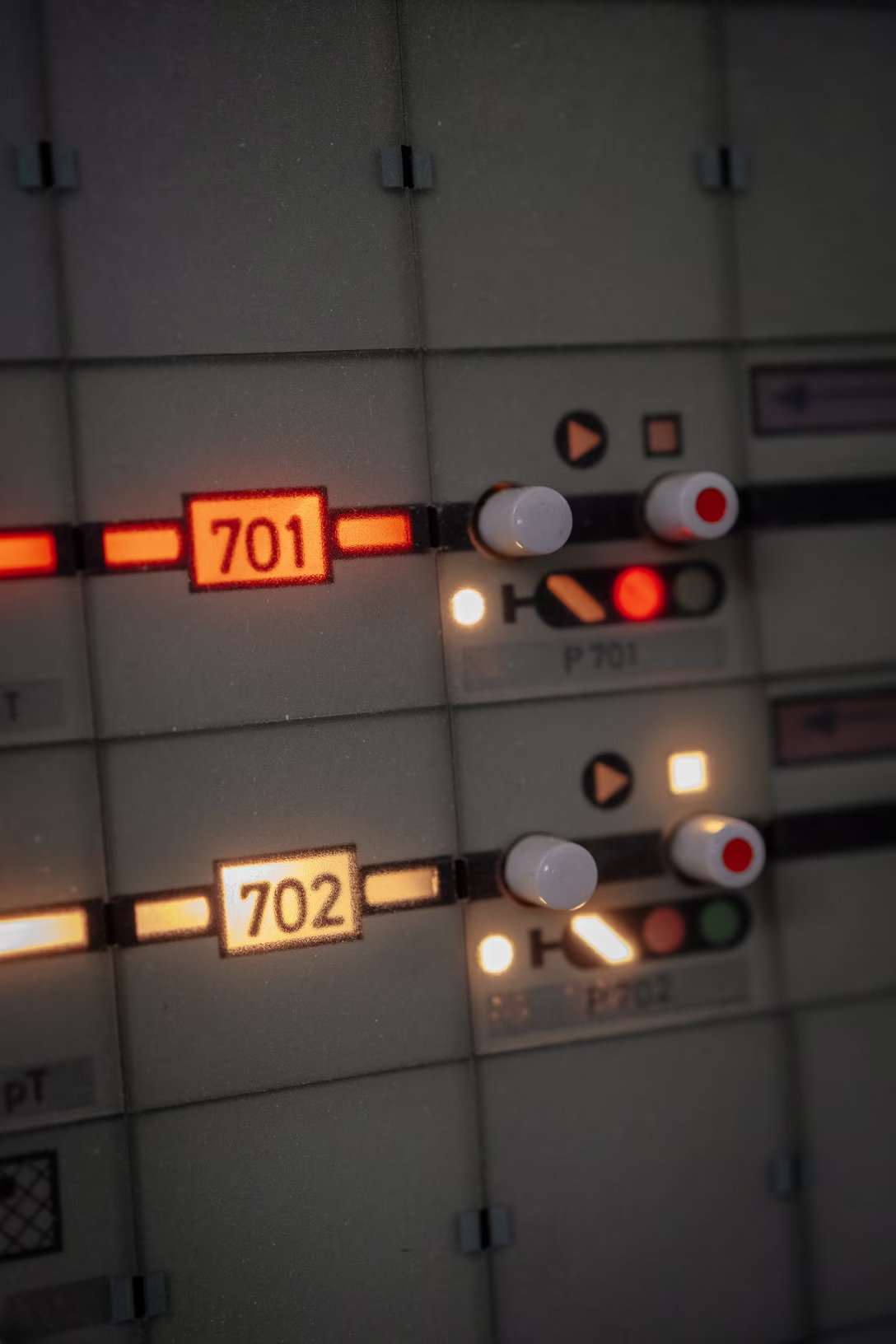
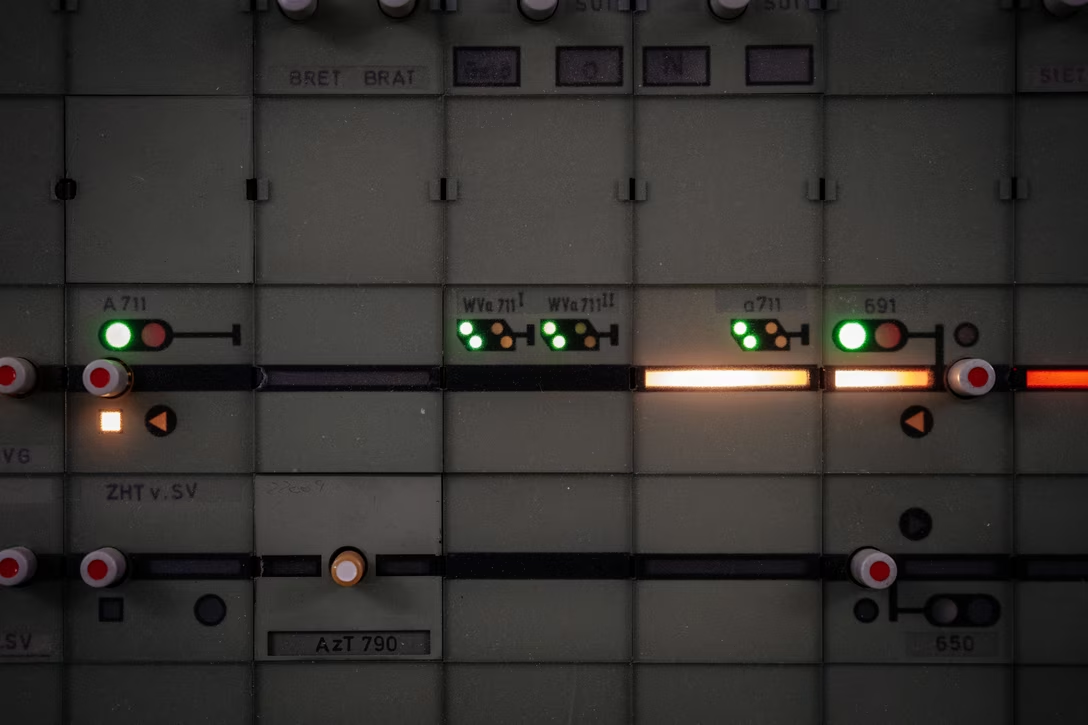
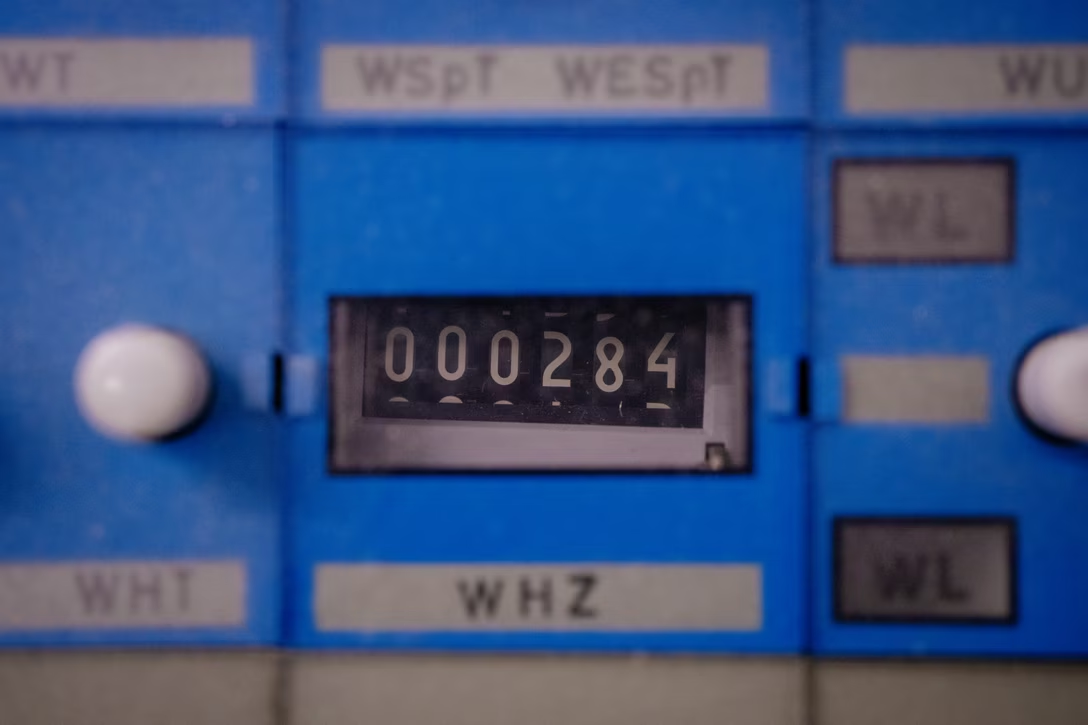
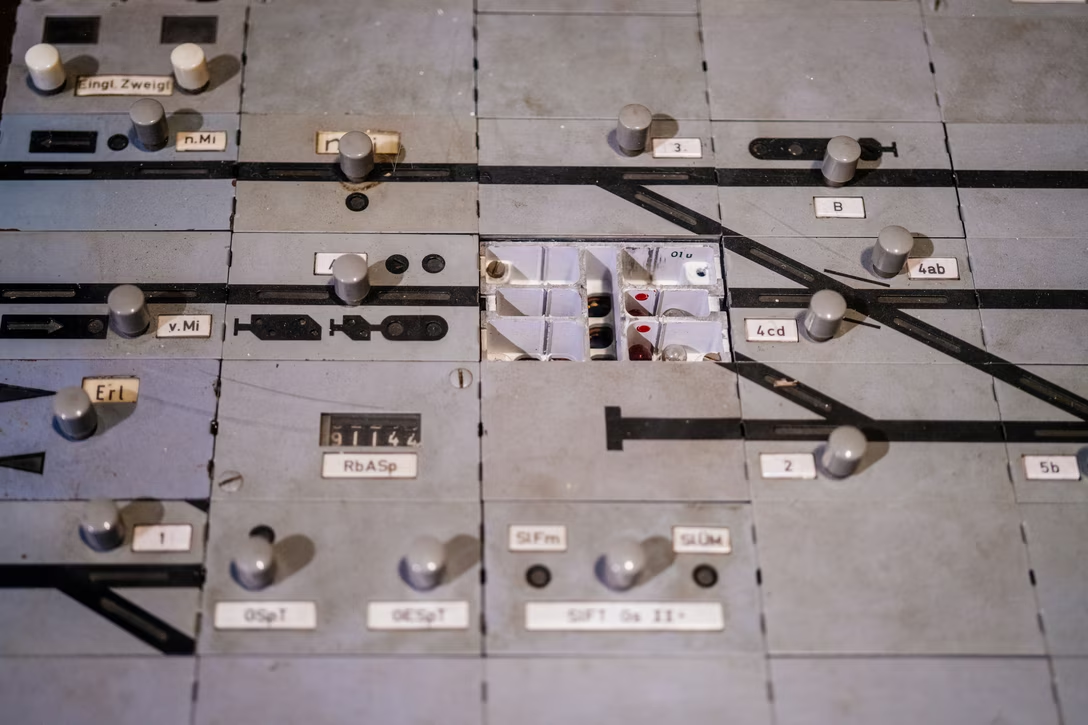
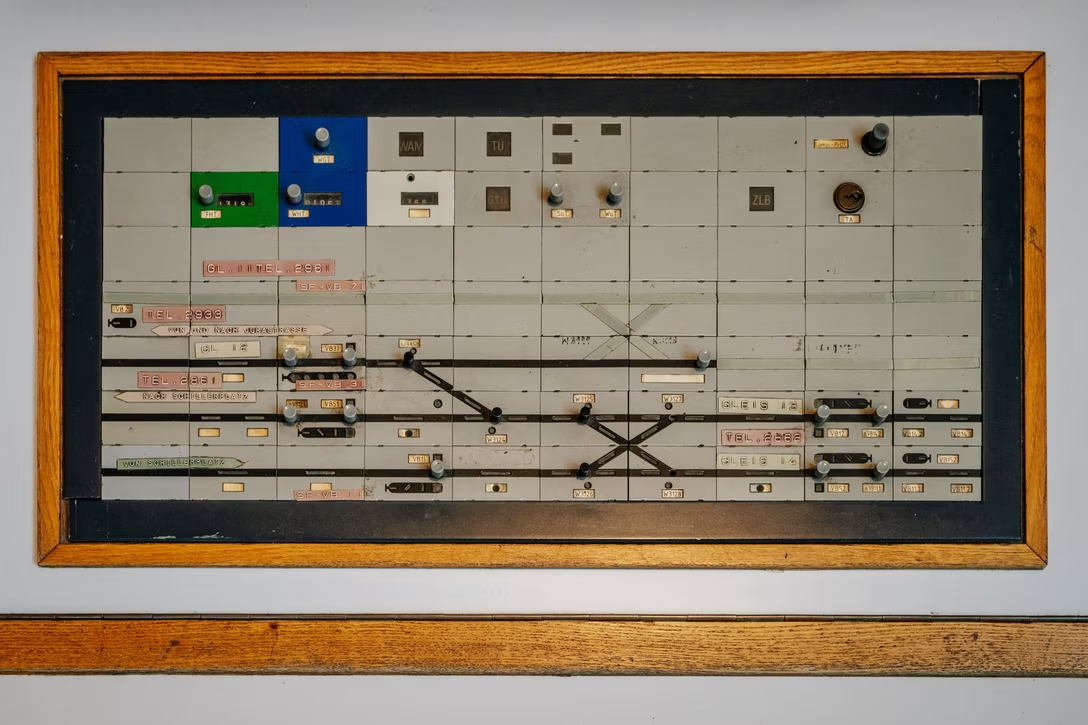
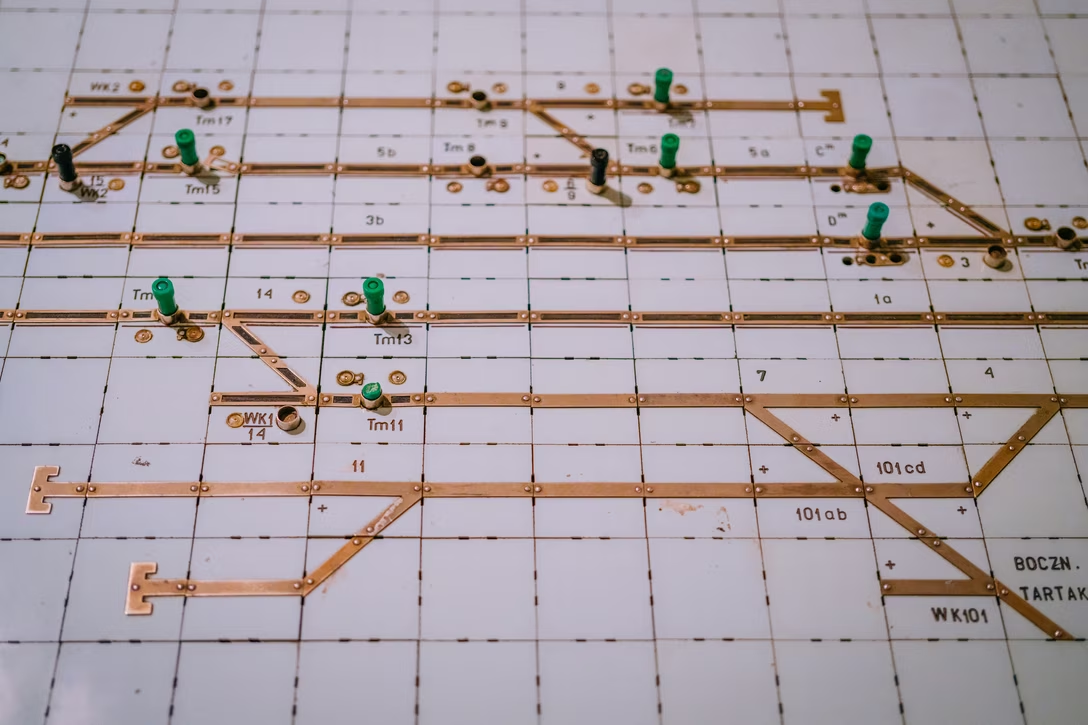
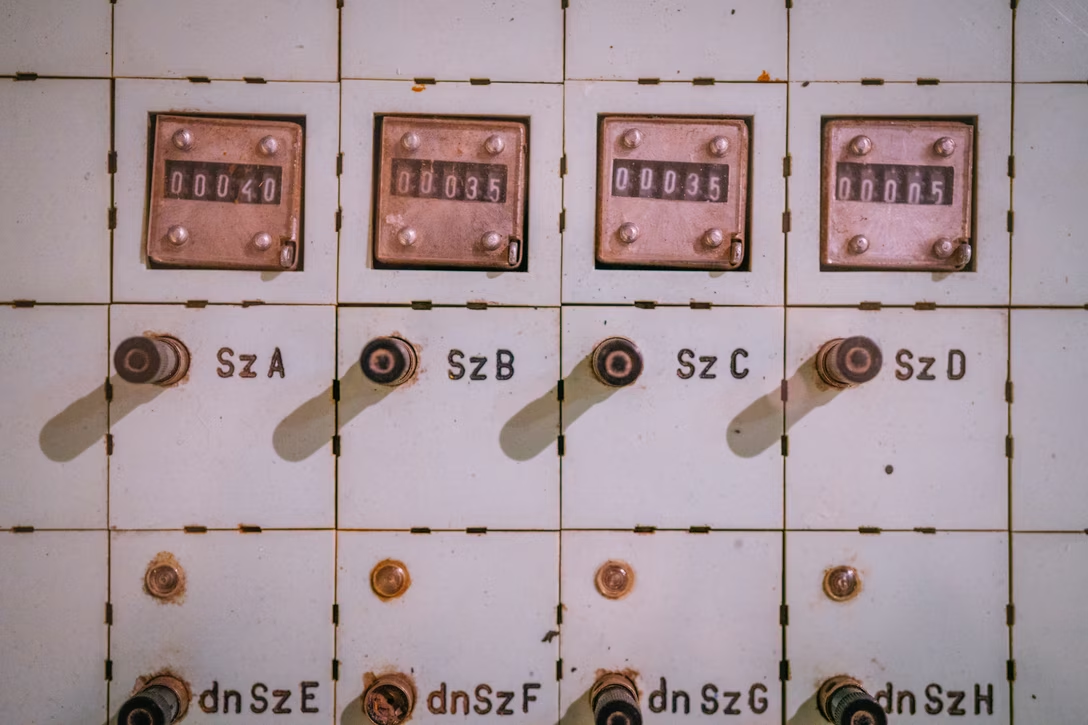
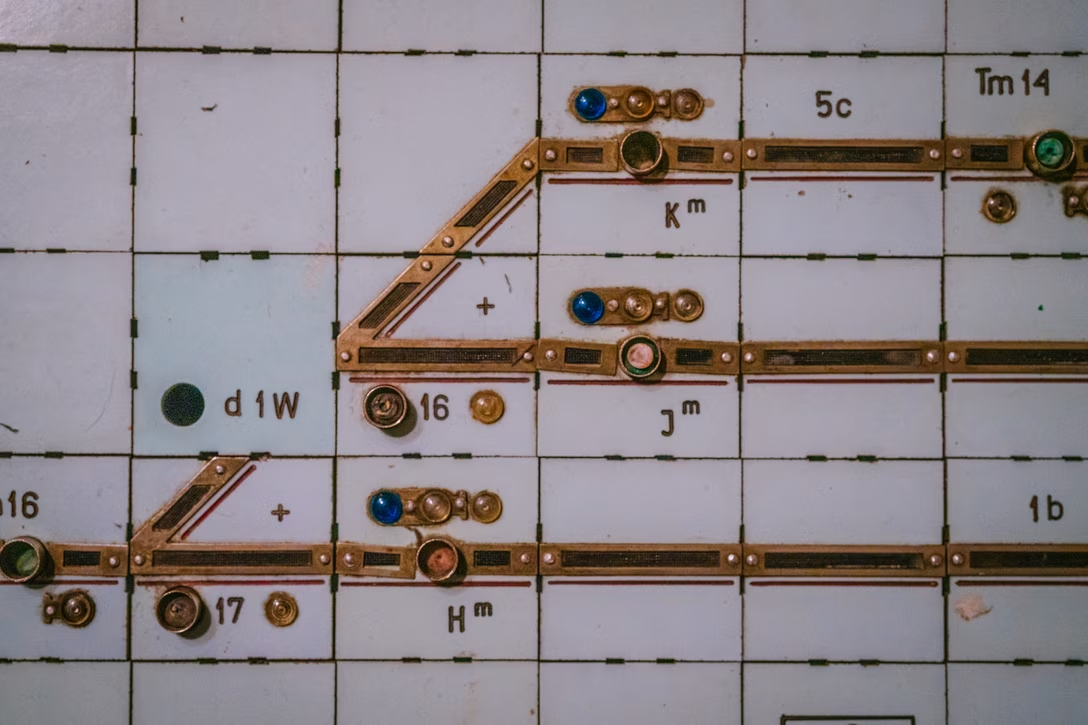
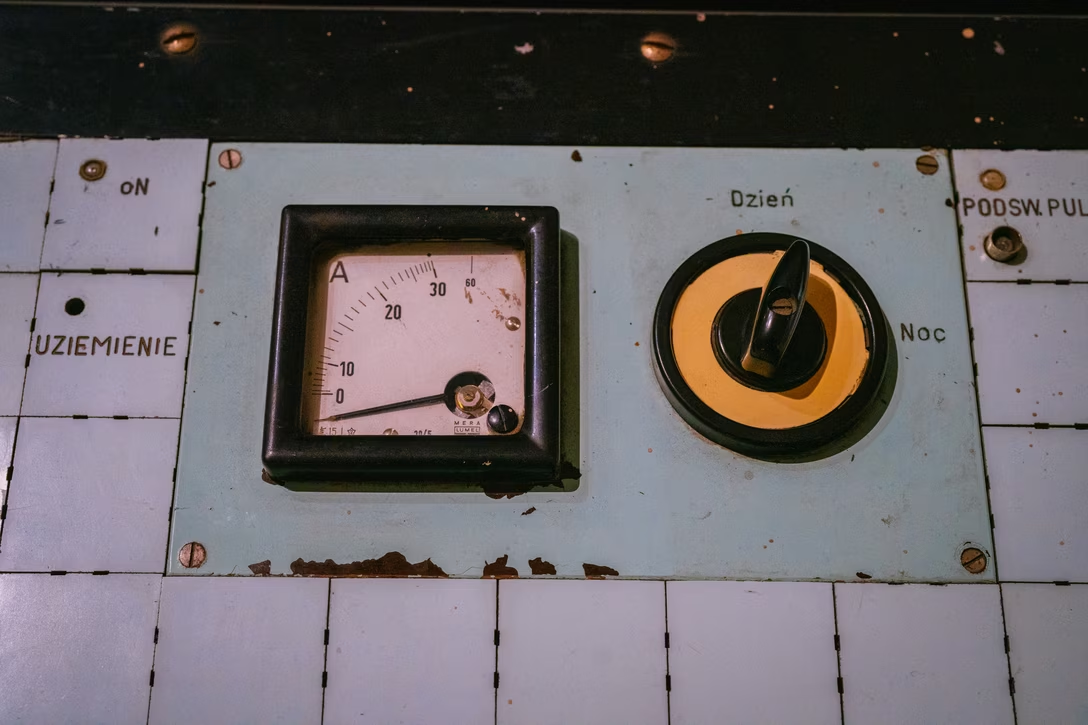
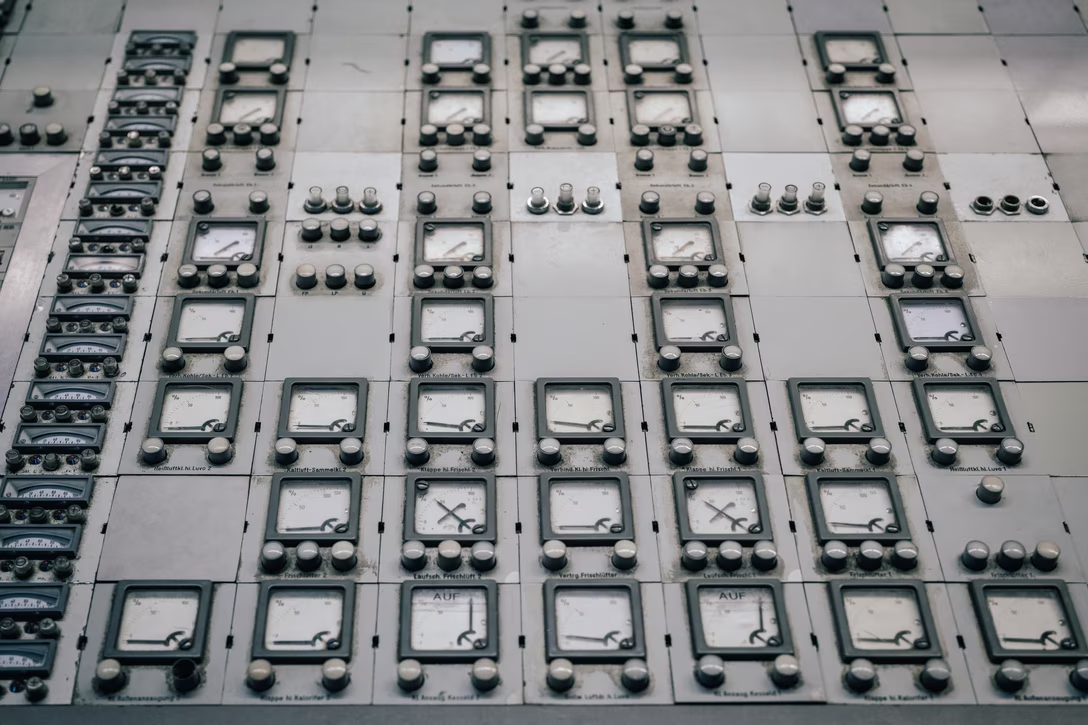
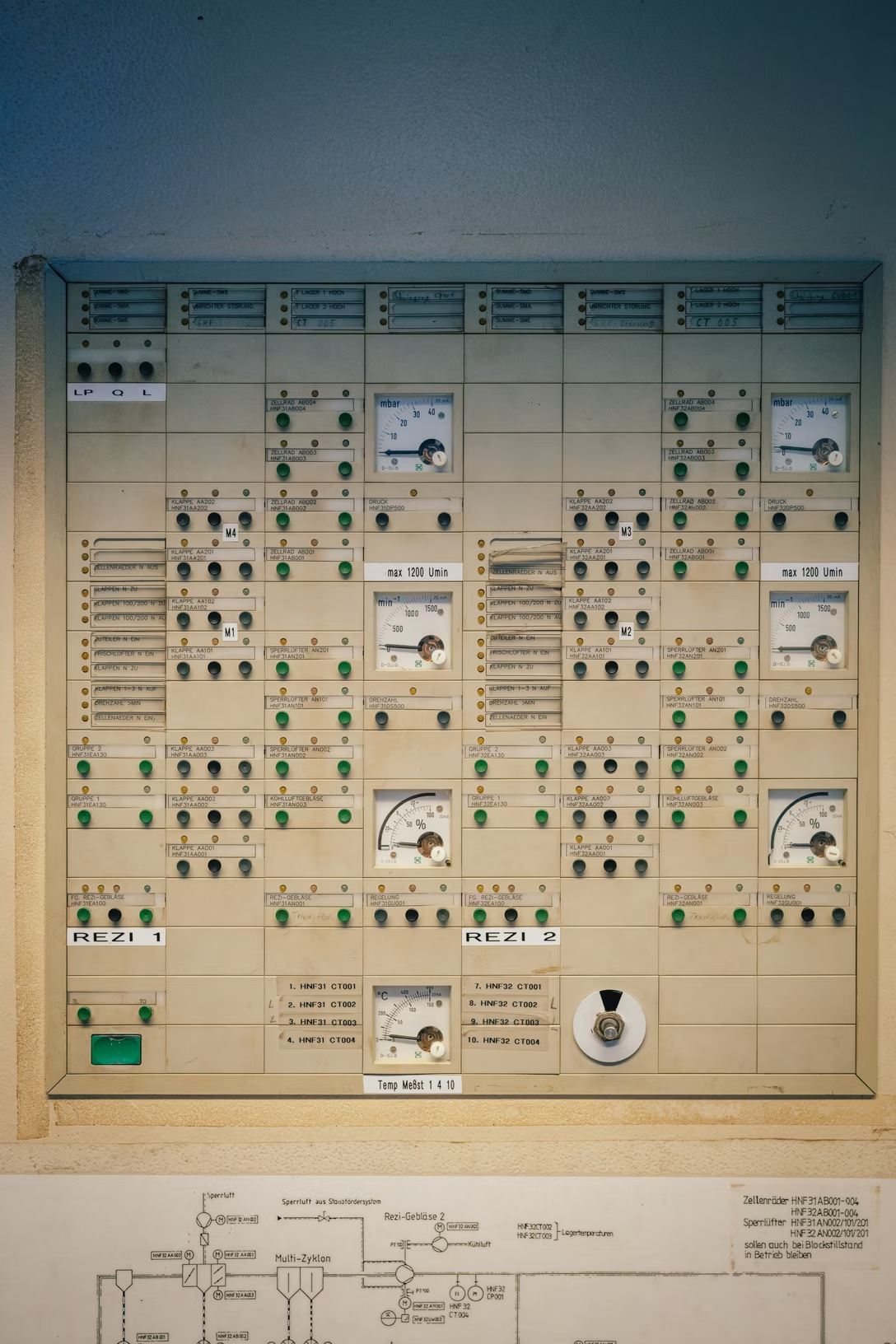
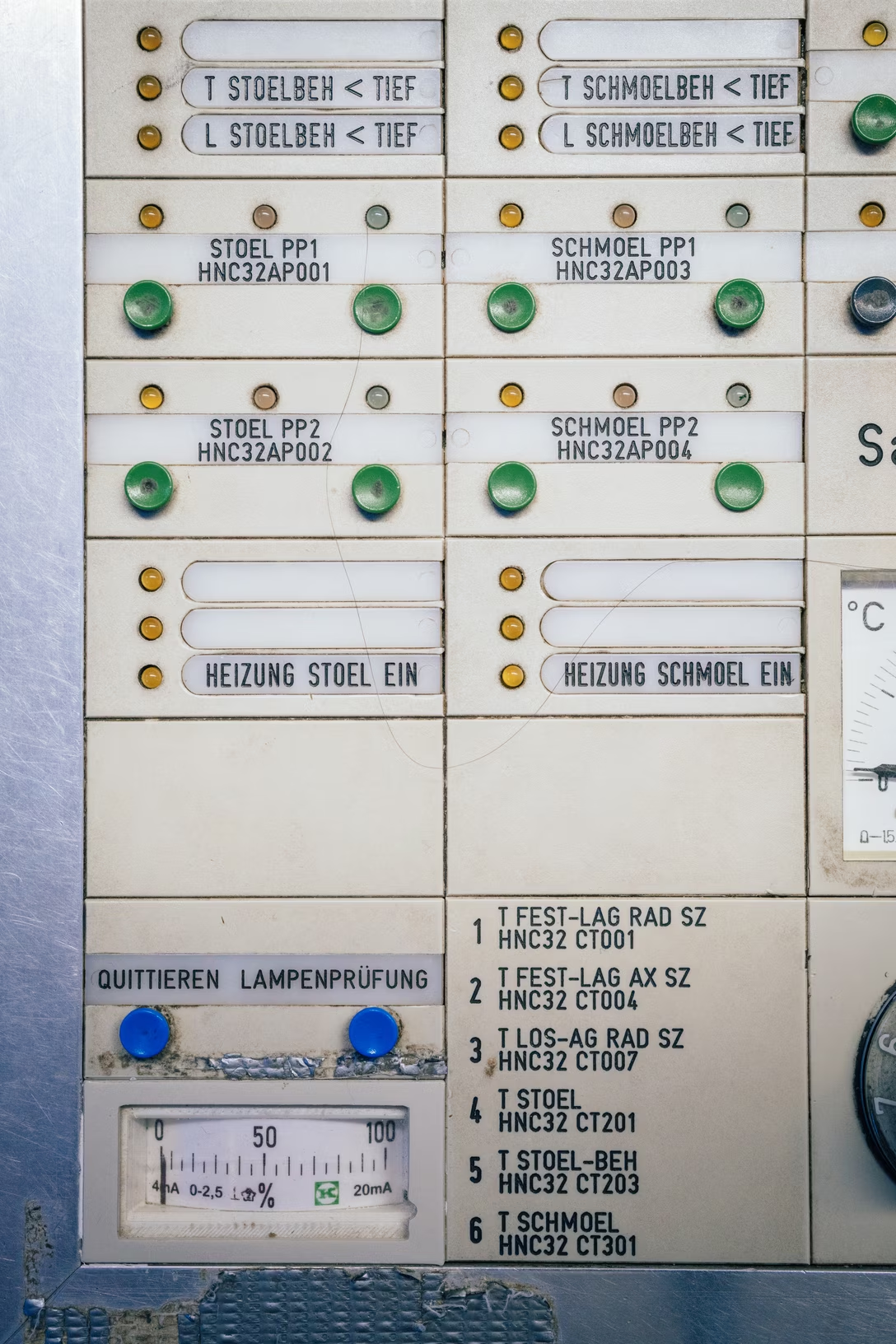
In my recent visits to German and Polish museums, I noticed a recurring theme: modular industrial dashboards, which I imagine have by now been all replaced by software.
I don’t know much about these – please write me if you do – but I wanted to share them anyway, perhaps for context, or amusement, or inspiration. They’re interesting design systems, and interesting interaction systems as well.
This was a very cool physical display for air traffic control, at the The Deutsches Museum in Münich:
At Fernmeldemuseum Stuttgart, these were used to monitor subway trains, or light rail. I do imagine these panels must have been interactive with all the buttons?
I like that they light up to show status:
One of the modules was a counter:
And I believe this was a way to annotate that something was… fixed, maybe? Or on its way to being fixed?
A railway museum in Nuremberg used what looks like the exact same system, and I spotted a few modules with their plates removed:
And, here’s a similar panel shown in a tram museum in Stuttgart, filled with an incredible typographical tension between DIN and the German equivalent of Dymo:
Warsaw’s train museum had a slightly different system, but similar in look and feel:
This big industrial switch toggled between day and night. I don’t know if it changed the operation of the system, or is just switched on some sort of a dark mode for the panel itself:
And this was at the DASA Museum in Dortmund, from a power plant control room:
This was by far the biggest one of the ones I’ve encountered…
…with the biggest variety of modules…
This was also the panel I showed some molly guards from before. But today I want to end at this great switch:
Don’t you just want to rotate it, no matter what it does?
A new confession: I struggle with a lot of accessibility writing.
I am not necessarily saying this to blame people writing in this space, whose work I respect even if it’s not resonating with me. I think it’s more of a recognition of how difficult it is to talk about accessibility and disability. Advocacy is never easy. It’s hard not to be impatient with the pace of progress, hard to contain your incredulity that others don’t get that what is so obvious to you, hard not to constantly expect more from people, hard to imagine others – and the society as a whole – not caring. On top of that, accessibility is a more difficult subject than many I cover regularly on this blog. There are hard-to-explain technical issues wrapped in deep legal considerations, and some aspects of disability are taboo or taboo-adjacent. To me, all this often makes even best-intentioned accessibility writing less approachable.
I am also, personally, to blame. I sometimes struggle with design writing, too. Some of the taboos and hangups live inside me. I might be obstinate when corrected. I have also personally seen a few times the opposite of the curb-cut effect: not fully thought through accessibility accomodations making software worse for some groups of people. All of this is making me a tricky customer.
I’ve been wanting to find accessibility writing that would work for me, with just the right amount of push and pull: detailed but not overwhelming, inspiring but not cheesy, gentle but not basic, pleasant without being cheap.
This book by Sara Hendren is as close as I’ve ever been to all this. It’s exceedingly well-written, to a point that it’s really hard not to quote it excessively. Witness the very opening:
Every day every body is at odds with the built environment. Bodies come up against stairs and sinks and subway platforms, sometimes with ease and grace and sometimes blundering and awkward, over hurdles, even in a sudden clash. Each flesh envelope is miraculous and mundane in its way, lugging all its gear and getting where it needs to go. Maybe you handle a sharp knife with enjoyment of its grip; maybe you wince as you sit down in or get up from your office chair.
Or, just a few pages in:
But consider: this dual job that design has to do is a mammoth task! How do you make a charismatic thing – not just a thing that works, but a thing that has elegant presence or pleasure in its handling, some kind of draw, a thing that pulls you in or makes you think while also being handy, modest, even garden-variety in its value? This combination is what makes design so interesting to so many people. It’s not just the quest for a better mousetrap, and it’s not just a free-form experiment, and it’s not just a slick new color scheme. […]
When Hendren early on decides to focus on the right words and the best definitions – a theme permeating the entire book, important in an area of sensitivity around language – it has none of the awkwardness of a wedding toast’s “the dictionary defines X as…” but is instead a lucid exploration of the power and beauty of language, piercing right through some of the taboos I mentioned:
Among disabled people there’s a bigger catch-all term, a slang for this particular mismatch: it’s called life on “crip time.” Crip is short for cripple, a name that disabled people have repurposed in an act of political reincarnation, dropping the degradation attached to a word that was used to describe them in the past, cripple, and investing it with in-group pride. “Crip time” is flexible shorthand in disability culture, used to indicate a range of uneasy relationships to the pace of contemporary industrialized life, with its relentless and clock-driven organization of hours and days. As a disabled person, to say you’re “on crip time” on a Tuesday might signal the extra time that it takes you to get to the train platform or in and out of a public bathroom. It can also stand for bigger systemic fits and starts – the spiky, unpredictable time it might take a person to proceed through a fairly rigid K-12 education that’s built on all kinds of normative chronologies.
This whole book is this – it’s accessibility and disability as details, as creativity, as confidence, as joy, as warmth, and as craft. The writing has so much range and color, covering some of the aspects I expected, but also talking about autism, dementia, phobias, and general intellectual disability (who knew? your brain is your body, too). Hendren dips into history as needed – the origins of the usually simplistically portrayed curb-cuts is fascinating – but the book is anchored in the present.
There isn’t a lot of software in the book, and the other reason I’m giving it only four stars is that I wanted… more photos. I’m a single-issue voter this way, always dreaming of visual evidence of devices, people, and places. But don’t let this stop you. This book will help you understand accessibility and disability – and if you already do, it might help find good ways to talk about it. You should read it.
Thank you to Ethan Marcotte for suggesting the book and a conversation about it, and to everyone who answered my question about good accessibility writing – check out the answers on Mastodon or Bluesky if you are interested in more recommendations!
As someone who’s been a keyboard shortcut tzar at a few companies, I developed a certain kinship with the unknown and unnamed others who have the same job elsewhere. It’s a fun but weird challenge, rewarding and unrewarding at the same time, a job of maneuvering a little dinghy between the winds of Motor Memory, the waves of Change Management, and the storms of Shortcut Conventions That Came Before You. It’s a job where you quickly learn you can never really win – but at least you can try not to lose very badly.
One day I’ll write about some of the proudest and darkest moments in my own keyboard shortcut design history, but today let me instead do a short “game recognize game” post. This one is about Arc, a browser that had at least three shortcuts I found myself nodding vigorously at.
In Arc, ⌘S no longer does save, but instead invokes show/hide sidebar. As far as I can tell, no common shortcut for hiding and showing a sidebar emerged over the last decades, and ⌘S feels like a mnemonically clever takeover of a traditional save shortcut (which in the context of the web doesn’t make sense), and at the same time doesn’t conflict with a lot of web apps, which generally shy away from using it.
Save still does exist, but it has been moved to ⌘⇧S. This historically has been Save As and that also makes sense to me, as you can’t really save a website, just its copy of sorts!
Lastly, Arc’s internal screenshotting function is ⌘⇧2, right next door to the standard ⌘⇧3. Nice.
One of the classic parables about loading goes as follows.
A building manager had a problem: people were complaining about the elevator being too slow. But upgrading the elevator was an enormous expense, so the manager came with an alternative solution: they put a mirror next to the elevator call buttons. Even though the elevator didn’t become any faster, complaints trickled to a halt, as people were checking themselves out in the mirror and that changed their perception of how long the wait really was.
2.
In the late 1970s and early 1980s, it wasn’t uncommon to equip early home computers with audio tape players, using the same cassettes designed to record and play music. Software was encoded as sound. A lot of redundancy was needed to account for many low quality cassettes and misaligned playheads, so loading times were really long. There were other disadvantages – no random access but definitely random errors, tapes wearing out and being “eaten” by the player – but tapes were so much cheaper than floppy disks or cartridges that they endured.
On one of the computers, the British ZX Spectrum from 1982, an interesting convention emerged. As the game was arriving from the cassette, what was loaded before the code itself was its “title card.” The loading process of just this one image took about 35 seconds, and watching the graphic emerge was mesmerizing, almost like deciphering a puzzle – especially when, only toward the end, the color attributes appeared and the whole thing clicked into place:
Some of these were beautifully done (here’s a gallery of… all of them?), created by talented artists working in a very unforgiving medium, a pleasure to watch materialize on the screen…
…or, at least, it felt so for the first few encounters. Upon loading the game for the nth time, you grew more and more aware of the fact that you are spending precious time waiting to load a screen you’ve already seen. This was different than the first example; the mirror existing never slowed down the elevator.
Sure, it was just 35 seconds out of a 5–20 minute load time – I told you cassettes were slow! – but still. Some people loved them, others built truncated versions that skipped the title screen altogether (as much as you could imagine just fast forwarding through it like you would through a song, it didn’t work that way).
3.
Figma is a web design app, and its editor arrives in a big, everchanging blob of JavaScript, in addition to having to load and decode the contents of the file itself. This isn’t 5–20 minutes, but it’s long enough that it necessitated a loading screen of the heavy variety: one with a progress bar.
During my time at Figma, an idea would reappear with surprising regularity: what if we put a little hint next to the loading bar? Something that could teach you about a useful keyboard shortcut, or a trick? You’ve seen that before, often in games:
It seemed like a thoughtful gesture for the user, a mirror of the elevator mirror idea. But I fought it, tooth and nail, for one very specific reason: this would remove pressure to make this screen fast.
Had we given the screen another purpose, subconsciously or not, we might start caring less about improving it – as a matter of fact, you could make an argument to introduce artificial minimum loading time just so that the user could finish reading the tip!
4.
I had a similar feeling when, in 2018, Gmail replaced its simple progress bar loading state with this:
It was huge, corporate, intense. It felt like an admission of defeat: our app is slow, and I guess we’re surrendering ourselves to it.
But recently, I’ve noticed not just that Gmail’s loading state has been simplified, but also that it doesn’t appear nearly as often:
I don’t know the technical details: is it caching? a more intense refactor? Either way, as much as I absolutely dislike what Gmail has become – there might be no more harrowing place in the web app world than Gmail’s settings, for example – kudos to the team for making it better. Gmail seems to be loading a lot faster now.
(There is one small exception: it would appear that the loading state image itself doesn’t have a proper loading state – a rather strange omission.)
5.
There is, I believe, a more universal lesson in here.
Loading is a complex space, where sometimes the most natural solution is a bad one, sometimes making things faster is making things slower, and sometimes new thoughtful design for whatever delay there is can be a better use of engineering effort than focusing on shaving off more milliseconds. (It’s both speed and the perception of speed that matter.)
Also, this is exactly what Y2K was: We remember and react to loading states that are elaborate, cute, memorable – but we never see or link to loading states avoided.
And while you see occasional stories told by engineers making things faster, you don’t often hear accounts of people within companies, somewhere at the intersection of design and engineering, who work hard designing thoughtful loading states, avoiding loading state bloat, or figuring out some clever hybrid approach.
But, to be fair, there is also no parable of a building manager who just forked over some cash and installed a better elevator.
ten lines of code that, one way or another, mean something to me. Either because I wrote them, or I extensively copied them, or they made me laugh. Or cry.
It’s perhaps a different take on cursed knowledge, and made me wonder what those would be for me, or for other people with different specializations. (We previously talked about Duff’s device, which had a certain impact on me – even though I never used it myself.)
In response to a previous post, one of the readers wrote this:
I would phrase this as the fault of the animation having violated the Hippocratic oath for animations, which is “first, do no harm” a.k.a. “first, don’t interfere with user input”.
Yes, one has to be afraid of hyperbole – was there ever an onscreen transition that saved a life? – but there is something I really liked about this phrasing. After all, most transitions and animations are decorators, and every transition and animation is, by definition, also a delay.
Here’s Shazam as I open it, and overlaid are my frantic taps as I’m trying to make it start the song recognition process:
It’s a cute cold start animation, but:
It’s not interruptible, like animations should be.
It doesn’t even buffer the taps, so – in case the animation covers for something truly uninterruptible, like loading from the cloud – I can’t simply tap and forget, but instead have to wait and tap after it’s done animating.
What’s particularly frustrating here is how Shazam is being used. On the other end of this whole flow is a song that might already be fading out – timing myself, a user, can’t control – so time wasted on the uninterruptible animation might be seconds separating failure from success.
I know it does feel like a blink of an eye when watched out of context, and it is literally just a bit over a second of a delay in the best case scenario, but I wanted to share it as a general example. I believe these seconds add up, especially in a stressful moment, on an older device, repeated many times a day, across different apps… or all of the above. (My go-to example: Imagine your keyboard keys reacting with a second of delay!)
At least, I should compliment Shazam for not making another mistake: after the recognition starts, tapping the same button doesn’t cancel it – instead, you have to tap a close box in the corner. Here, the designers realized I might actually be slamming the big button many times over, and I shouldn’t be punished for it even more.
I wrote recently, about macOS, “it’s hard when the operating system cedes its responsibilities to provide good design patterns,” and Mac developer Brent Simmons in a recent essay shares a parallel line of thinking about how unreliable and untenable designing with the basic macOS UI components has become:
But there’s another reason: the stock Mac UI is designed by Apple, the best designers in the world, and do you really think you can do better? Really?
The app world is full of people who think they’re better and they’re really, really, really not.
Well, I still think Apple has the best collection of UI designers in the world, but, for whatever reasons, the guidance from above on how the Mac UI should look is missing the mark. I’m not blaming the people doing the work — they’re doing great work with the direction they’re given.
So this — bad direction — is where the secret third reason falls down. And we’re left with no real reason to stick with stock Mac UI (except for wanting approval from longtime Mac people like me, and you really shouldn’t care about that at all).
In addition to low interface quality and sometimes flimsy guidance, Simmons also adds how much effort it is just to keep up with default macOS interface, which feels like the opposite of its social contract:
The idea was that by using stock Mac UI you the developer would be carried along — you’d get most of the macOS changes every year mostly for free or with not that much work, since you’d kept up every year.
But my app NetNewsWire has a very stock Mac UI, and Liquid Glass adoption last year was a lot of work. Using stock Mac UI didn’t save us much — in fact, we had more work to do compared to the apps with more custom UI.
We talked about this before in the context of all those menu icons that were mandatory… for just one version. Imagine sinking time and resources to create the icons one year, only to learn 12 months later that this was just a head fake, and one without – as far as I know – even a hint of an apology from Apple.
Windows 2000 added a right-click menu to the scroll bar. This menu gave you four options that matched existing mouse operations, two operations that matched existing keyboard operations, and a new operation.
The interesting new one is “Scroll Here”: You can right-click directly on the spot you want to scroll to, and then pick “Scroll Here”. This is much more convenient if you want to scroll a long distance, since you don’t have to grab the scroll bar thumb and then drag it all the way to where you want to go. You can just focus on where you want to go and not where you are coming from.
I used this context menu a lot when I needed to jump long distances. […] An even-more-hidden shortcut was added at the same time: Holding Shift while clicking on the scroll bar jumps the thumb directly to the spot where you clicked. ¶ I didn’t know about this shortcut until recently.
The menu looked like this, for what it’s worth:
(An equivalent function also exists on a Mac, except there it’s hiding under ⌥, and not ⇧.)
Chen covers a few interesting things in his post, including the challenge of new frameworks losing hard-won UI affordances of their predecessors. But what caught my attention was something else I’ve thought about occasionally: why are menus so averse to mousing shortcuts?
For example, you can imagine a browser link menu showing a few simple click gestures:
Or, this tapback details shortcut in the right click menu in Messages:
Or this for masking in Keynote when you right click an object:
You could even imagine announcing simple gestures, like ⌥+dragging to duplicate, or ⌘+dragging for a quick modeless move:
Item menus would also work, not just right click menus (and yeah, ⌥-opening is a real Finder feature!):
I am curious why we’ve never gone in that direction. I haven’t seen anything like this, and I can imagine some counterarguments:
“The symbols might be confusing.” I am not sure. Here, I used a few temporary SF Symbols that have some challenges (the double click in particular feels clunky), but I could imagine a talented icon designer taking it all for a spin, and arriving at a clean and elegant visual vocabulary.
“It’s too specific. It will only work for right click/context menus.” Yeah, I see this challenge. The mouse gestures and shortcuts require the mouse cursor to be at a specific position – the noun to the menu item’s verb – which only context menus provide. When you look at one of the menu commands I invented – Move Icon – there is a lingering question: what would that command do if I selected it? But on the other hand, I also see this visual gestural vocabulary growing to be useful in other places: hint text, tooltips, documentation.
“Power users don’t need onboarding.”
This last one I feel passionate about, and this is where we can go back to where we started. If Chen, having written about Windows in detail for decades, didn’t know about this keyboard shortcut, what chance do we have?
I believe onboarding should be universal and ongoing. There is always a new thing to learn somewhere regardless of one’s proficiency; you don’t ascend some sort of a Mountain Of Poweruserness, get a certificate, and proclaim your learning complete. Plus, proficiency is usually localized: no one is fully an expert in every aspect of even one app, let alone all of them. If Chen were to see something like this back in the day, it could have helped him – and I imagine others, too:
I’m curious if you have seen any app attempting anything like it. If you did, please reach out.
The Max variant of the 737 was redesigned to allow larger, more efficient engines, but this made it less predictable, which the company decided to paper over in software:
The airframe, the hardware, should get it right the first time and not need a lot of added bells and whistles to fly predictably. This has been an aviation canon from the day the Wright brothers first flew at Kitty Hawk.
Apparently the 737 Max pitched up a bit too much for comfort on power application as well as at already-high angles of attack. It violated that most ancient of aviation canons and probably violated the certification criteria of the U.S. Federal Aviation Administration. But instead of going back to the drawing board and getting the airframe hardware right (more on that below), Boeing relied on something called the “Maneuvering Characteristics Augmentation System,” or MCAS.
Boeing’s solution to its hardware problem was software.
This feels like an interesting extension to the fly-by-wire story of Air France Flight 447, where Boeing seemed to be on the other side of the fence to the Airbus. Perhaps no more:
[…] It seems that with the 737 Max, Boeing has changed philosophies about human/machine interaction as quietly as they’ve changed their aircraft operating manuals.
Travis argues that people building the software did not fully understand the shift, and particularly didn’t really understand how pilots fly the airplane during more challenging moments:
Those lines of code were no doubt created by people at the direction of managers. Neither such coders nor their managers are as in touch with the particular culture and mores of the aviation world as much as the people who are down on the factory floor, riveting wings on, designing control yokes, and fitting landing gears. Those people have decades of institutional memory about what has worked in the past and what has not worked. Software people do not.
The real reason? Money.
MCAS is certainly much less expensive than extensively modifying the airframe to accommodate the larger engines. […] What’s worse, those changes could be extensive enough to require not only that the FAA recertify the 737 but that Boeing build an entirely new aircraft. Now we’re talking real money, both for the manufacturer as well as the manufacturer’s customers.
That’s because the major selling point of the 737 Max is that it is just a 737, and any pilot who has flown other 737s can fly a 737 Max without expensive training, without recertification, without another type of rating. Airlines—Southwest is a prominent example—tend to go for one “standard” airplane. They want to have one airplane that all their pilots can fly because that makes both pilots and airplanes fungible, maximizing flexibility and minimizing costs.
It all comes down to money, and in this case, MCAS was the way for both Boeing and its customers to keep the money flowing in the right direction. The necessity to insist that the 737 Max was no different in flying characteristics, no different in systems, from any other 737 was the key to the 737 Max’s fleet fungibility. That’s probably also the reason why the documentation about the MCAS system was kept on the down-low.
Put in a change with too much visibility, particularly a change to the aircraft’s operating handbook or to pilot training, and someone—probably a pilot—would have piped up and said, “Hey. This doesn’t look like a 737 anymore.” And then the money would flow the wrong way.
There are some harsh words toward the entire software industry toward the end. This feels directionally accurate to me, and resonated even before the arrival of generative AI:
I believe the relative ease—not to mention the lack of tangible cost—of software updates has created a cultural laziness within the software engineering community. Moreover, because more and more of the hardware that we create is monitored and controlled by software, that cultural laziness is now creeping into hardware engineering—like building airliners. Less thought is now given to getting a design correct and simple up front because it’s so easy to fix what you didn’t get right later.
Apple has developed an unexpected workaround to prevent the iPhone 18 Pro Max from being hit by shipping restrictions on big batteries. There’s a “battery-firmware solution” in place on the new iPhones, according to Apple’s support page, which keeps capacity below the 20Wh limit for single-cell batteries set by international shipping regulations — but this firmware lock automatically removes itself when the device is booted up for the first time. […]
If the user needs to send off their phone for repair or resale, the charging limitation can be restored using the “Prepare to Ship” feature, which caps charging to 80 percent for 14 days.
This is interesting, and reminds me of a category that should be present on Unsung more often – software fixing the sins of hardware.
In 1996, Street Fighter Alpha 2 was ported onto Super Nintendo Entertainment System, a 1990 machine on its way out and not really up to the task of running such a modern game.
The team put up a hell of a job, involving adding a custom compression chip, with the game being much better than anyone expected – but still suffering from a big flaw, which was a momentum-breaking 3-second freeze at the beginning of every battle.
Turns out, the problem wasn’t the compression chip, but sound effects – and the fix to complelty remove the delay relatively trivial in hindsight. A community member named gizaha posted a patch to the game in 2020, and its description can send shivers down your spine:
Disable some waste sample loads
Sounds good.
Tweaked audio engine for faster start of loading
Alright, fair enough, perhaps the game was rushed to market and some light optimizations skipped.
Faster audio load, upload 2 bytes at the time instead of 1
Oops.
Also in 2020, people set their sights on another 1990s game, Super Mario 64.
For years, if not decades, this has been accepted as fact: Bowser’s sub is just too big and too goofy for the N64 to draw consistently. But what if I told you it didn’t have to be?
Nintendo just… forgot to turn on a C compiler optimization feature before shipping the game. The result wasn’t as egregious as random 3-second freezes, but still gave people much lower framerate on certain levels:
However, Giannakis followed up on that, and discovered the story wasn’t as simple. The optimization in question was still itself evolving at the time, and had known issues when Super Mario 64 was being developed. As easy as it is to turn it on in 2020, all polished and tested, it was a different story in 1996:
The video actually compares the versions visually, and even investigates other optimizations.
But it all pales in comparison to this 2024 video by Kaze Emanuar, who says “hey, guys, you have been looking at the wrong place the entire time” – as a matter of fact, it wasn’t the optimizations that Nintendo didn’t turn on that made the game slower. It was the optimizations they added:
The video is kind of intense, but I feel you can learn a few really interesting things from it:
how you show the debug information matters,
there is such a thing as a “performance lottery,”
naïve efforts to optimize can be heavier than not doing anything at all,
it’s best to optimize for maximizing minimum frame rate, rather than average frame rate.
It’s a fascinating watch, suggesting framerate increases of up to 50% on the original hardware, with just software changes.
Both the Street Fighter 2 Alpha and Super Mario 64 efforts also portray a terrifying notion: imagine your code being hyperanalyzed by a group of people 25–30 years later, pointing at your flaws.
Here are a few nice and interesting design decisions I spotted on various websites in the last months.
The pinball repair forum Pinside shows specifically how much time has passed between posts. This is great for orientation and especially when catching up or revisiting – history always gets flattened, and this gives the original story a much more truthful cadence:
In a post from Reimar Servas I mentioned yesterday, you can see generous linking through the writing…
…but also a nice “link summary” at the bottom. I like this because I think this accommodates both people who branch out in the moment, and people who might prefer to read in full, and then explore. Also, it’s just easier to click all of the links if they’re laid out like this:
In the same space, Frank Tisellano provides these interesting callouts. They feel perhaps a little too eager, but I perhaps the eagerness is intentional: they build on how browsers show the URL on hover in the corner as a hint:
I liked kottke.org’s annotation when something is a gift link (here to the New York Times):
Designer Reimar Servas goes further than the usual Border Radius Discourse and thinks about the deeper but often ignored questions of border radii as a system, and about the consequences of such a system that go beyond visuals:
[…] These redesign efforts suggest ignorance of a fundamental problem: rounded forms have a smaller surface area than angular ones. Used as containers, they reduce usable space.
This is fine on most touch-based UIs since they typically feature simple layouts with only a few controls and plenty of white space. Such spacious designs help our fingertips, which demand larger touch areas. A mouse pointer, by contrast, can target much smaller elements.
Professional desktop software — think 3D modelling, video editing, or music production — is often packed with small controls. On these complex interfaces (and the operating systems that host them) screen estate is precious, even on large screens. Heavily rounded elements don’t work well here.
I liked this simple, but powerful visual:
Servas adds:
Apple is well aware that principles from pointer-based UIs rarely translate well to touch interfaces. After all, they spearheaded the evolution of touch UIs and introduced multi-touch interactions like pinch-to-zoom to consumer electronics — formerly only seen in science fiction or obscure research projects . Yet they’re now rolling out single unified design language across watches, phones, desktop computers, and XR goggles.
The piece was written just before the arrival of Golden Gate, which undoes some of Tahoe’s damage. Yet, I remain worried about the rumoured touch MacBook. I consider adding touch to macOS an unsolvable challenge, unless you happen to be okay with compromising on precision and density. I’m not.
A fun lil convention from the financial app YNAB’s release notes page – there is always a headlining feature with a hero shot and a long description, but the smaller improvements are still listed as “pocket change”:
Just as there is a ticking bomb built into cut/⌘X – if you cut something, and then cut something else again without a paste in between, you overwrite the clipboard without any way to bring it back – there is another one that awaits you when you use undo/⌘Z.
Here’s a typical undo chain, illustrated using Photoshop’s classic interface. You can do things, then undo into the past with ⌘Z to your heart’s content, then zipline back to the present via redo’s ⌘⇧Z:
But if you go far into the undo history and do something then – accidentally or intentionally – poof! Your entire undo stack, no matter how precious and storied it was, evaporates in an instant:
And it’s not even Back To The Future II rules where you can at least go back to the original separation moment and still get the better future for free…
…no, the entire original undo stack is gone.
The most popular solution for the cut problem, inasmuch as it really needs one, is a clipboard manager. Clipboard managers only move forward in time and record everything passing through the clipboard, so even if you override it with a careless cut or copy, you can ask the clipboard manager to resurrect the contents.
The most popular solution for the undo problem is something conceptually very similar – version history. It also always marches forward. Do something new? You’ll see a new version history entry. Undo it? New version history entry. Redo? New version history entry. Both the clipboard manager and version history are like paper ledgers, hostile to erasers and shredders, addicted to additivity.
(Mixing both universes, Figma’s version history will allow you to copy something from its past entry. But, naturally, you won’t be able to cut from it.)
I like this conceptual distinction, and you can see it in places outside of undo, too. Any browser has a tactical back/forward button staring you in the face, and a strategic history log hiding deeper inside. Linux offers up/down arrow keys for tactical recall, and history for the ledger:
It all feels like the correct proportionality – the simple thing comes with a quick UI, the heavier thing with an interface that matches its heaviness. This is why I got a bit nervous hearing about persistent undo, because undo is meant to be more like a fruit fly, like stockpiling things on your undersized cafeteria tray, knowing the journey to the table won’t last very long. Undo’s interface is not compatible with longevity.
But even for version history, the devil’s in the execution. Many tools don’t offer version history, and others add to it only at seemingly random intervals. Chrome’s back/forward buttons are wonderful, but its history UI is a hot mess: slow, and with only an infinite scroll when it comes to exploration. Figma’s version history doesn’t make it as clear as it could (sorry, my bad, I never got around to fixing it) that restoring an older entry is not rewinding back to it like undo, but using ledger rules – so it might not feel as safe in use:
But I also wanted to go back to Photoshop and show you something interesting. One of the history settings offers “non-linear history”:
Turn it on, and a fascinating thing happens: There is no poof. Undo behaves more like a ledger, always marching forward:
It is an interesting idea. In practice, it’s confusing – time is not meant to work this way. But I feel this was really close to a nice solution that could be enabled for everyone: preserve the discarded branch, but keep it off of ⌘Z and only show it in the visual UI so you can get back to it this way, perhaps presenting it slightly off the main axis, perhaps, I don’t know, looking something like this:
Okay, technically the future collapse is *exactly* like Back To The Future II, but given you’re the only actor in the universe, you still have to recreate the future all by yourself. See, now I’m starting to sound like Primer.
Completely unrelated to software, but sometimes stepping outside is what’s needed to develop perspective and find creative solutions – this is Practical Engineering’s video about the many electrical plugs and sockets in America:
There are a lot more socket kinds than I expected, and sprinkled in between are some useful observations about system design, change management, power users, backwards compatibility, and consistency vs. inconsistency – in my head, that last part puts this video right next to the previous post in my brain, even if they seem nothing alike.
In a recent post, Jim Nielsen used the term “bulldozing of an interface”:
I’ve found this to be true a lot as of late. Lots of tiny details that were meticulously crafted over years with specific rationales tied to real-world use cases, all completely bulldozed in a giant refactor.
I liked that term and description, but I didn’t expect I’d put it to use so soon. Unfortunately, mere months after praising CleanShot’s settings, the new version 5 update bulldozed them into something much worse.
Let me show you first. In the following screenshots, version 4 design is followed by its version 5 equivalent.
Quick recording settings:
General:
Recording:
Advanced:
The other panels follow the same pattern. (The screenshots are from macOS Sequoia, but I checked in Tahoe, and things are not materially different there.)
I was taken aback by this – a feeling exacerbated by the fact that the quick settings on a dark background looked even worse – so I shared an early reaction with CleanShot’s support team, and asked how to downgrade to version 4, which luckily remains possible. The support team member said that they actually liked the previous settings themselves, but conveyed they shipped the redesign in order to feel more consistent with the operating system, and more modern.
I followed up with a longer response, which I’m sharing below. I am hoping this can be valuable to others facing a similar situation in the future, or give some specific observations to latch onto – for me, it allowed to put in words the feelings I’ve had about the Ventura Settings redesign that were rattling in my brain since 2022:
Hi,
I don’t think you have to follow the OS if its own designers are making bad decisions – I gather it’s even our responsibility as designers not to – and we know they are bad, if only from how people reacted to the macOS Ventura System Settings redesign.
Here are the problems I see that CleanShot 5 settings now inherit from Apple:
The two-pane settings layout was originally designed for the first iPhone with its 320px screen width. macOS Settings stretches it to 460px, and in your app you went with 550px. As a result, the settings panes start registering, gestalt-wise, as “left column first, right column second” rather than “first option first, second option second, etc.” This requires eyes to dart around a lot more, as the labels are disconnected from their controls. The shading and lines help, but they’re just a crutch – and they also reduce density. In version 4, your eyes could follow the solitary center spine with more ease.
The second column is right-aligned, which makes visual processing harder – not just because it further separates the label from the control, but also right alignment is harder to process in a left-to-right language. (In the previous layout, sure, the labels were right aligned, but they were still near the common spine. Plus, the labels are short and simpler visually than Ventura-style right-aligned UI controls.) This also creates attendant problems, like Options… buttons being on the “wrong side,” or Options… and Choose… buttons needing to be in inconsistent positions.
In version 5, every panel looks much more alike. This doesn’t feel like helpful consistency, as it makes it harder to recognize where you are. Version 4 had a nice variety of silhouettes that felt cohesive as a whole, but still allowed for shape coding to help you orient yourself. We’re all pattern matchers, and varying shapes enter our brains on a deeper level, freeing us from having to consciously process the environment (or even read labels) over and over again, slowing us down.
Ventura’s settings design does not really allow for radio buttons and struggles with sliders, forcing pop-up buttons for every one-of-many option, which further reduces shape coding, but also is worse for orientation as you can’t see everything – if you just want to find an option like “Plain color” in Wallpaper, it’s no longer immediately visible. You might never, as a matter of fact, learn it’s there. CleanShot 4 really nicely knew when to choose radio buttons and when to reach for pop-up buttons, depending on the importance of the control. (A smaller, but similar argument could be made for subtabs and streamlined checkboxes, both used to a good effect in 4, but missing in 5.)
The new layout is also less usable as you can no longer click on long labels next to switches to toggle them, which was possible with checkboxes. The pop-up buttons are more narrow, too. This means you have to be a lot more precise in clicking, which adds up over time.
The previous layout had a nice consistent feeling of “things that are actionable and I can click on are white, everything else is gray.” It was yet another way that aided in scannability and orientation. In the new system, pull-down menus look like (inactive) labels.
The switches themselves have visibility and contrast problems. This might be particularly prominent in my setup with graphite as the accent color, but I believe it’s not unique to that. I continue seeing feedback from people who are always confused about “reading” the switches, whose both states look similar to one another. (The checkbox’s shape doesn’t have that problem.)
It’s not too late to undo this. This reminds me of city planning in the 1970s, when enchanted by the notions of modernism we remade city downtowns to be all identical-looking, clad in concrete, and surrounded by freeways. We look at it with shame and regret today, realizing we made previously alive places basically inhospitable.
You could still keep the modern left nav – that indeed didn’t age well, as screens are wider today – and perhaps left align the version 4 labels to make the gestalt hold better. It’s definitely more work, which I sympathize with; it’s hard when the operating system cedes its responsibilities to provide good design patterns. But you had something really wonderful before, crafted and signposted with care, both a great welcome mat for new CleanShot users and – important here more than for many other apps! – fantastic in repeated use.
(I know this is kind of an intense reply and I hope it doesn’t arrive feeling like concentrated condescension. Part of it is that I am x-posting it to my blog, as I believe it might be helpful for other designers.)
The relationship between keyboard manufacturers and standards bodies in various countries is so complex I barely understand a snippet of it.
The most famous example must be the 1990s PowerBooks, which had a beige variant for Germany and Germany only, to conform with local laws that prescribed and enforced specific color and contrast combinations for keyboards, in order to avoid glare and attendant ergonomic problems for terminal operators in the decades before. (It wasn’t just Apple. ThinkPads did the same.)
(I know. Jump scare!)
But you’ll understand that what caught more of my attention was an obscure variant of keyboards for (parts of?) Canada in the late 1990s and early 2000s.
The white 2003 keyboard might be my favourite of Apple’s keyboard design, instantly recognizable in either the American version (more words), or the European one (more symbols):
There was also the Japanese JIS standard keyboard, which famously kept Control where older terminals had it – to, no doubt, delight of Japan’s programmers:
These are the three well-known layout standards. The one for Canada followed Europe, but only to a point. The layout was the same, but the symbols weren’t:
Here’s an alternate view of the European and Canadian keyboards, and you can see that the latter one introduces different, unique symbols for Ctrl, Alt, Tab, Caps Lock…
…and even goes as far as Esc. (The Esc symbol is roughly the same you see worldwide, but for some reason, Apple always shied away from putting it on even symbol-friendly keyboards – even though frustratingly it’s being used in macOS menus in all the locales.)
The story repeats itself in the middle of the keyboard. Here are, again, the US and European editions…
Canada, with its abundance of icons, makes Europe feel like America:
Even the arrows are different – here’s America vs. Canada:
Even the Enter arrow – here’s Europe vs. Canada:
And numeric Enter/Return gets a different shape, too:
I don’t really know what is the full story here. I imagine the government exerted some pressure and Apple relented, creating a unique set of keyboards with some really ugly icons.
I know the previous two models were affected also – here’s AppleDesign keyboard from the second half of the 1990s:
You can see all the same symbols…
…and even the extra glyph for Num Lock I imagine was prescribed for the PC side, too:
And, closer to the present, I have seen examples of the first metal keyboard from the late 2000s, too. But I don’t believe these symbols are used today. Even in their heyday, I’m not sure whether they were sold in the whole of Canada, or just its French-speaking portion – if you know, please share.
It’s my understanding this is called the CSA or ACNOR keyboard. And, just like before, these symbols are in Unicode – ⇬⇭⎆⎈⇱⇲⎗⎘ – looking just as gorgeous.
That was me being sarcastic. I can imagine the pain inside Apple of someone having to put the ugly symbols coming from above, alongside otherwise generally thoughtful and refined typography. Sure, Apple did good here compared to other keyboard makers, but still, it must have hurt. This is what makes these keyboards so interesting to me.
But there’s one more symbol that might be interesting to talk about, and perhaps you already spotted it above. It’s here, on the Japanese keyboard:
This time around no standard was involved; I believe that the pencil on the Control key is solely Apple’s invention.
What is it for, and why was it there just in Japan? Typing in Japanese might be among the most complex, requiring switching between a few writing systems – katakana, hiragana, kanji, and also Western letters – as fluently as possible. To help with that, Apple used a system called Kotoeri, and added a new alternative symbol for Control that was also present onscreen, in the relevant typing menus:
The system was there in the waning years of classic Mac OS and early years of Mac OS X.
Just like with the Canadian symbols, I don’t fully know what happened to Kotoeri. I’m reading that it was gone from Mac OS X by 2014 – but even already in the years before, Apple removed the slightly pixellated symbol from their keyboards, and switched back to a standard ⌃ Control symbol in the UI.
Of course, if in the 1990s it was people in Japan who had to switch between various keyboards all time, today, thanks to emoji, it is everyone. If the Kotoeri pencil reminds you of something, Apple came back to the same well more recently with the 🌐/Fn key – but I already wrote how much I hate that.
I am hoping it becomes a fun reference to browse, or something just enjoyable to play with. I made the interface feel very differently on desktop and mobile, and I hope both are fun. (There’s also a simple list if not.)
I wish, just like with a regular bookshelf, you could open any book and check it out – but that’s tricky for many reasons. (I did at least scan some of the covers that weren’t available on the web.)
Make Some Noise is one of many fantastic improv comedy shows on Dropout. I noticed one of the ongoing themes is “tech gone bad,” so I compiled a short list below. I just find these really funny.