Testing tip: Set a keystroke to toggle between dark and light mode
The best way I found to make sure I test everything in dark and light modes was to assign a quick keyboard shortcut to it. I use a separate key on my extra keypad to do it…
…but you can choose something your existing keys can handle that’s easy to press and remember, but rarely used – for example ⌃D.
Setting it up in Shortcuts is relatively easy:
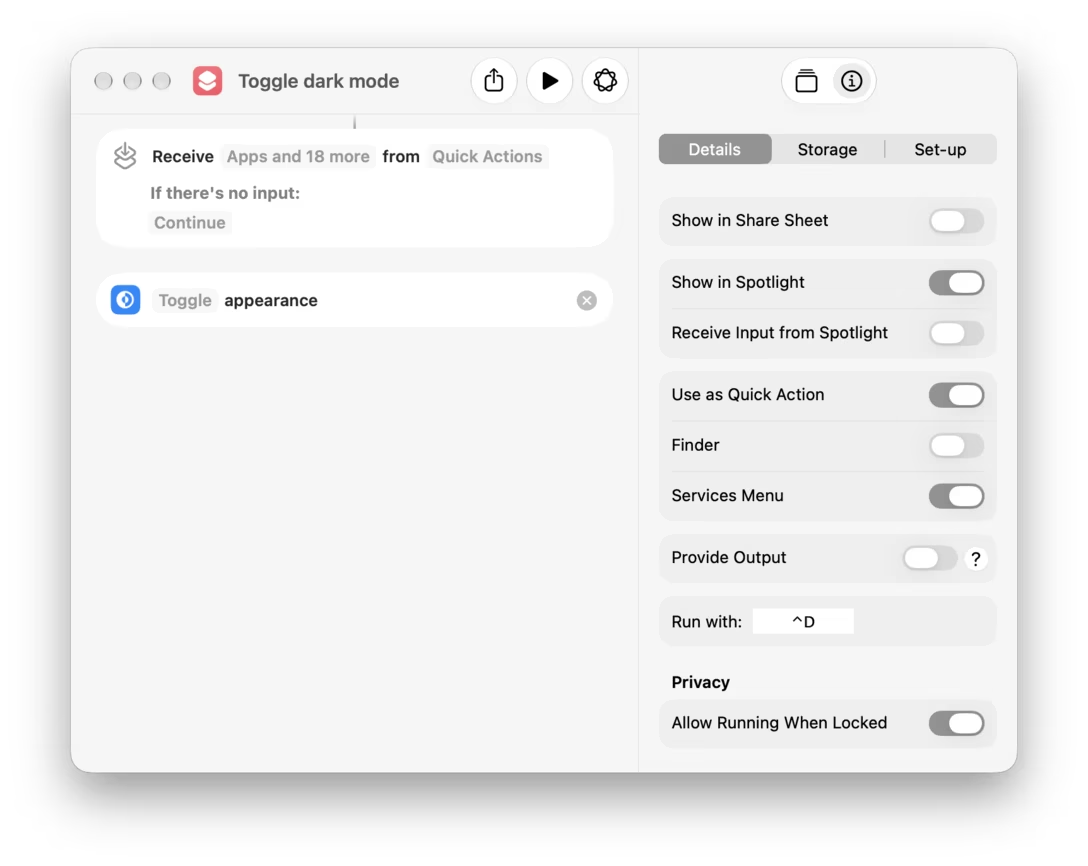
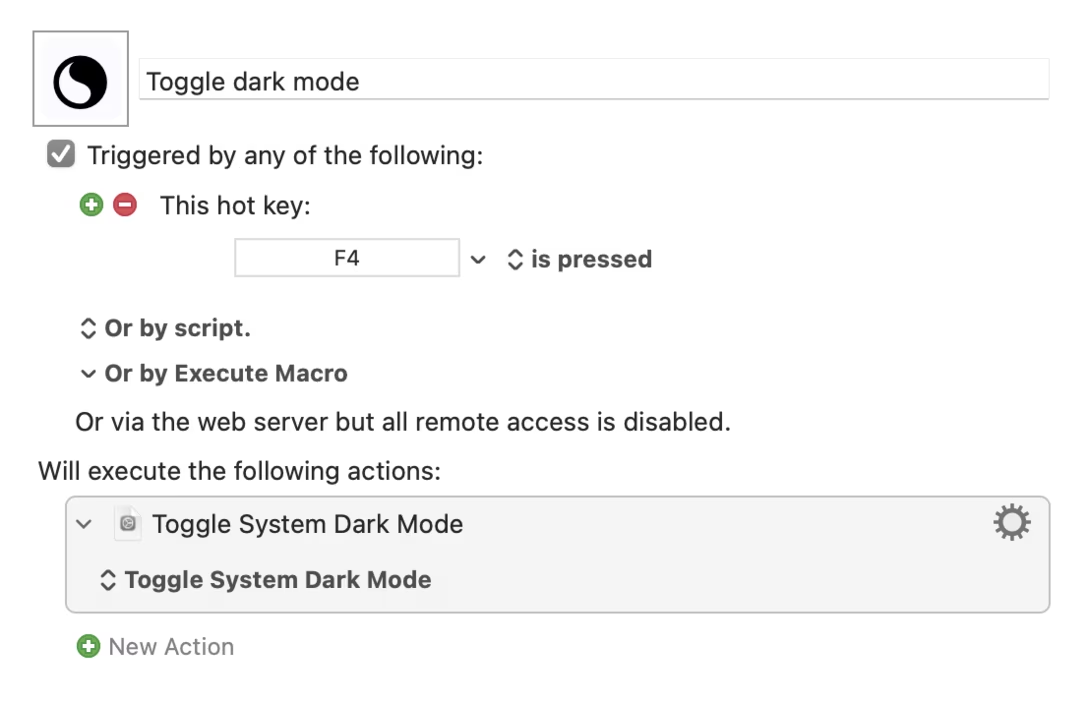
But I prefer Keyboard Maestro, where it looks like this:
You might say “isn’t this a one-click change in System Settings”? But in my experience the tax on that one click is heavy: you’ll have to navigate to the correct pane, which might be far away depending on where you left System Settings last, you definitely have to grab the mouse to do it… plus, System Settings these days is the kind of neighborhood you don’t drive into after dark:
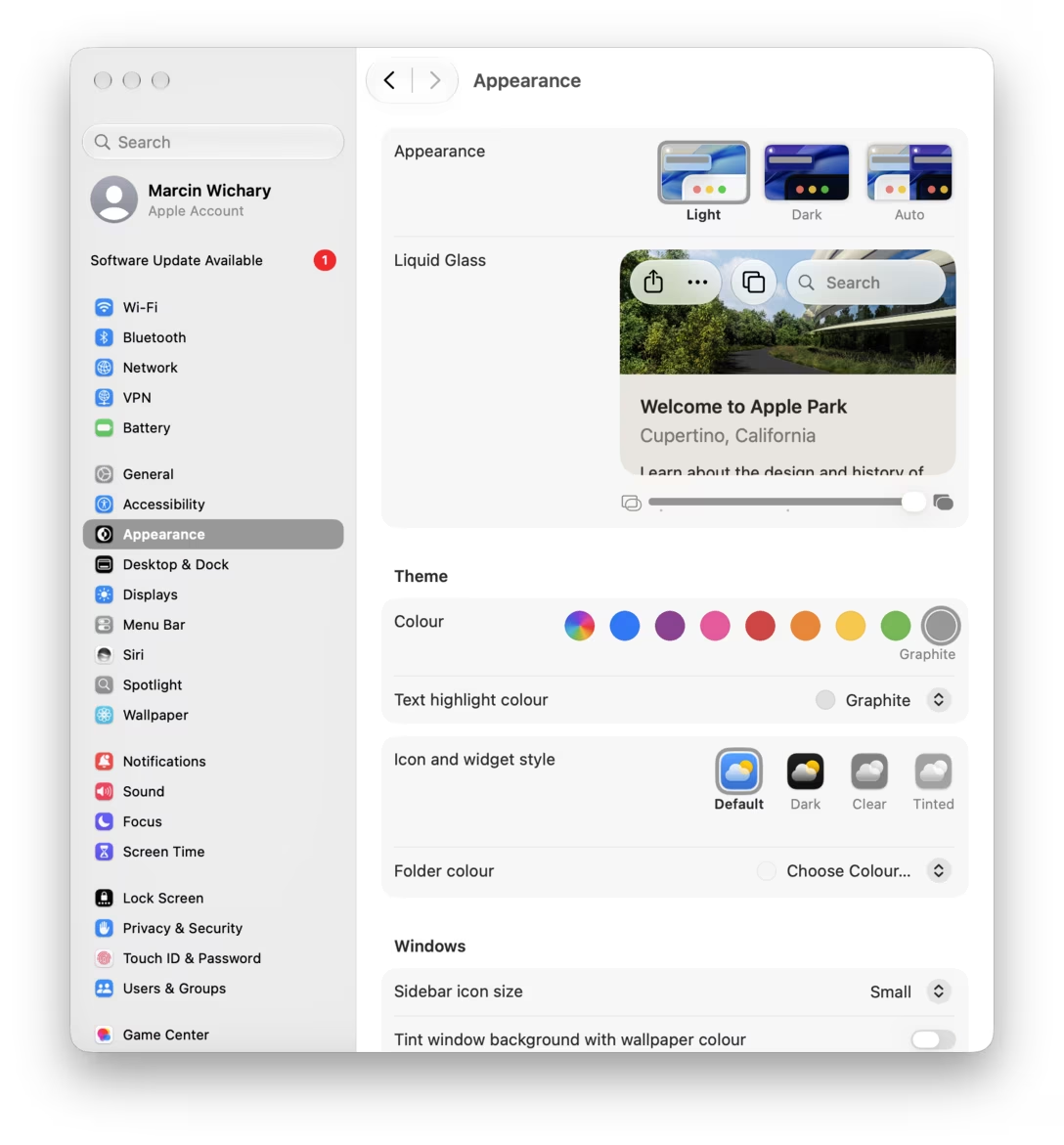
This way something that feels “one-click” amasses enough friction so that I would only do it when I really had to. With my setup, I am using it constantly without thinking about it, and get a lot more testing done.
If keystrokes aren’t your thing, you can also try putting it in the menu bar somehow, although I could not get this to work in Shortcuts, despite promises.
If you like this idea, I also have a few sibling shortcuts for similar things:
- toggling my display between retina and non-retina (non-retina screens are increasingly rare, but there are also some instances where thin retina lines completely disappear on non-retina screens, and that has some overlap with supporting zoom levels well, too):
- toggling the “reduce transparency” accessibility option – necessary as macOS Golden Gate has a bug where some screenshots look very dirty without it:
- I also have “no JavaScript,” “slow connection,” and “no internet” keystrokes specifically for developing in the browser. But that’s a whole other story.